Create your first diagram
Last updated November 14, 2026
This guide takes you through your first play in Playside Diagrams: pick a sport, place a formation, draw routes and save. The example is an 11-player football play called Y Stick.
Before you start
- Sign in to Playside Diagrams. Diagrams is free, and you don't need a team.
- Use a computer. The steps use a mouse and keyboard.
Pick your sport
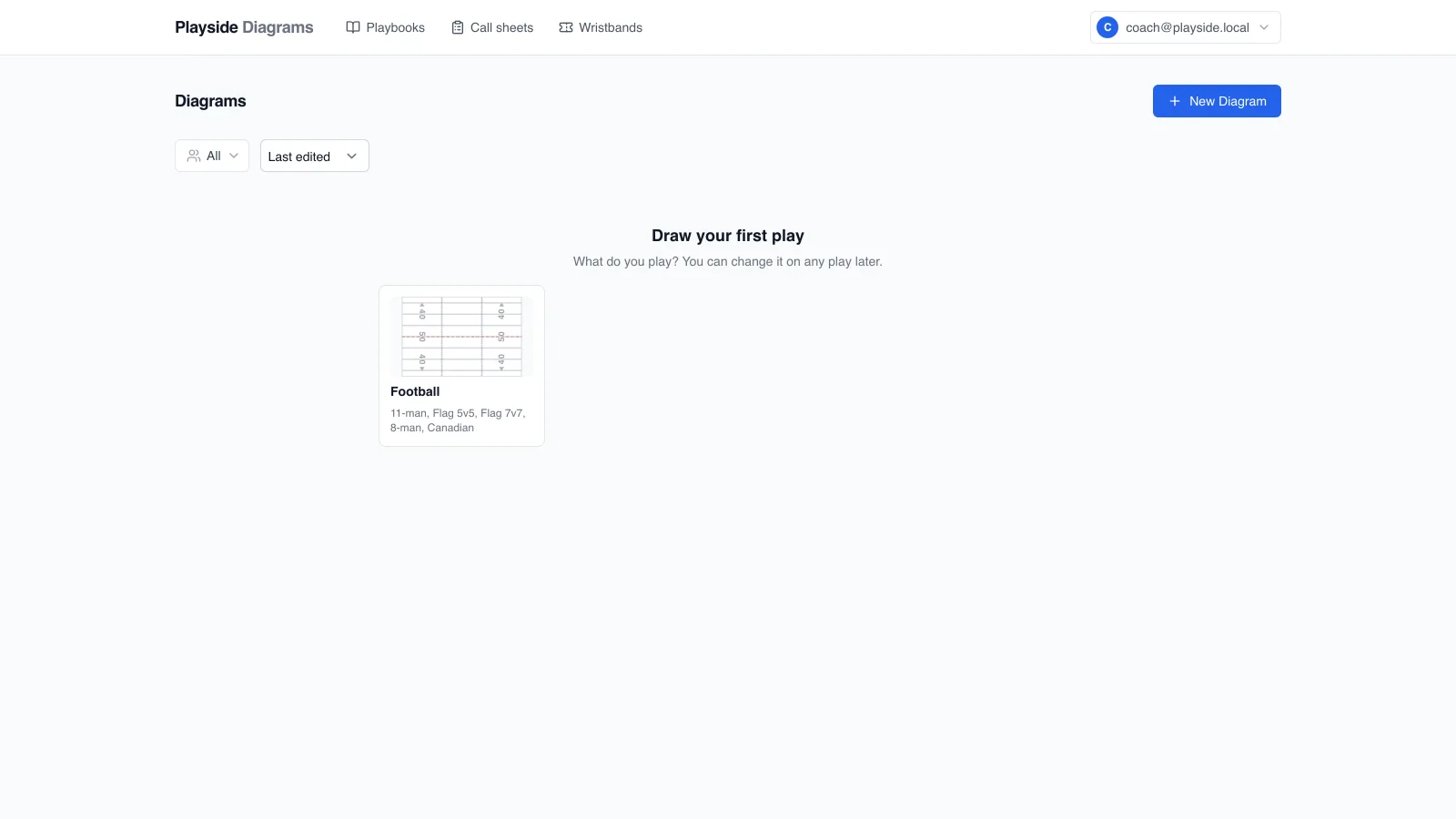
When you have no plays yet, the Diagrams page shows Draw your first play with a tile for each sport.
- Click the Football tile.
- A row opens under the tiles and asks Which football? Click Football 11.
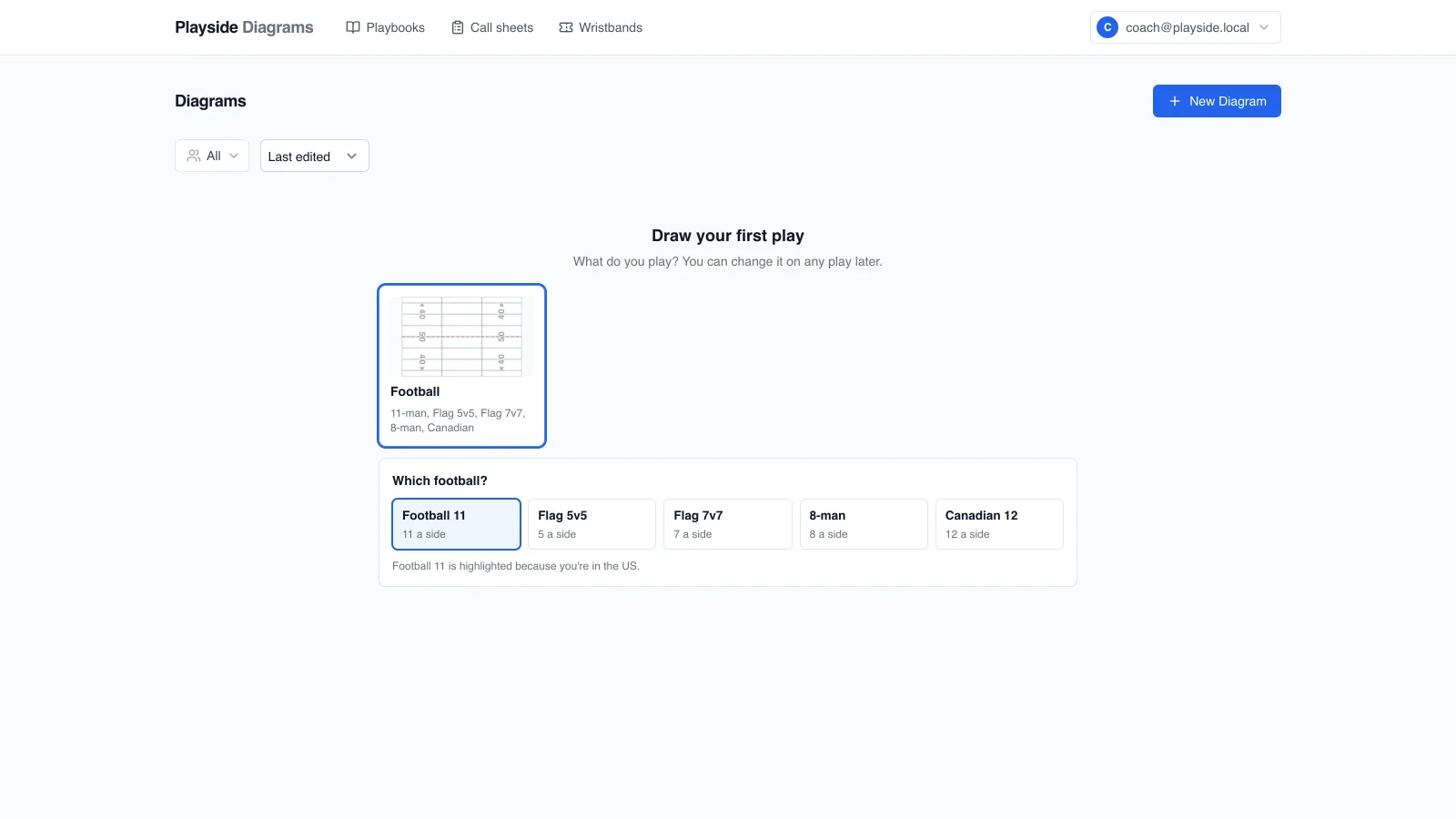
A blank field opens in the editor. A sport with only one version, such as Basketball, skips the row and opens its court straight away.
Already have plays? Click New Diagram at the top right of the Diagrams page instead.
Name the play and place a formation
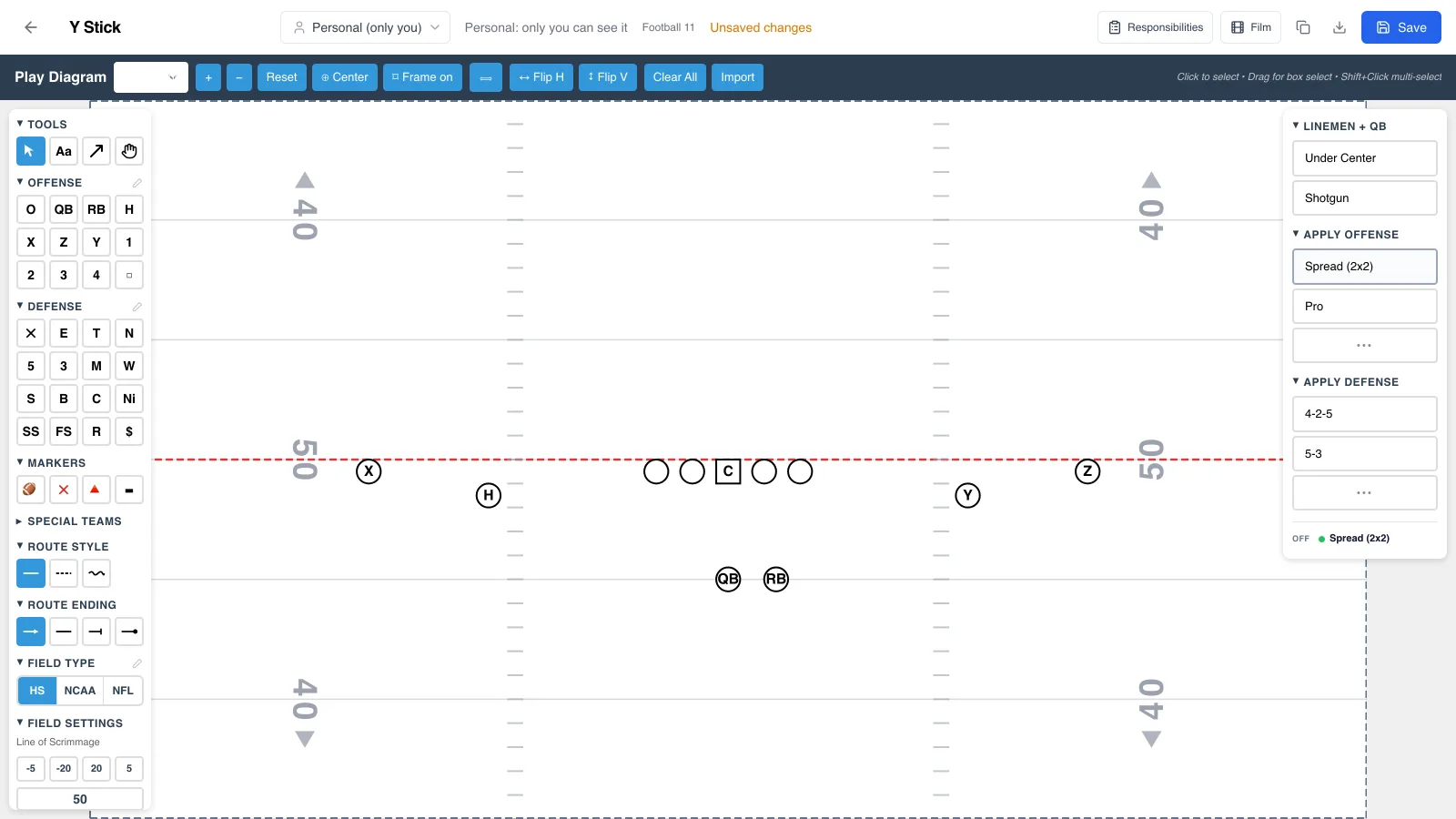
- Click the Diagram name field at the top left and type a name, such as
Y Stick. - In the right panel, under Apply offense, click Spread (2x2). All 11 offensive players appear on the field.
- Press Esc to clear the selection.
Draw the routes
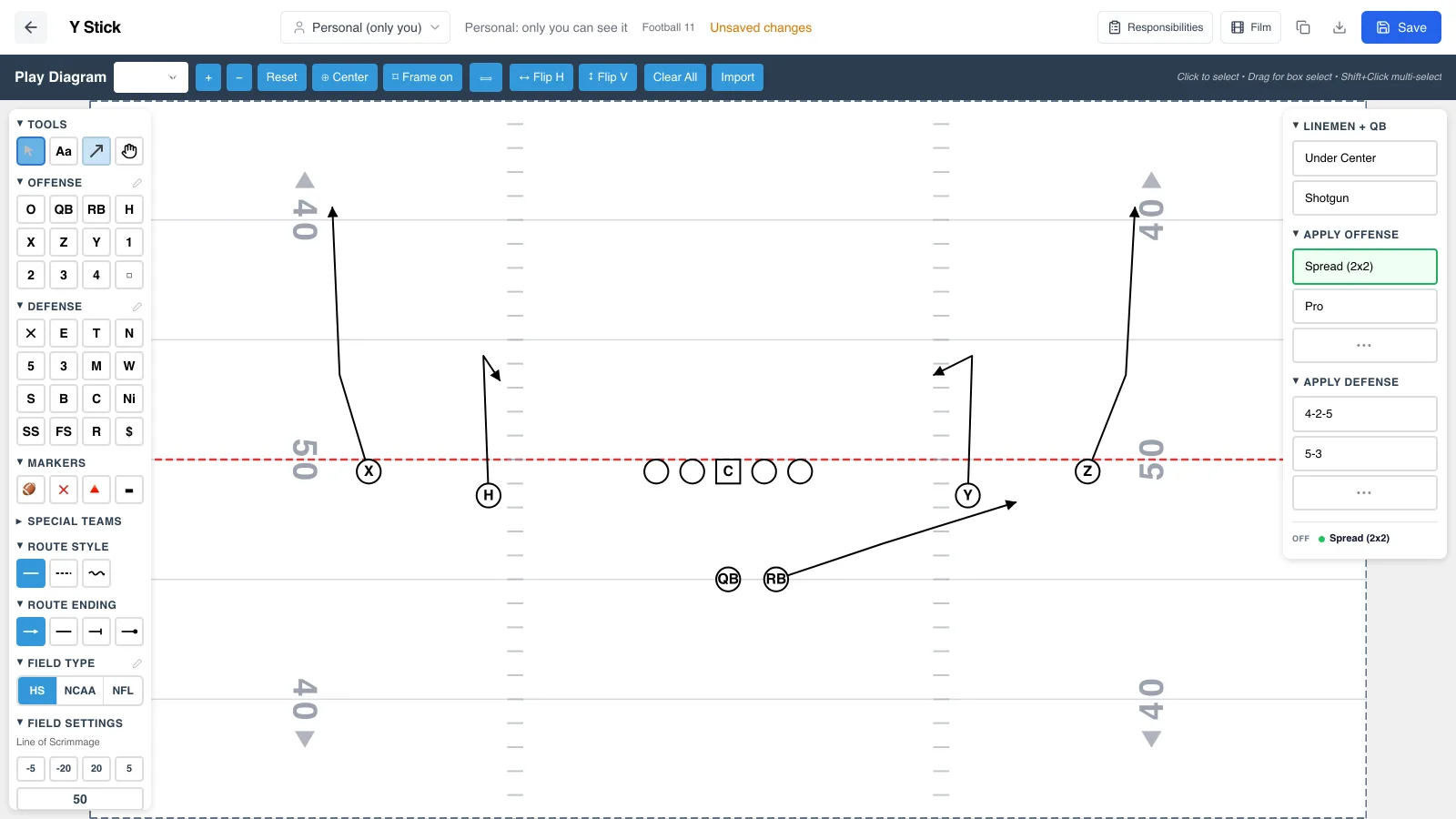
- In the left panel, under Tools, click the Route tool (the arrow), or press R.
- Click the player where the route starts, such as Y.
- Click each point where the route turns.
- Press Enter to finish the route. It ends in an arrow.
- Draw the other routes the same way. Y Stick has a flat for the RB, go routes for X and Z, and a hitch for H.
- Click the Select tool, or press Esc, to stop drawing and look over the play.
Pressing Esc while a route is still being drawn throws that route away. To change the line or the end of the next route, use Route Style and Route Ending in the left panel before you draw it.
Save the play
- Click Save at the top right. When the play is saved, Unsaved changes goes away.
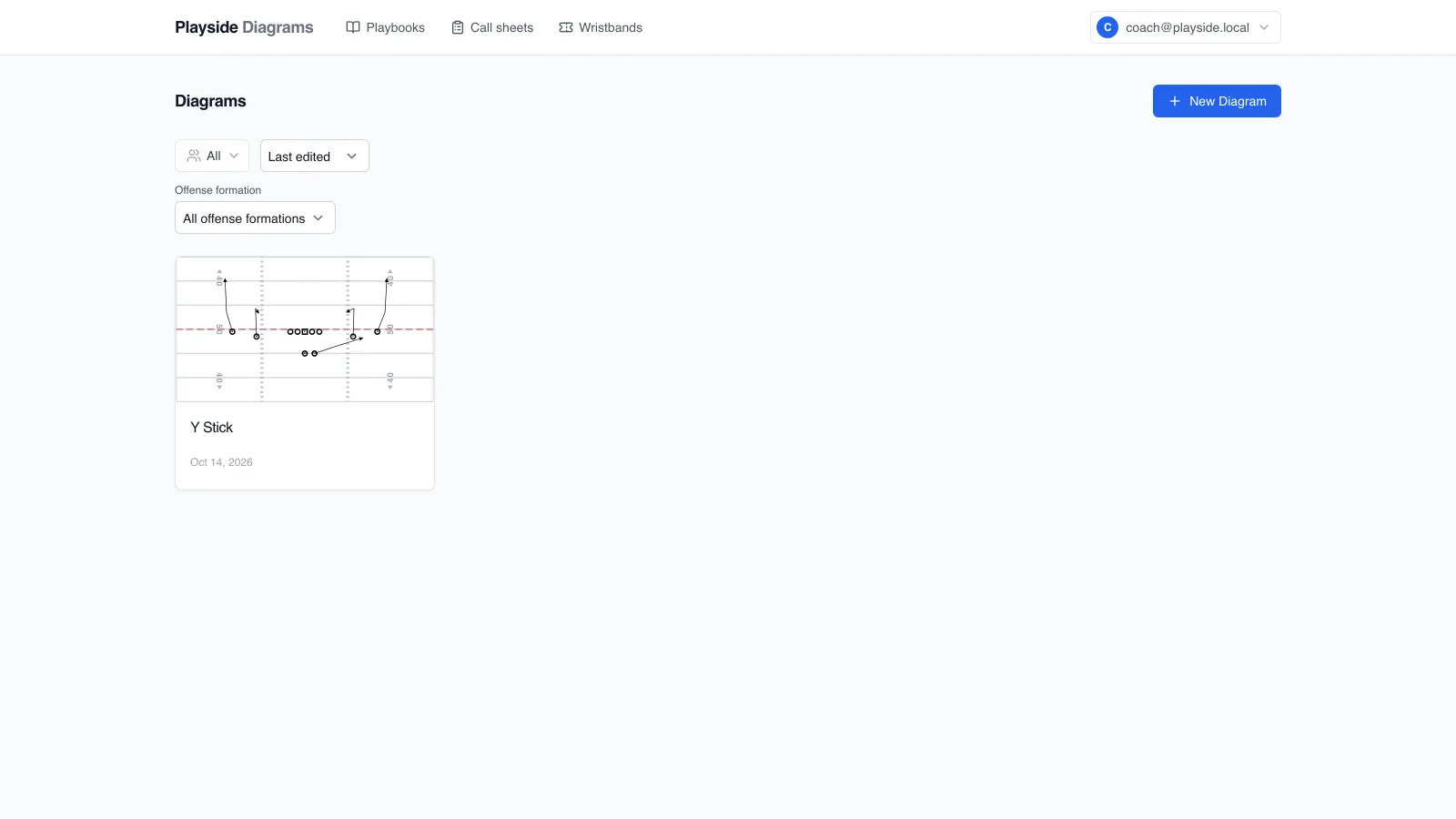
- Click the back arrow at the top left to go back to the Diagrams page. The play is now a card with a picture of the play.
- Click the card any time to open the play again.
Download a picture
To save a PNG of the play, click the download icon (Download PNG) at the top of the editor. If the play is saved and you don't see that icon, click the share icon (Share this play) and choose Download PNG there.
Other sports
The steps are the same in every sport: pick a tile, name the play, place players, draw and save. Each sport has its own field, court or rink, its own number of players and its own starter formations, so the choices in the right panel change with the sport.