Draw on film in Crop
Last updated November 20, 2026
Pause the film and draw on the frame: an arrow for a pulling guard, a circle on a linebacker, a word of text. Each drawing sits on the frame you drew it on, saves with the game, and goes to Playside with the plays when you export the game.
Drawing works in Crop mode, not in Tag mode.
Open the drawing tools
- Select Pause on the frame you want.
- Select Draw at the top right of the film. Drawing tools opens in its place.
- Choose a tool:
- Select: select a drawing to move or resize it.
- Draw: draw freehand.
- Line and Arrow: drag from start to end.
- Circle and Rectangle: drag across the area to mark.
- Text: select a spot, type, then select Save.
- Eraser: select a drawing, or drag across it, to delete it.
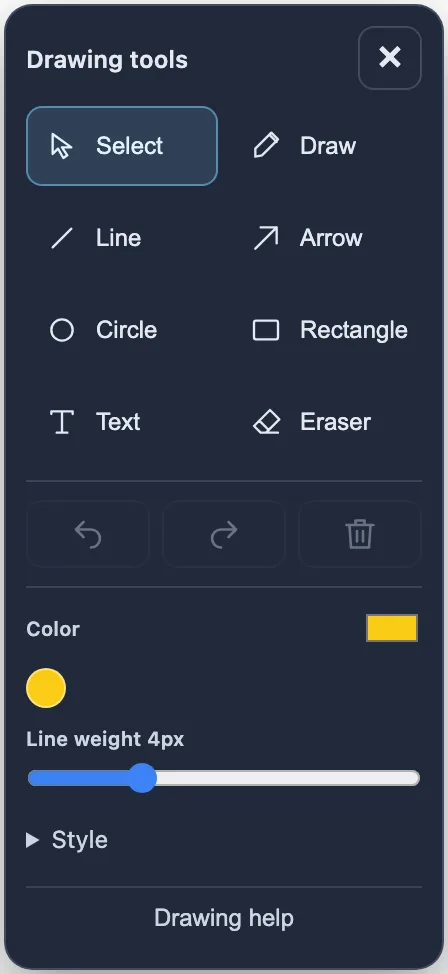
After each drawing, the tool goes back to Select. The tools are greyed out while the film plays; pause it to draw again.
Select the × at the top of Drawing tools to close them. Crop's editing buttons and shortcuts work again once they're closed.
Change the color and size
- Color: select the swatch to pick a color. Colors you've used show under it. Drawings start yellow.
- Line weight: how thick lines are.
- Style, then Opacity: how see-through the drawing is.
- Font: the text size, shown when the Text tool is chosen.
To change a drawing you've made, select it with Select, then change the settings.
Undo, redo or delete
Under the tools, select Undo or Redo (the curved arrows), or Delete selected (the trash can) to delete the drawings you've selected.
Find your drawings again
Each frame with drawings has a yellow marker on the timeline under the film. Select a marker to jump to that frame with its drawings selected, ready to move or delete.
When the film plays, it stops at each drawing so you can talk through it. To play straight through, turn off Pause at annotations, the switch with the pencil beside the editing buttons under the film.
Drawings save with the game, along with its plays and tags.
Drawings in Playside
When you export the game to Playside, or update a game you exported, each drawing goes onto the Playside clip it falls in. The export summary lists Drawings with how many were Created, Updated, Deleted, Unchanged and Skipped. A drawing outside every exported play is skipped, and its time is listed under Outside exported clips.
In Playside, the drawings work like any other: see Draw on film.
Sending goes one way, from Crop to Playside:
- Crop changes only the drawings it sent. Drawings your staff add in Playside stay as they are.
- If someone edits a Crop drawing in Playside, your next export from Crop can replace that edit.
- Sync, for a game you opened from Playside, doesn't send drawings.
Shortcuts on a keyboard
These work while Drawing tools is open and the film is paused. Use Drawing help at the bottom of the tools to see them in Crop.
Vselect,Ddraw,Lline,Rarrow,Ccircle,Srectangle,Ttext,EeraserEsc: back to Select, with nothing selectedDeleteorBackspace: delete the selected drawingCmd+ZorCtrl+Z: undo;Cmd+Shift+ZorCtrl+Shift+Z: redoSpace: play or pause- While typing text:
Enterto save it,Escto cancel