Sign in to Playside Crop
Last updated November 20, 2026
Crop cuts a full game into plays, fills in tags with AI and sends the plays to Playside. It runs in your web browser at crop.playside.co, and you sign in with your Playside account.
Crop is in beta and invite-only: Playside turns it on for your account. If your account doesn't have it yet, see Request access.
Open Crop
- From Playside: open your account menu (the person icon at the top right) and select Playside Crop (Beta). Crop opens in a new tab. The link shows only once Crop is turned on for your account.
- Directly: go to crop.playside.co.
Sign in with your Playside account
- On Sign in to use Playside Crop, select Sign in to Playside.
- Sign in the way you sign in to Playside: Continue with Google, Continue with Microsoft, Continue with Meta or Continue with Email.
- Playside sends you back to Crop, which shows Checking your Playside access for a moment.
With access, Crop opens on the page where you bring in film. The top of the page shows Signed in as and your name, with Sign out beside it. Next, bring in your film and detect plays.
Already signed in to Playside in this browser? Crop skips the sign-in and checks your access straight away.
By signing in, you agree to the Playside Terms of Service and Privacy Policy, linked under the button.
Request access
If your account doesn't have Crop yet, Crop shows Playside Crop is invite-only with the email address you signed in with.
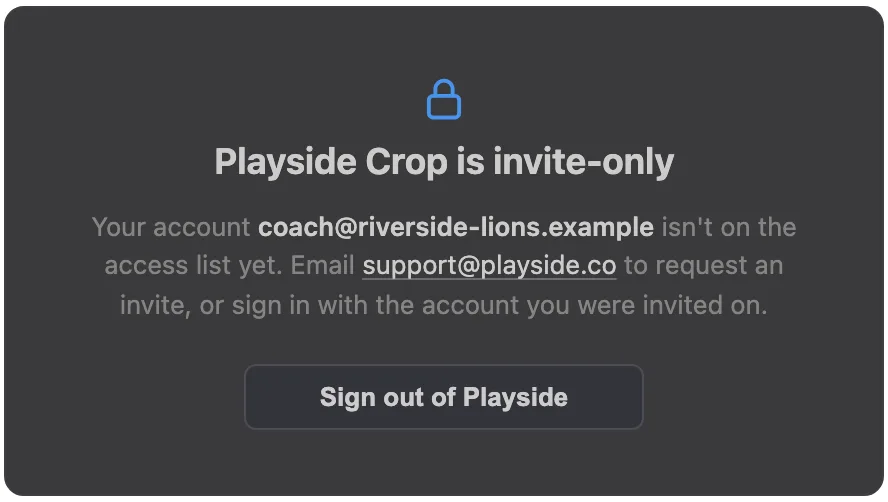
- To request access, email support@playside.co from that page's link and include the email address of your Playside account. Once Crop is turned on for your account, open Crop again.
- Invited on a different email address? Select Sign out of Playside, then sign in with that one.
If sign-in doesn't work
Couldn't check your access
Crop didn't get an answer from Playside. Select Try again in a moment. If it keeps happening, email support@playside.co.
Your browser blocked the Playside sign-in window
This shows when Crop already has film open and you signed out in the meantime. Allow pop-ups for crop.playside.co in your browser, then select Sign in to Playside again. Your open film and edits stay where they were.
You're signed out of Playside
You signed out of Playside in another tab while Crop was open. Select Sign in to Playside to keep working. Your open film and edits are still there.