Send your plays to a Playside game
Last updated November 20, 2026
When the plays are cut and tagged, send them to Playside. Each play becomes a clip in the game, with its tags in the play table, ready for your staff and players.
How you send them depends on where the film came from:
- Film you uploaded or picked from Google Drive: create a new Playside game.
- A game you opened from Playside: sync it.
Create a new Playside game
Select Export in the toolbar under the film, then Export clips….
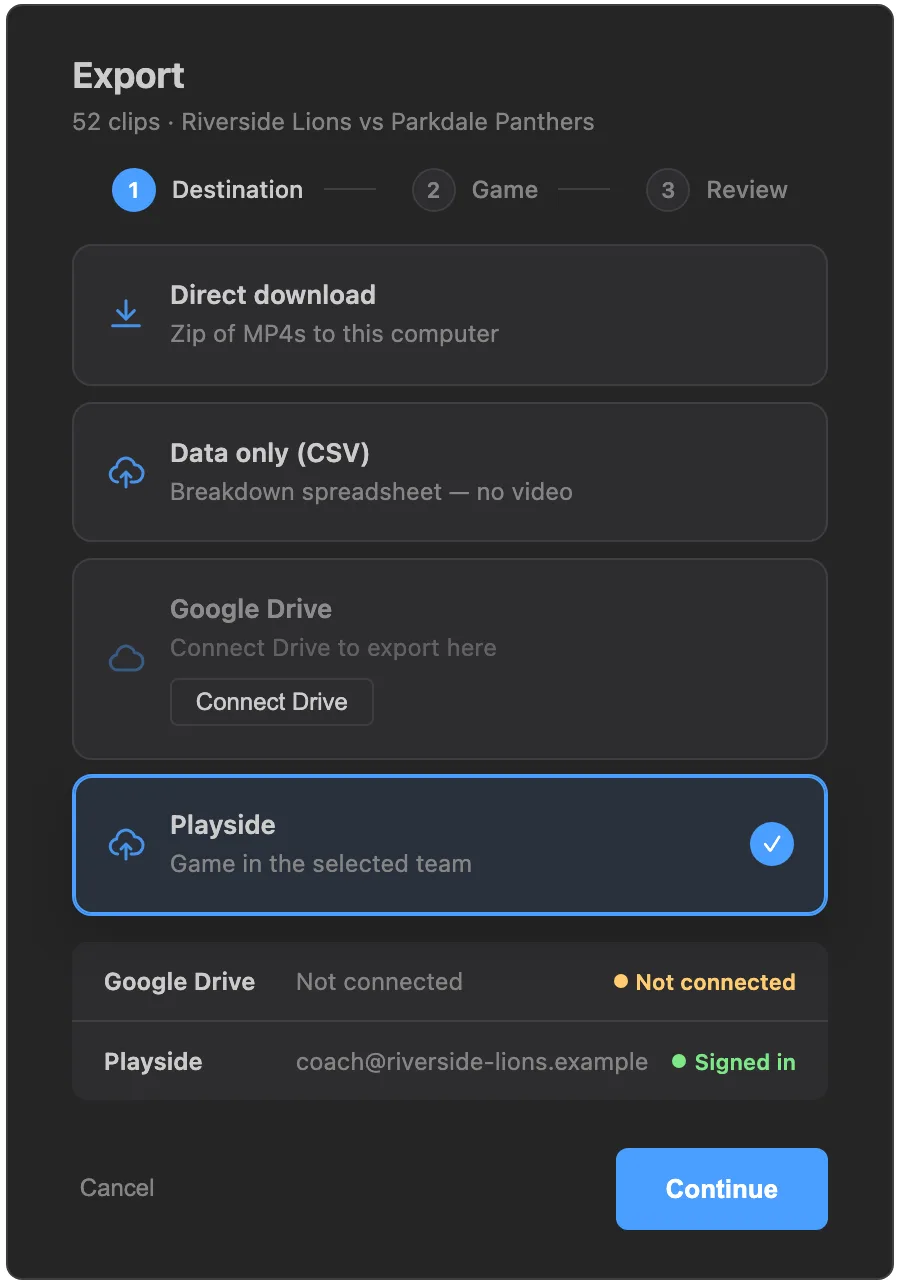
Under the destinations, select Playside. The list below it shows the Playside account you're signed in with. If it says you aren't signed in, select Sign in to Playside first.
Select Continue.
Choose Game or Practice, then the Team the game goes to.
For a game, enter the Home team and Away team, the Game date and, if you like, a Game title. You can change these in Playside later.
Select Continue.
Check the summary. ODK Perspective names the team whose offense is tagged O. If it's the wrong team, select Change, or select the right team under ODK Perspective.
Select Create Game.
Crop shows Playside Game Created with the number of clips. Select Open Game to see it in Playside. The clips can take a few minutes to finish processing there.
Update the game after more edits
Changed cuts or tags after exporting? Send the changes to the same game instead of making a new one.
- Select Export, then Export clips…, then Playside.
- Choose Update existing game, then select Continue.
- Check the summary. It lists the Tag updates, Re-cuts, Adds and Deletes that will be sent.
- Select Update Game.
Crop shows Playside Game Updated, or Already in Sync if there was nothing new to send. To make a separate game instead, choose Create new in step 2.
Sync a game you opened from Playside
A game you opened with Open from Playside goes back to that same game.
- Wait for Detect and Auto Tag to finish.
- Select Sync in the toolbar under the film.
Crop sends the plays and tags back to the game. Tags you entered take priority over suggestions. Sync is also at the top of Tag mode.
Other places to send plays
The Export menu also has Download CSV, a breakdown spreadsheet you import into Hudl. Under Export clips…, Direct download saves a zip of every play as an MP4, and Google Drive saves the clips to your Drive. In Tag mode, the export menu adds ⤓ CSV (Hudl) and ⤓ CSV (QwikCut).
If the export doesn't work
Export is greyed out
Point at it to see why. Export needs the film fully uploaded and at least one play, and it waits while Detect, Auto Tag or another export is running.
Not signed in to Playside
Select Sign in to Playside in the export window, sign in, then continue. Your film and edits stay open in Crop.
No teams available
Your Playside account isn't on a team yet. Join your team from an invite, or create a team in Playside, then open the export again.