Set who can download, share and delete film
Last updated November 17, 2026
Team admins choose who else can download film, share it outside the team and delete games. Admins can always do all three. For everything else each role can do, see What each role can do.
Open the Permissions tab
- Select the person icon at the top right, then Team Settings.
- Select Permissions. Only admins see this tab.
A new team starts with all three settings on Admins only. Each choice saves as soon as you select it.
Downloads
Each option adds people to the one before it:
- Admins only: nobody else.
- Admins and coaches: coaches too.
- Add players: coaches and players.
- Everyone on the team: coaches, players and parents.
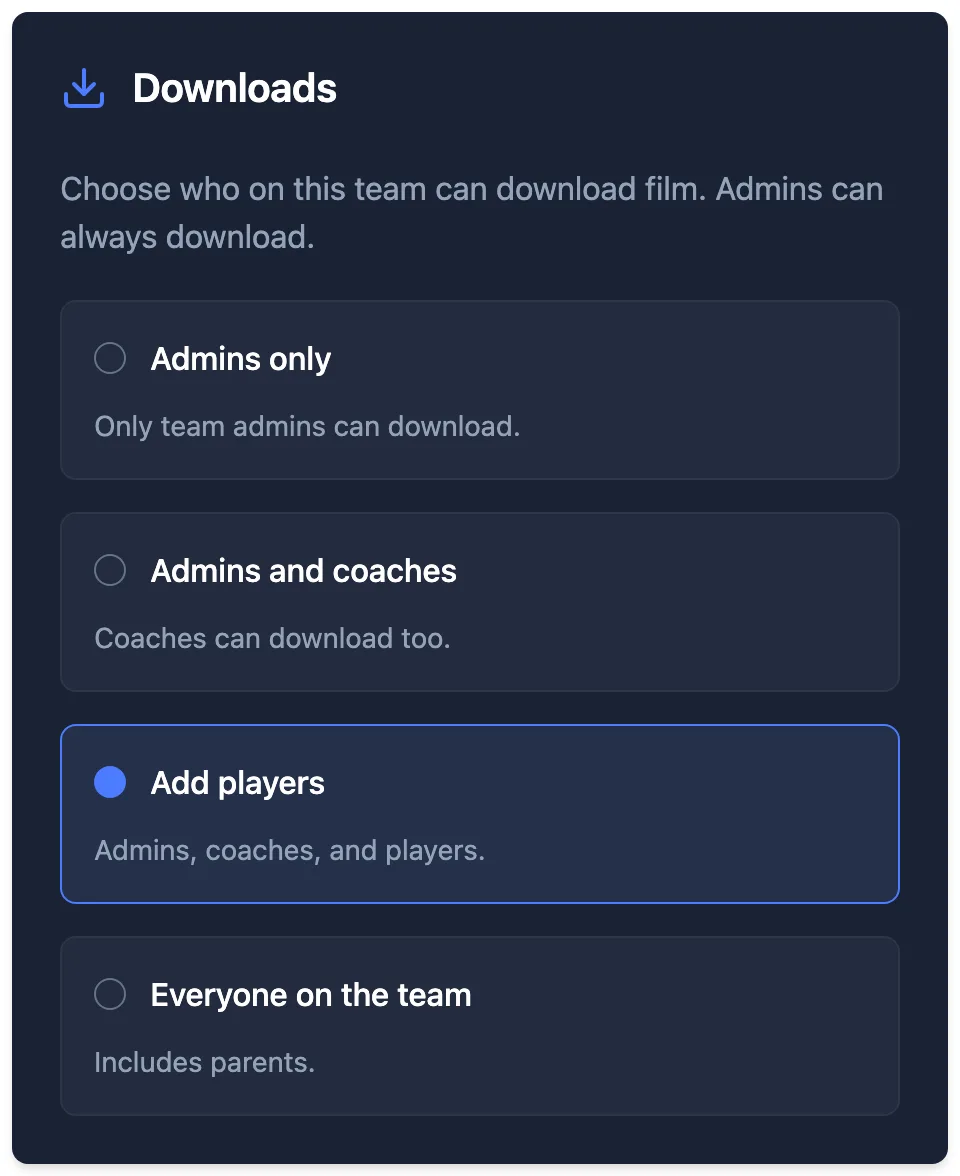
People who can download see Download… in the three-dot menu on each game and playlist on the dashboard. Choose Add players, for example, and players see it the next time their dashboard loads.
This doesn't change Allow Public Downloads on a public game or playlist link. That switch covers only the public page.
Film Sharing
This decides who can share film outside the team:
- Send a game to another team, or trade games with one.
- Turn on Enable Public Access for a game or playlist, so anyone with the link can watch until the link ends.
- Make a play's link public in Playside Diagrams.
Choose Admins only, or Admins and coaches to let coaches do these too. Players and parents never can.
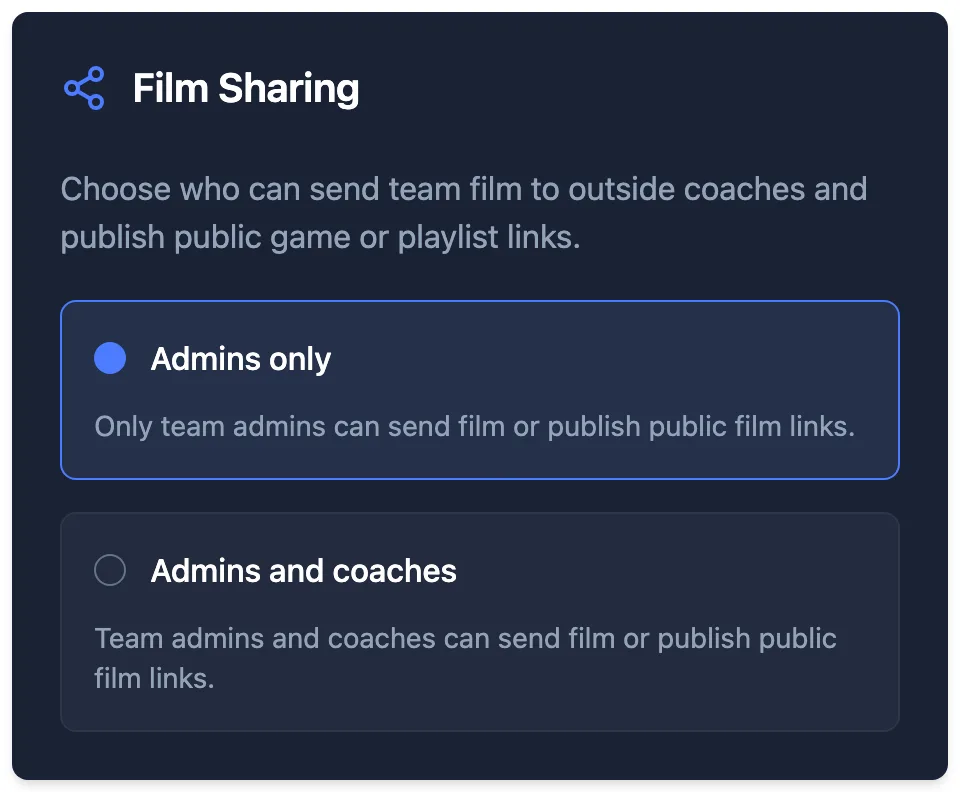
Coaches who can share see Send to another team and Trade with another team when they select Share… on a game, and can turn on Enable Public Access. Otherwise Share… offers only Share with your team, which emails your own team, and the Enable Public Access switch is greyed out.
Sending and trading need a paid plan. On the free plan or a trial, Share… shows Send or trade with another team with an Upgrade badge and the line "Upgrade your plan to share film with other teams." Public links work on any plan.
Game Deletion
- Admins only: admins, plus whoever uploaded the game.
- Admins and coaches: coaches can delete any game on the team.
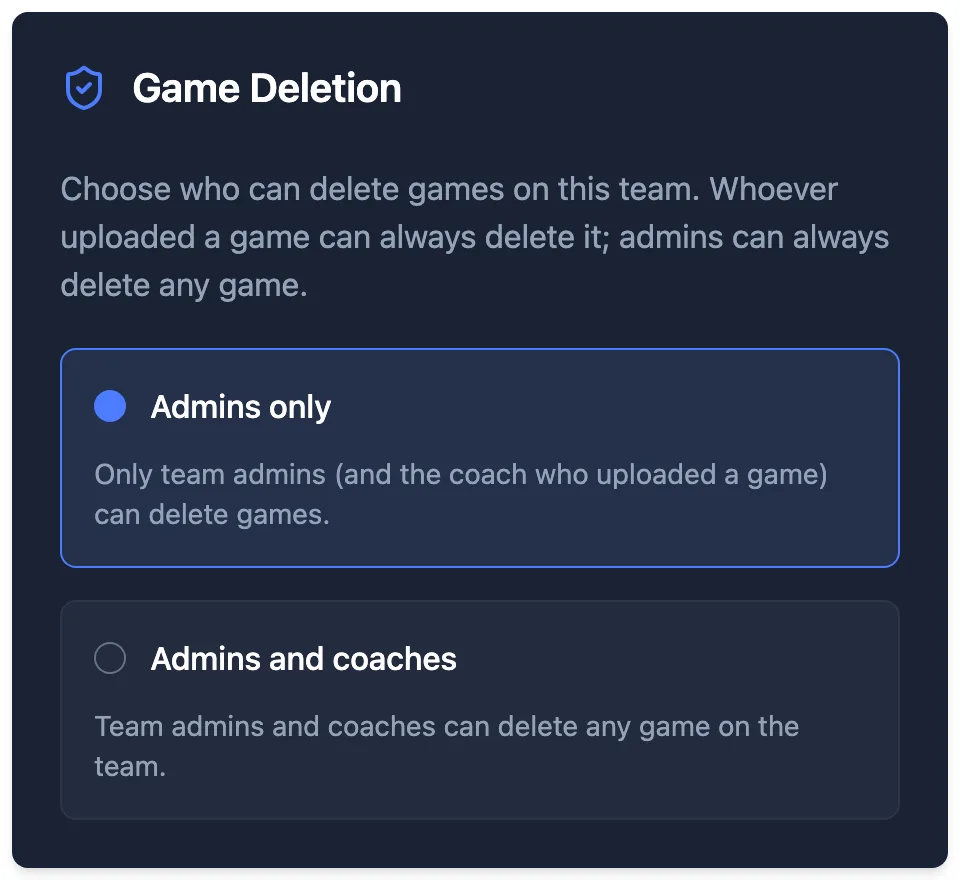
Whoever uploaded a game can always delete it, whatever you choose. Practices follow the same setting. People who can delete see Delete event in the game's three-dot menu. Deleting a game removes it and its plays for good.