Invite coaches, players and parents
Last updated November 16, 2026
Admins and coaches invite people by email from Team Settings. Each person gets their own invite and joins with the role you pick.
Invite someone
- Select the person icon at the top right, then Team Settings. The Members tab opens.
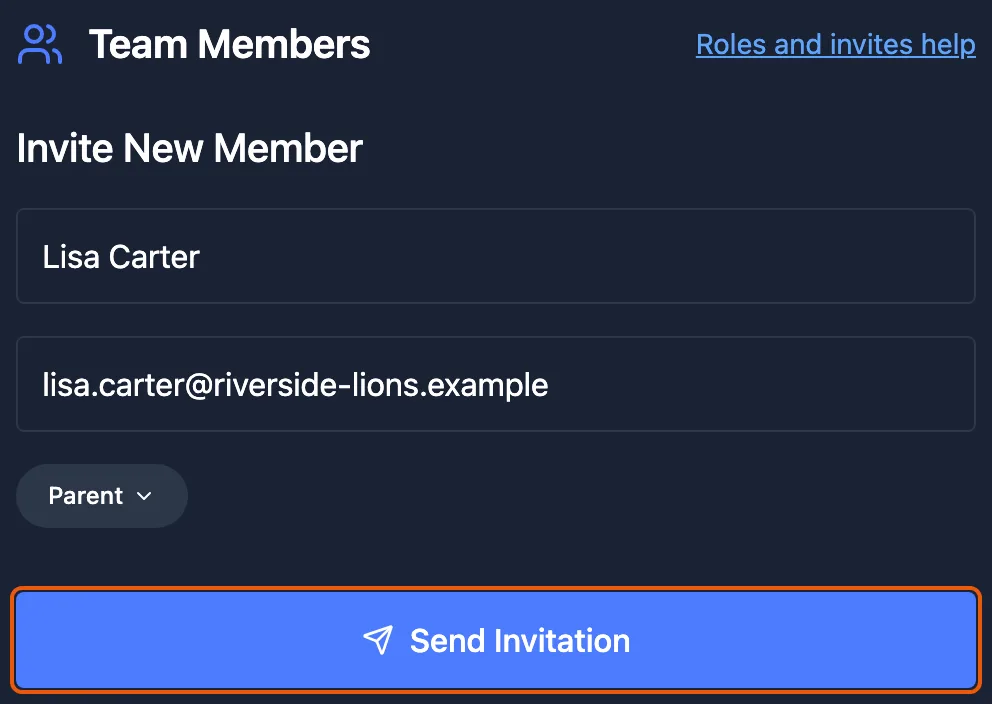
- Under Invite New Member, enter the person's name and email address.
- Select the role button, which starts on Coach, and choose Admin, Coach, Player or Parent.
- Select Send Invitation.
The person gets an email from Playside with a Review invitation button. The invite lasts 7 days. Send them Join your team from an invite if they need help.
Only admins can invite an admin.
Resend or cancel an invite
Until someone accepts, their invite sits at the bottom of the list with its role and a Resend button.
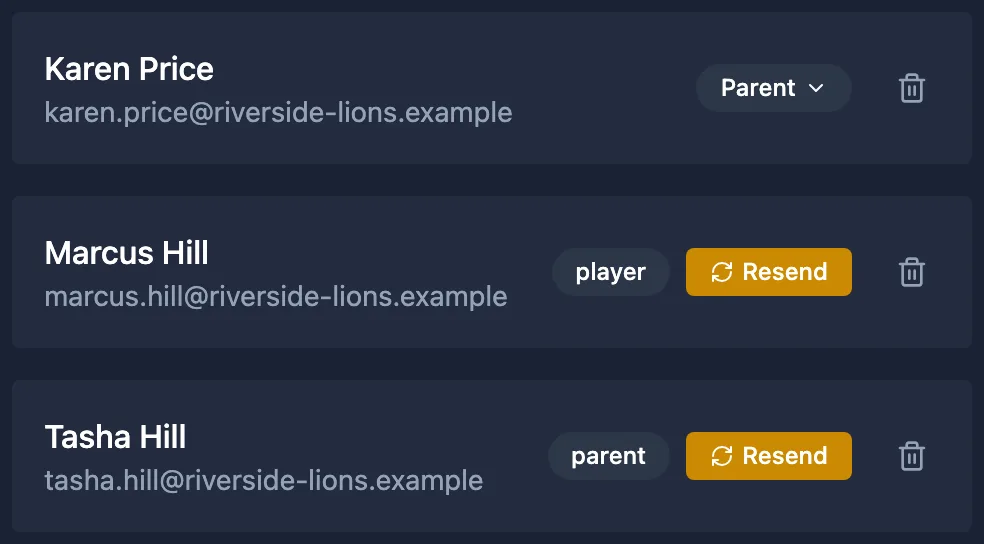
- Resend emails the invite again. If its 7 days are up, the new email has a fresh link that lasts another 7 days.
- To cancel an invite, select the trash icon next to it, then Remove. Only admins can cancel invites.
To change the role on a pending invite, cancel it and invite the person again.
What each role can do
- Admin: Everything a coach can do, plus the team's Permissions settings and cancelling invites. Admins can always download, share and delete film.
- Coach: Opens Team Settings, invites people, edits the roster, changes roles and removes people, except admins. Edits team playbooks in Playside Diagrams. Downloads film, sends it outside the team and deletes any game only if an admin allows it.
- Player: Watches team film and playlists and views team playbooks. Downloads film only if an admin allows it.
- Parent: The same as a player. Downloads film only when an admin allows everyone on the team.
Admins set what coaches, players and parents may download, share and delete in Team Settings > Permissions. A new team starts with all three set to admins only. Whoever uploaded a game can always delete it.
Members and Roster are different lists
- Members are people who log in to Playside with their own email address.
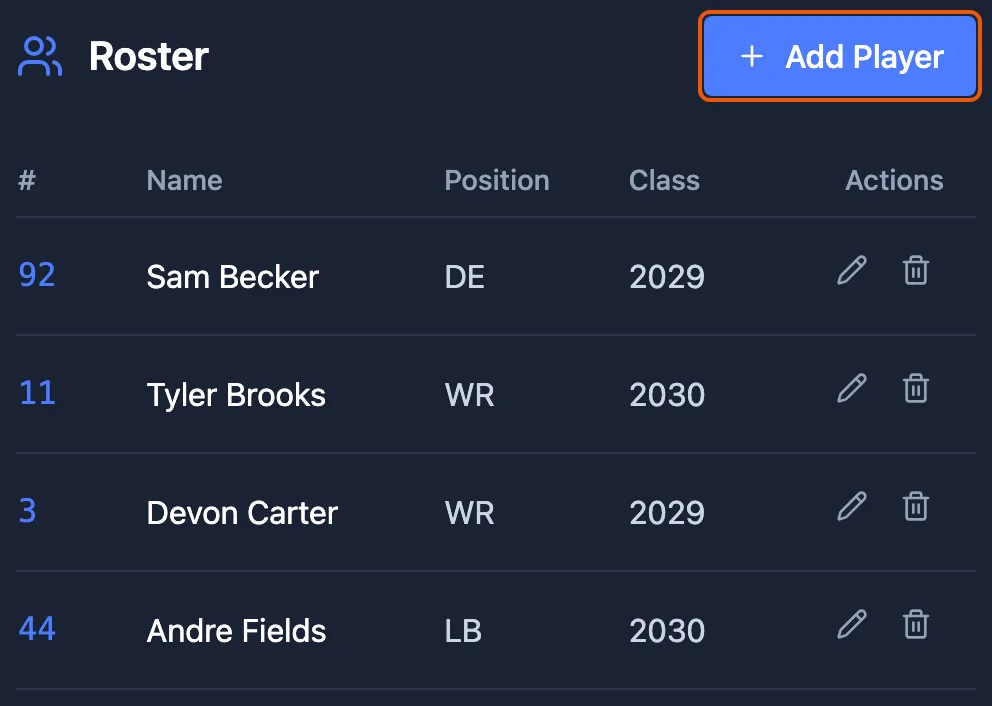
- Roster is your player list: jersey number, name, position and class year. Playside uses it to put names to jersey numbers when you tag plays. A roster entry has no email and gives nobody access.
The two lists aren't linked. To tag a player on film and let them watch it, add them to Roster and invite them in Members.
To add a player to the roster:
- In Team Settings, select Roster.
- Select Add Player.
- Enter the jersey number, first and last name, and if you like, position and class year. Select Add.
Change a role or remove someone
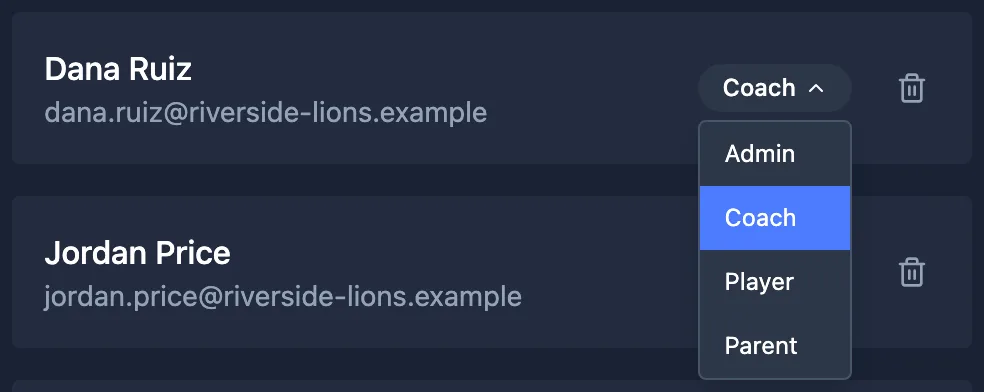
- In Members, select the person's role, such as Coach, and choose a new one. It saves right away.
- To remove someone, select the trash icon next to them, then Remove. They lose access to the team's film and data.
Coaches can't change or remove an admin, or make anyone an admin. Nobody can change their own role.
Every team keeps at least one admin. If you're the only admin and want to leave, make someone else an admin first. Then open the account menu, select your name, and select Leave next to the team.
Parents
Invite each parent like anyone else, with the Parent role and their own email address. Each invite is for one person; Playside doesn't link a parent to a particular player.
One email address has one role on a team. If a player and a parent share an address, invite it once with the role that fits.
Playside Diagrams uses the same team
Your team's members are the same in Playside and Playside Diagrams. Someone you invite in either app joins both, and their invite shows here as pending. To invite from Diagrams, see Share plays with your coaches and players.
If something goes wrong
Failed to send invitation. Please try again.
Usually that address is already a member or already has a pending invite. Find it in the list and select Resend. Coaches also see this when they choose Admin.
Failed to remove member. Please try again.
On a pending invite, this means you're a coach. Ask an admin to cancel it.
Someone didn't get the email
Check the address in the list, ask them to look in spam, then select Resend. If the address is wrong, an admin cancels the invite and you invite the right one.