Share a game or playlist
Last updated November 17, 2026
Everyone on your team can already watch its games and playlists in Playside. Sharing adds two things: an email telling your team new film is ready, and a public link anyone can watch without a Playside login.
Tell your team new film is ready
Any admin or coach can do this, on any plan.
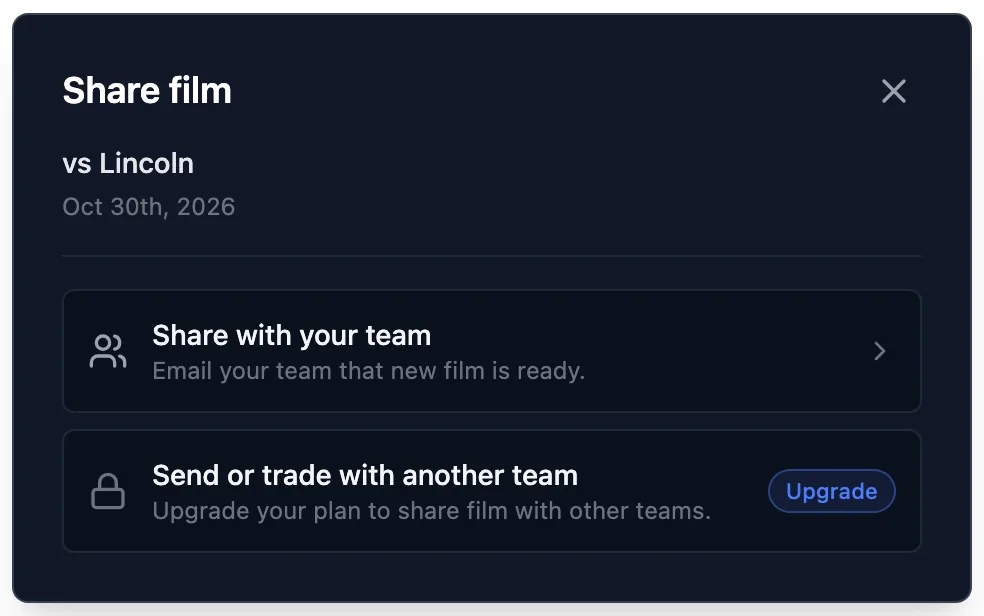
On your dashboard, select Share… from the ⋮ menu on a game.
Select Share with your team.
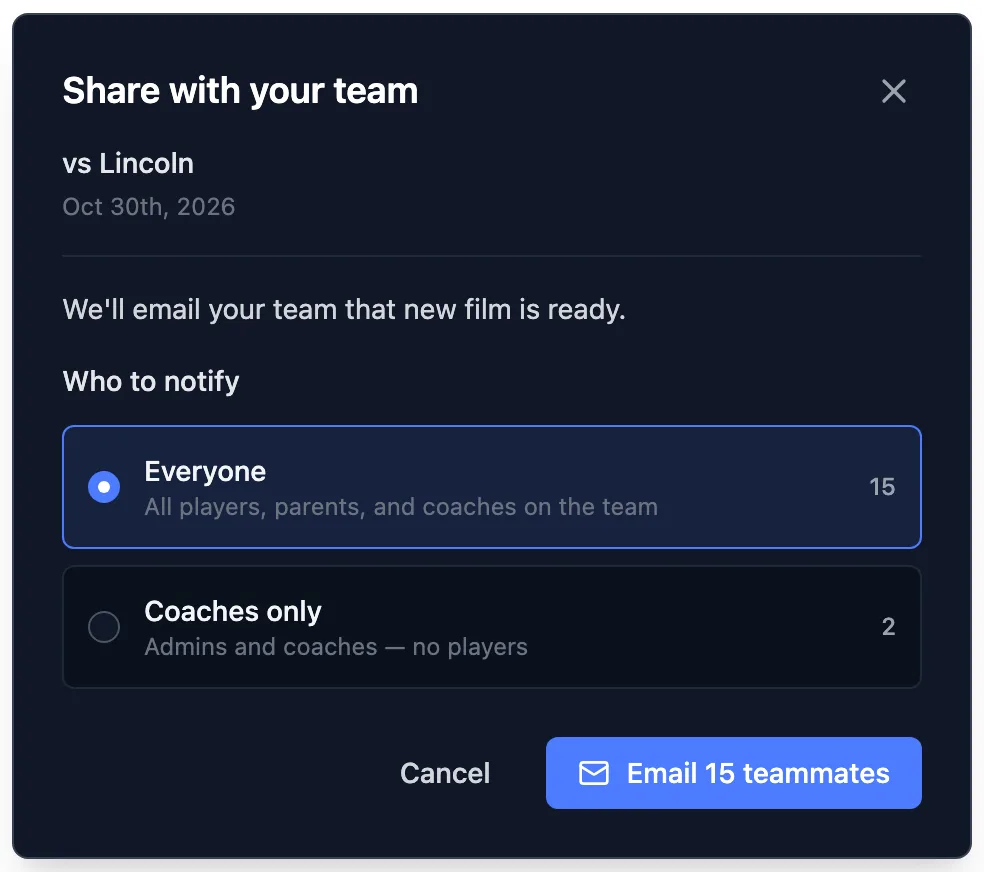
Under Who to notify, choose Everyone (players, parents and coaches) or Coaches only (admins and coaches). The number beside each is how many people get the email.
Select the email button, such as Email 15 teammates. It shows your team's count.
Each person gets an email, New film is ready, with a Watch film button. It opens the game after they sign in, so a forwarded email gives nobody else access.
Make a public link
- Open the game or playlist.
- Above the side panel, select the clipboard icon (Game Data, or Playlist Info for a playlist).
- Turn on Enable Public Access. The link works for 7 days.
- Select Copy Public URL and paste the link wherever you want to send it.
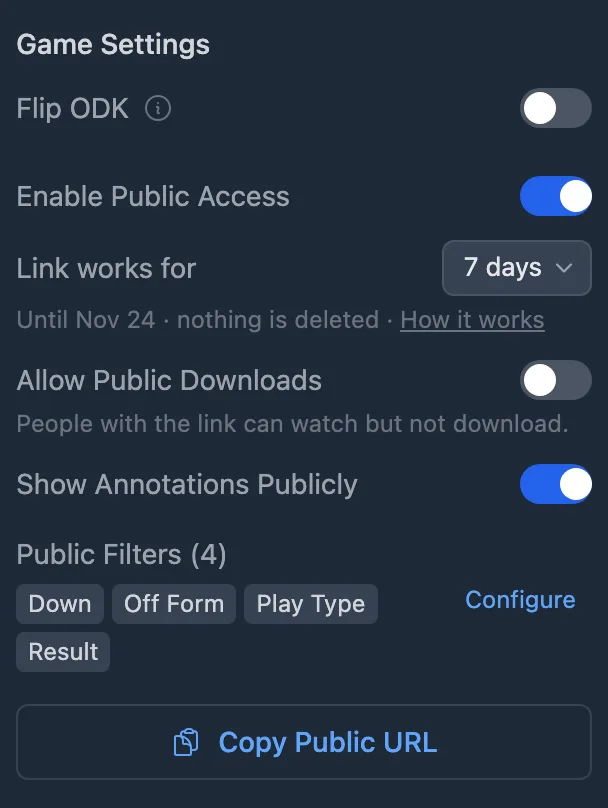
With the link on, more settings appear:
- Link works for: how long the link works (next section).
- Allow Public Downloads: off by default, so people can only watch. Turn it on to let anyone with the link download the film. A link you made earlier keeps the setting it had.
- Show Annotations Publicly: on by default. Shows what coaches drew on the film.
- Public Filters: which filters viewers get (next section).
Know what you're sharing: anyone with the link can watch your players and pass the link on. A playlist's public link can also give access to the full game film its plays came from, not only the plays you picked. If the rest of the game shouldn't be seen, don't make that playlist public.
If you can't turn on Enable Public Access, your admin hasn't let coaches make public links. See Who can make a public link.
Choose how long the link works
A public link stops working after the time you pick. Nothing is deleted when it ends: the game or playlist stays in Playside, and you can turn the same link back on.
- With the public link on, open the menu beside Link works for.
- Choose 7 days, 30 days, 120 days or Never. Each choice shows the date it would end.
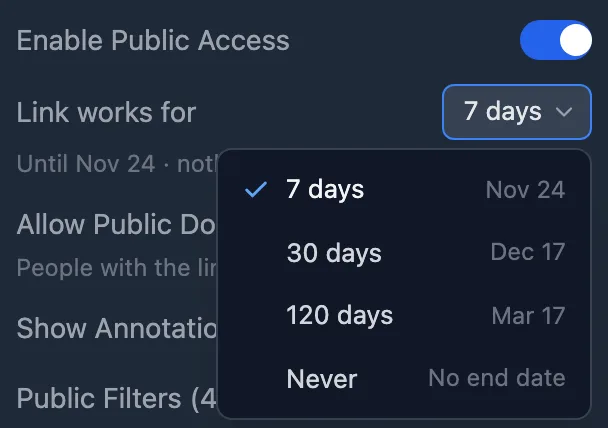
The line under it shows when the link ends, such as Until Nov 24. Choosing a length counts from today, so picking 30 days on a link that has 2 days left gives it 30 more. Never keeps the link working until you turn it off.
Public links made before you could choose a length work for 120 days from when this change shipped. Their end date shows under Link works for.
On your dashboard and in the film library, a small link icon after a game's or playlist's title means it has a public link. It turns amber with a slash once the link has ended. Its tooltip shows the date.
When a link ends
When the time runs out, the link stops working for everyone who has it, downloads included. Enable Public Access shows as off, with the date it ended.
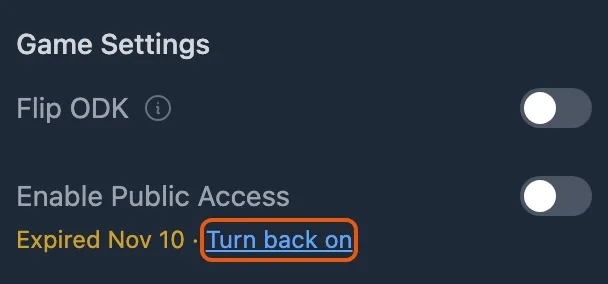
People who open the link see This link is no longer available and are asked to get a new link from the coach. The page shows nothing about the game, playlist or team.
To share it again, select Turn back on. The link is the same one as before, so people who kept it can watch again. It works for 7 days, and your download, annotation and filter settings stay as they were. Choose a different length under Link works for if you need one.
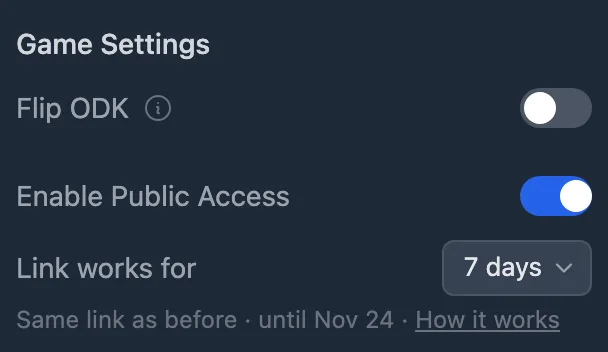
Someone who already had the video playing when the link ended may be able to finish watching what had loaded. Anything new they open, including downloads, stops working.
Choose the filters on the shared page
Viewers can filter the plays on a public game or playlist, for example to watch only third downs. You choose which of your team's columns they filter by.
- With the public link on, select Configure beside Public Filters.
- Check the columns you want. All and None check or clear the list.
- To use these filters on every public game, check Apply to all games.
- Select Save.
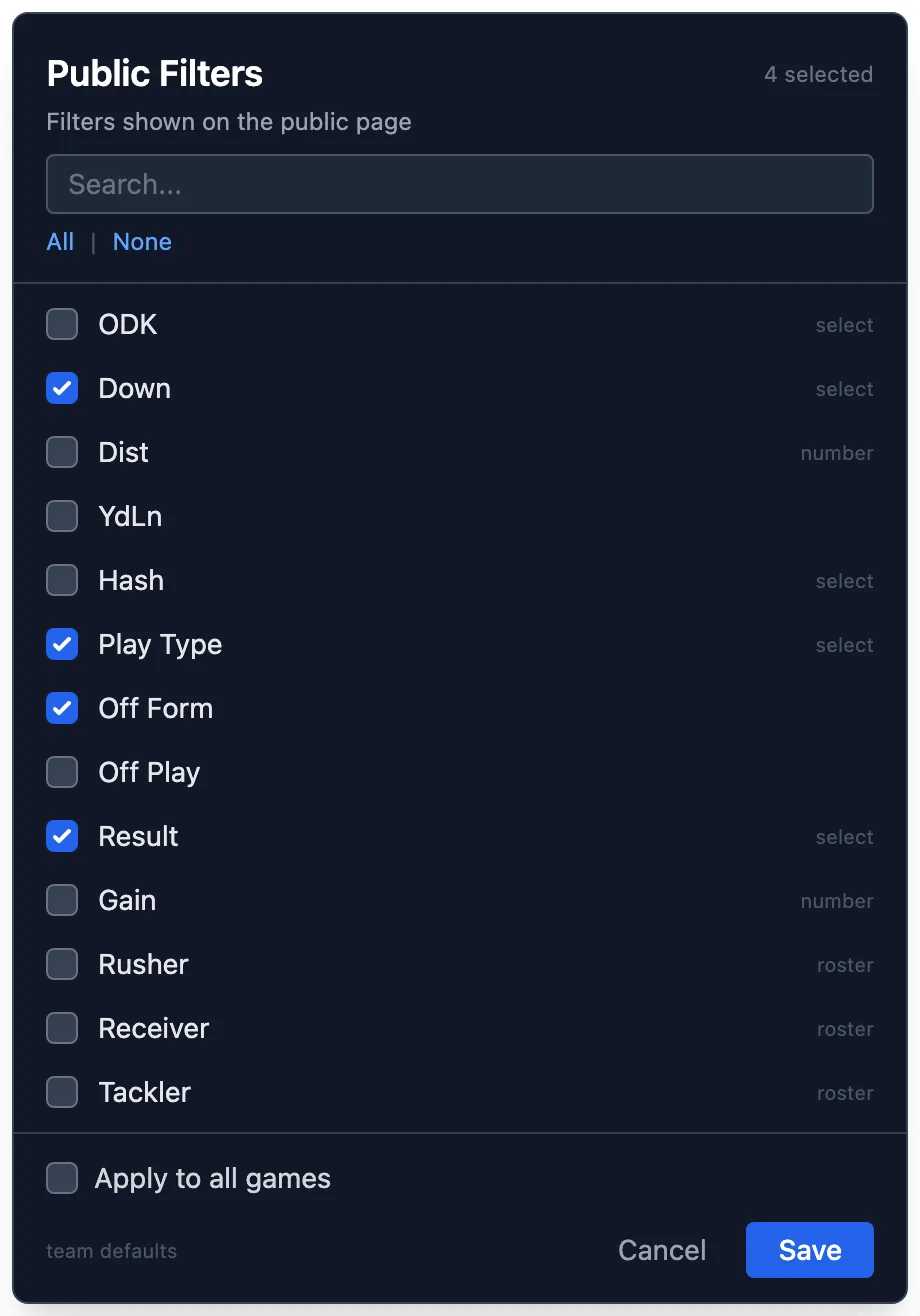
To go back to your team's defaults, open Configure again and select Reset to defaults.
A filter you chose can still be missing from the page. The shared page shows filters only when it has at least 10 plays, and only for columns whose plays have at least two different values. On a phone held upright, it shows the first two.
What a viewer sees
The link opens the film with the list of plays beside it and your filters above the list. Viewers select a play to watch it. With downloads on, a Download button lets them save the full film or chosen clips.
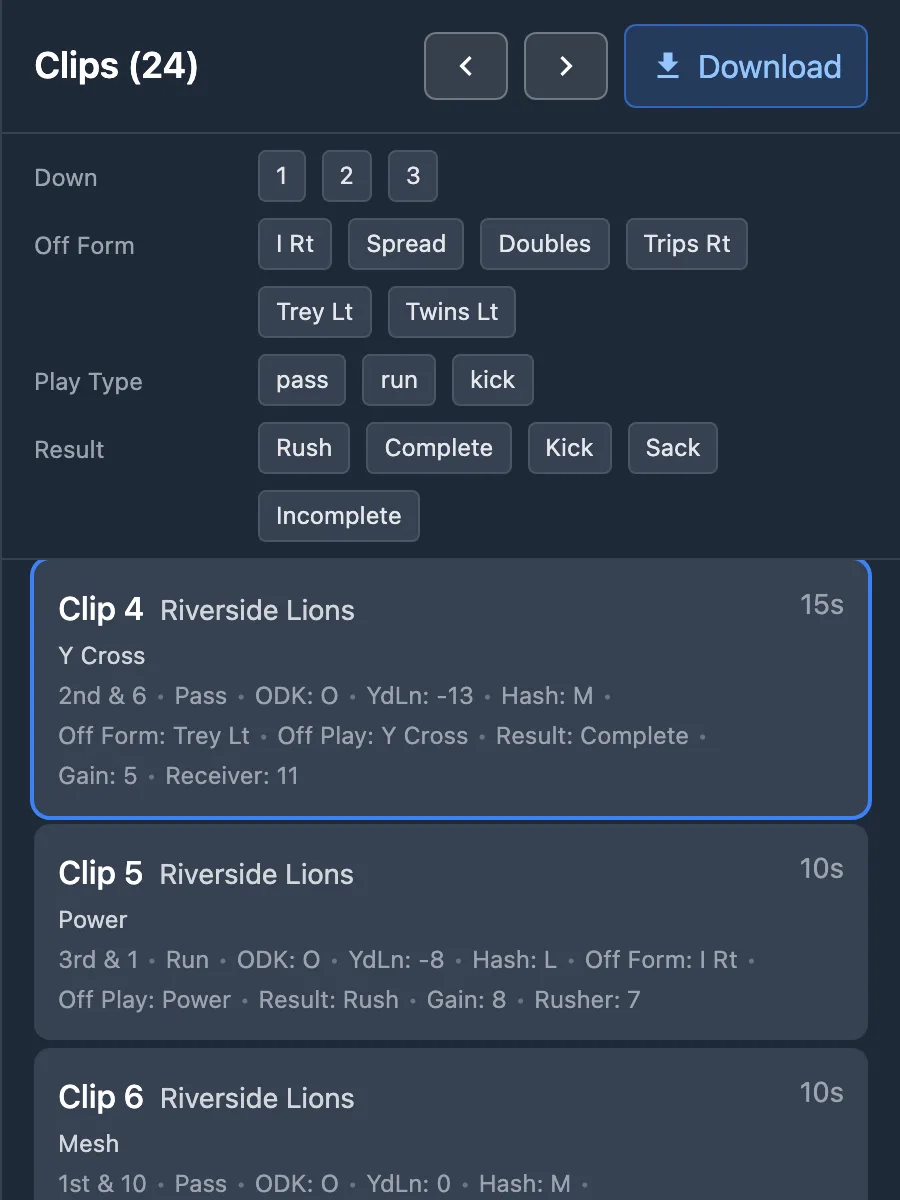
The public page has a simple player: play, pause, a timeline for the current play, next and previous, and full screen. Zoom, speed and drawing from the film player guide are only in Playside itself.
Turn a public link off
- Open the game or playlist and select the clipboard icon above the side panel.
- Turn off Enable Public Access.
The link stops working right away; a game's link shows Game Not Found. Turning it on again later brings back the same link, so anyone who kept it can watch again, for the length you choose (7 days unless you pick another).
Who can make a public link
Admins can always make public links. Coaches can only if an admin allows it, and new teams start with admins only. Players and parents can't.
To let coaches share:
- Open your account menu (the person icon at the top right) and select Team Settings.
- Select the Permissions tab. Only admins see it.
- Under Film Sharing, choose Admins and coaches.
The same setting decides who can send film to another team. Emailing your own team isn't affected: every admin and coach can do that.
Send or trade film with another team
From the same Share… menu, admins (and coaches, if allowed above) can send a game to another team's coach, or trade games with them.
- Select Send to another team or Trade with another team.
- Enter the Coach email and an optional Message. Choose whether to Share your game data (your tags) and Share your telestrator annotations.
- Select Send or Send trade request.
The other coach gets an email and imports the film into their own Playside team. A trade finishes once both coaches accept. Your shares are under Film sharing in your account menu, where you can Revoke a share the other coach hasn't accepted yet.
Sending and trading need a paid plan. On a free plan or trial, Share… shows Send or trade with another team with an Upgrade label instead. Public links and team emails work on every plan.
Game film courtesy of Texas Syndicate (CoFL Preseason).