Save and reuse formations
Last updated November 16, 2026
Save a lineup you drew as a formation, then start any new play from it in one step. The examples use Football 11.
Save a formation from a play
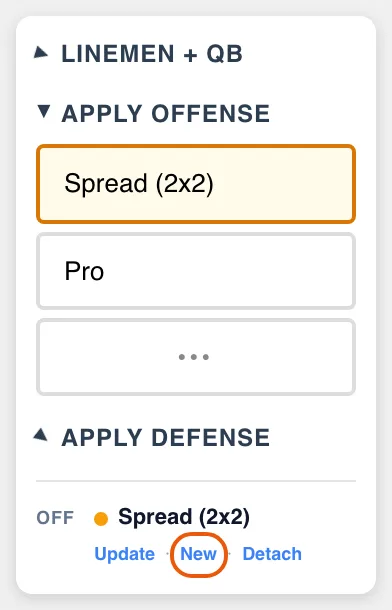
- Line up all 11 offensive players. The quickest way is to select a built-in under Apply offense, such as Spread (2x2), then drag the players you want to move.
- Find the OFF row at the bottom of the right panel. It names the formation the play is attached to. An orange dot means you have moved players since you placed it. Select New.
- On a tablet: Open Formations in the bottom dock. The same row is under Current.
- Save as new is already selected. Enter a name, such as
Trips Right, and select Save.
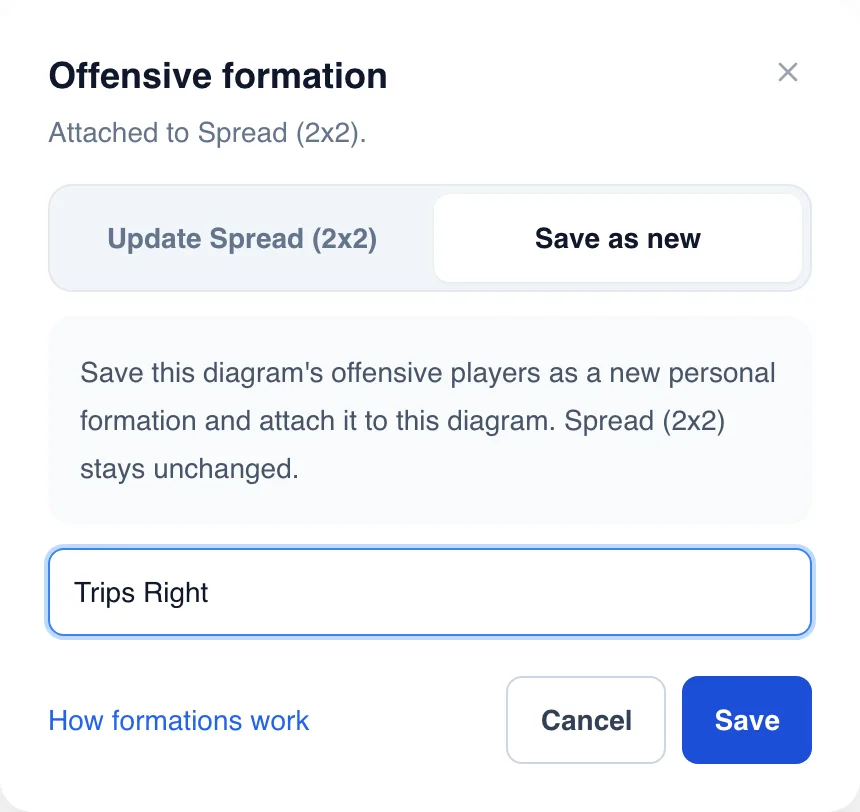
The formation is saved at once, and the play is now attached to it: its tile under Apply offense and the dot turn green. Select Save at the top right to save the play.
A play with no formation shows No formation in the row, with Attach and New. Attach links the play to a formation you pick without moving anyone.
Update or Save as new?
- Save as new makes a new formation from this play's players. The formation you started from stays as it was.
- Update replaces the attached formation's players with this play's. On a built-in such as Spread (2x2), it saves your own Spread (2x2), which takes the built-in's place in your list.
Cancel closes the dialog without changing anything.
When a save is refused
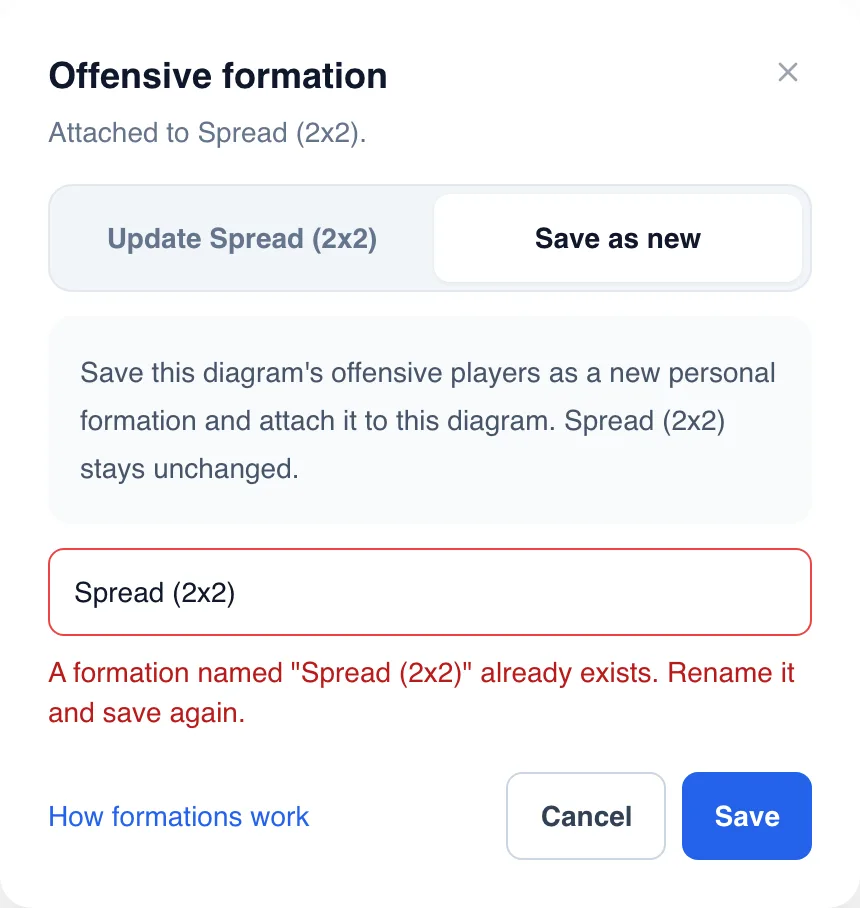
The dialog stays open, with your name still typed and the reason in red under it.
- The name is taken. Each side has one formation per name. You can't reuse the name of a built-in, such as Pro or Spread (2x2), in any capitalization, or the name of a formation you already saved for that side. Change the name and select Save again.
- The side doesn't have 11 players. A formation holds exactly 11 players on its side. Add or remove players, then select New again.
On a team play, coaches and admins save formations to the team, and everyone on the team can use them. Other team members save to their own list.
Start a new play from a saved formation
- On Diagrams, select New Diagram.
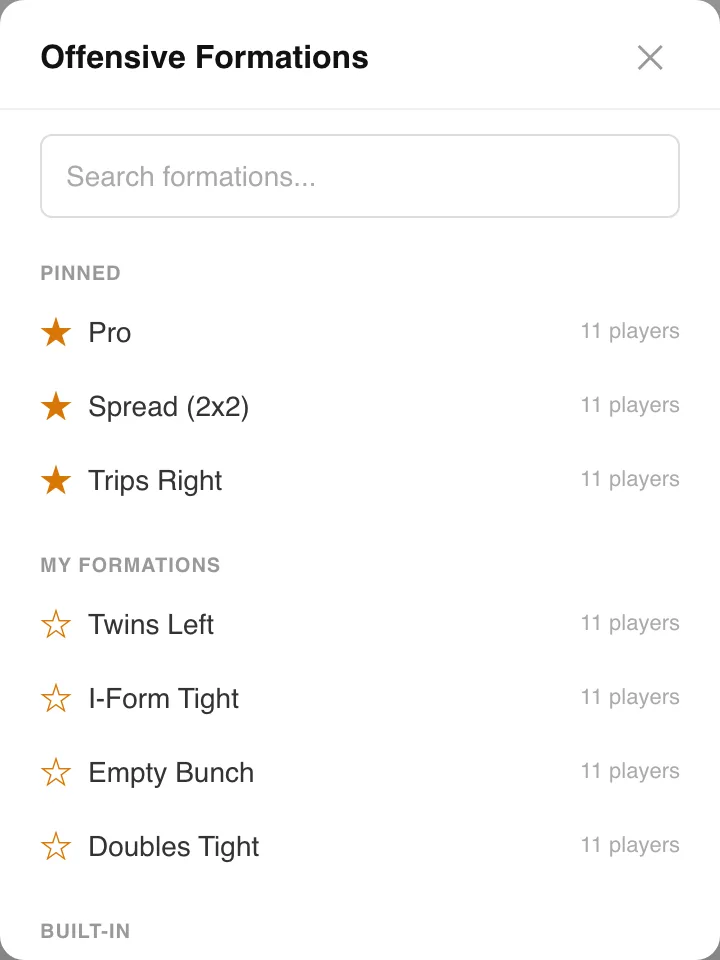
- Under Apply offense, select the ... tile at the end of the row. The list shows Pinned, My Formations and Built-in. Type part of a name in the search box to narrow it.
- Select the star next to a formation to pin it. Pinned formations appear as tiles under Apply offense, so next time you can skip the list. Pins are kept in this browser.
- Select a formation's name to place its players.
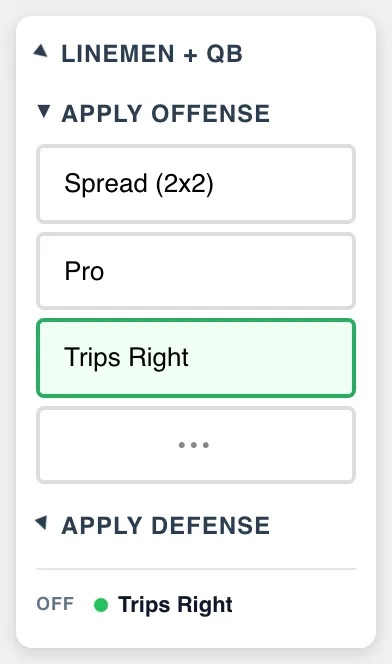
Defensive fronts work the same way: use the ... tile under Apply defense and the DEF row.
Edit a saved formation
- Open the account menu (your email at the top right) and select Account settings, then Formations. Use Managing to switch between Personal and a team.
- Select Edit formation next to the formation.
- Drag players where you want them, select Save, then select Exit.
Plays you already built from the formation don't change: they keep their players and routes. When you open one whose players no longer match, its formation tile and dot are orange. To line it up with the edited formation, select the orange tile. Players move to the formation's spots and keep their routes.
Update in a play's formation dialog works the same way: only that play and the formation change.
Rename or delete a formation
In Account settings under Formations:
- Rename: Select the pencil, enter the new name and select the check mark. Plays attached to it show the new name.
- Delete: Select the trash can and confirm. Deleting can't be undone. Plays that used it keep their players and routes and are no longer attached to any formation.
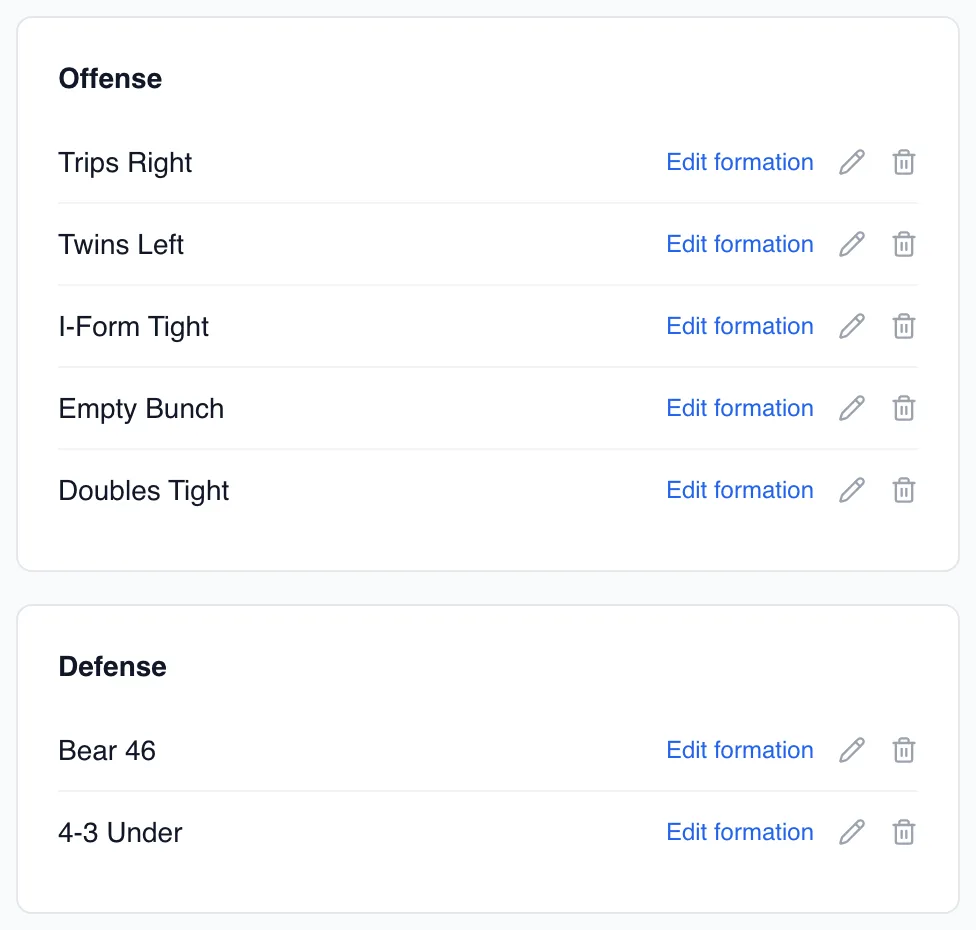
On a team, only the formation's creator or a team coach or admin can edit, rename or delete it.