Draw special teams on the full field
Last updated November 17, 2026
Turn a play into a kickoff or a punt, line up the kicking and return teams, and draw coverage lanes on a field long enough to hold them.
Before you start
- Football 11 and Canadian plays come with kickoff and punt lineups.
- 8-man plays have the same play types, but you place the players yourself from Special Teams in the left panel (on a tablet, under Players in the bottom dock).
- Flag plays have no special teams.
Switch the play to the full field
- Open a new play, or the play you want to change.
- In the dark bar above the field, open the Play type menu just right of Play Diagram, and choose Kickoff or Punt.
- On a tablet: Open Field in the bottom dock, then select Kickoff or Punt.
For a kickoff, the view widens from behind the kicker to the far end zone, and the line of scrimmage moves to your field's kick spot (your own 35 on an 11-player US field). For a punt, it runs from behind the punter to about 50 yards downfield, with the line of scrimmage at your own 30. To kick from somewhere else, enter a new spot under Line of Scrimmage in Field Settings.
Field Goal and PAT are in the same menu.
Line up both units
The right panel now shows lineups for the play type you chose. A lineup replaces that side's players and removes their routes, so start a new play if you want to keep the original drawing.
- Under Kicking team, select the kickoff (or punt) lineup.
- Under Return team, select the return lineup.
- On a tablet: Open Formations in the bottom dock and select the kickoff (or punt) lineup. The dock closes, so open Formations again for the return lineup.
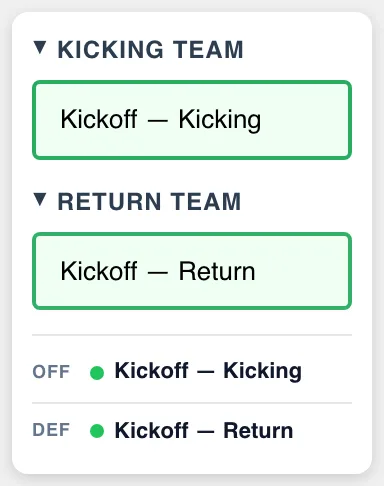
Each lineup places a full unit: 11 players, or 12 on a Canadian play. Drag any player to move them, or add one from Special Teams in the left panel (K, P, LS, KR, PR and more).
Draw coverage lanes
- Under Tools in the left panel, select Route (the arrow icon).
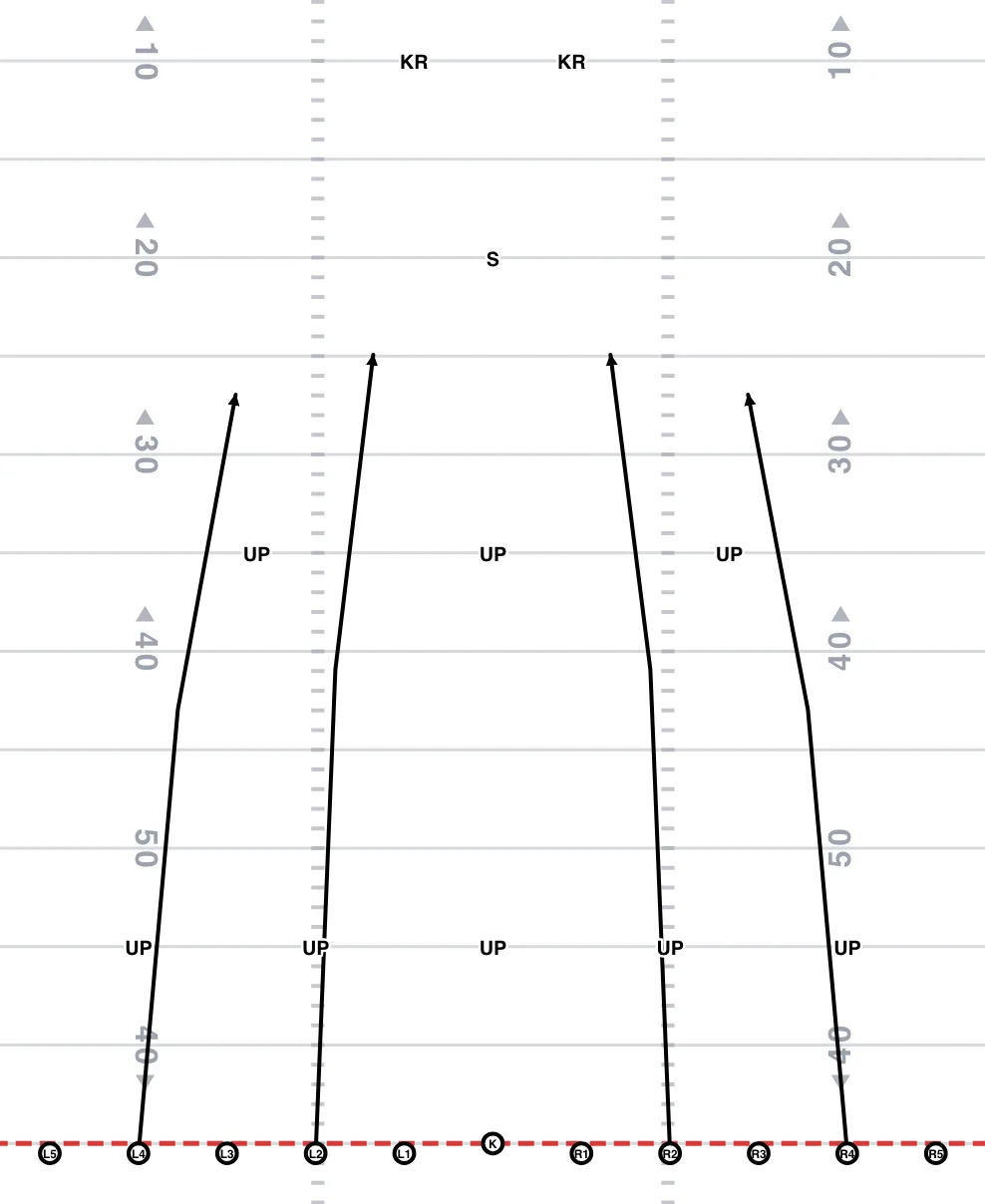
- Select a coverage player on the kicking line, then select each point where their lane bends.
- Select Done above the field to finish the lane with an arrow.
- Draw the other coverage lanes the same way.
- Select Select when you are done.
You can draw a return lane from the returner the same way.
Save it
Select Save at the top right. The play keeps its play type, so it opens on the kickoff or punt view next time.
How it prints
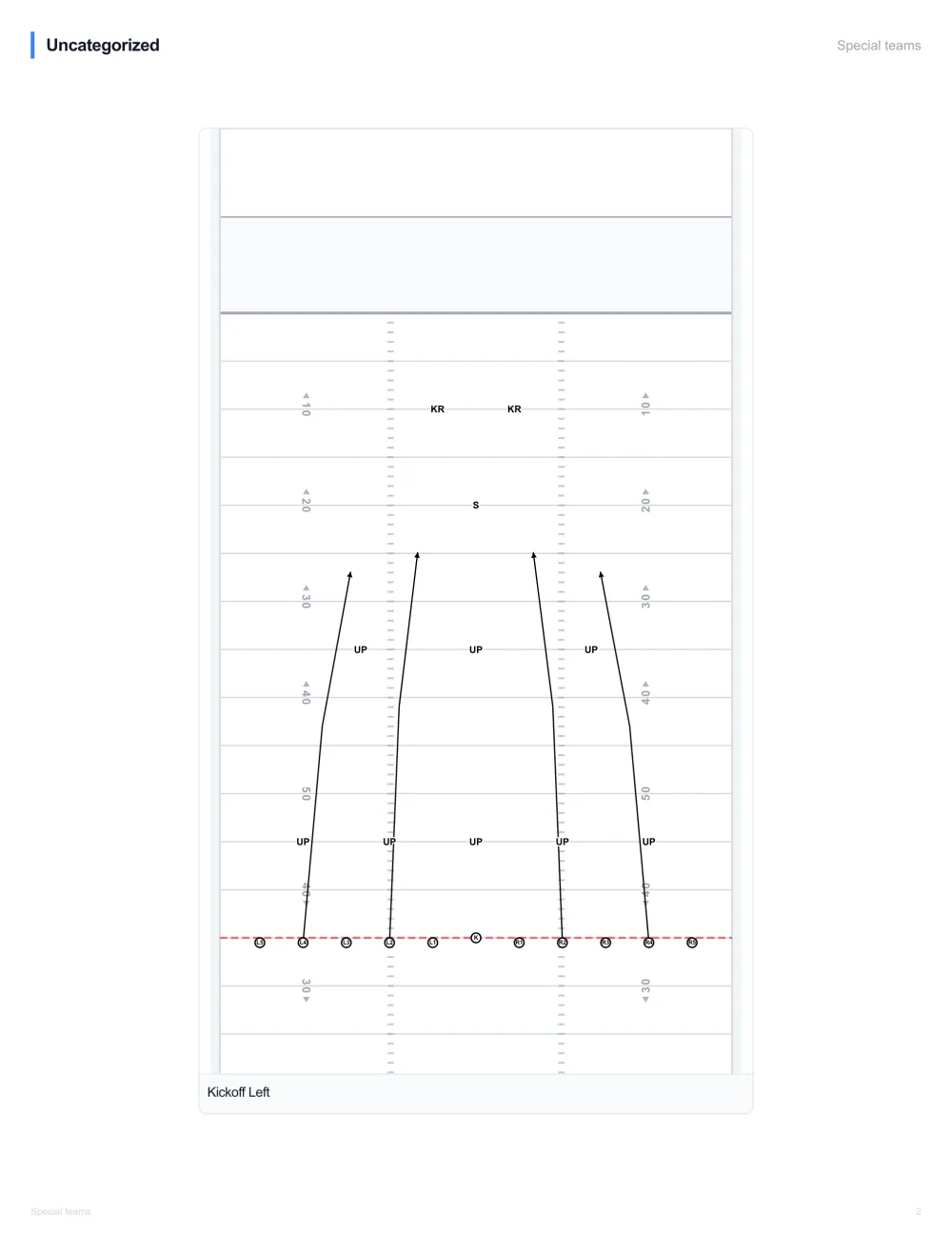
To print the play, add it to a playbook, open the playbook and select Export. A playbook prints each play the way you saved it. Saved as is, the whole kickoff prints as one tall diagram with small players.
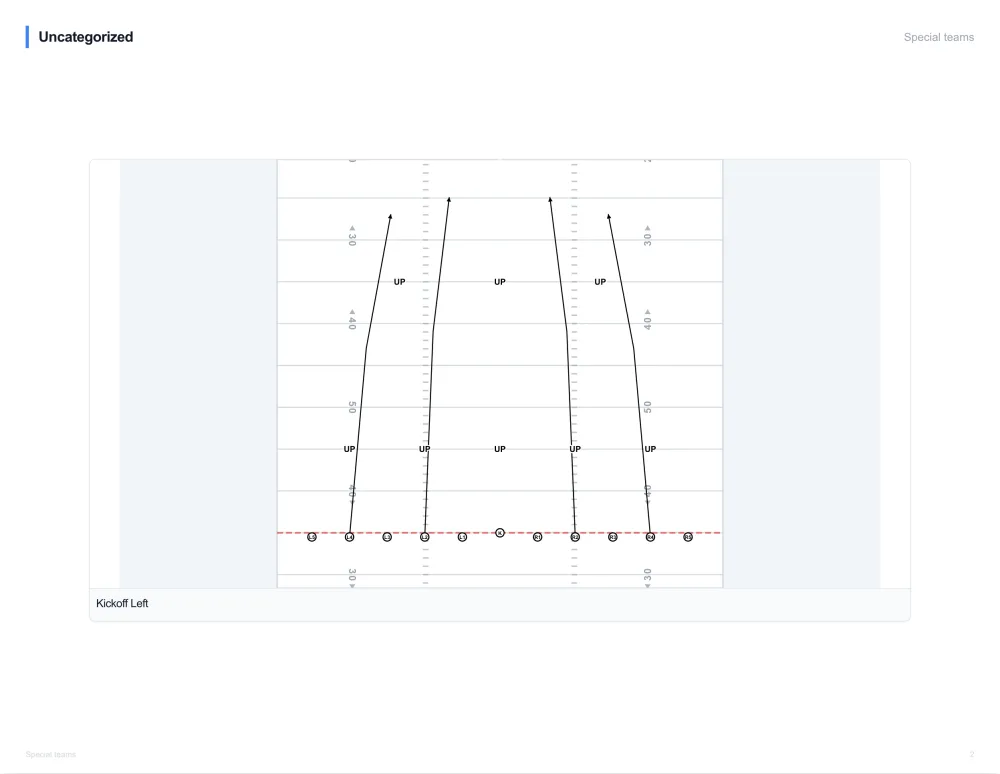
To print part of the field larger, zoom in with + above the field. To move the view, select the hand icon under Tools and drag the field. Then save: the page prints only what you framed.
- On a tablet: + is on the right edge of the field, and Pan is on the left tool rail.
For more on what prints, see Zoom, pan and what prints. To print special teams with your other plays, see Build and print a playbook.
Shortcuts on a keyboard
- Enter or double-click: Finish the lane you are drawing.
- Esc: Cancel an unfinished lane, or clear your selection and return to Select.