Find plays fast: filter, sort and select
Last updated November 17, 2026
Narrow a game's play table to the plays you want, such as every 3rd and long pass, then watch them or select them together. The same filters work in a playlist.
Game film courtesy of Texas Syndicate (CoFL Preseason).
Show the filters
- Open a game.
- Select ⋮ at the top right of the play table, then choose Filters.
A row of filter boxes appears under the column names. Players and parents get a filter button (the funnel) in the same corner instead of ⋮.
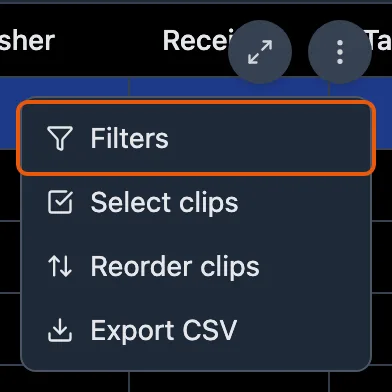
Selecting Hide filters in the same menu hides the row and clears every filter.
Filter by a tag
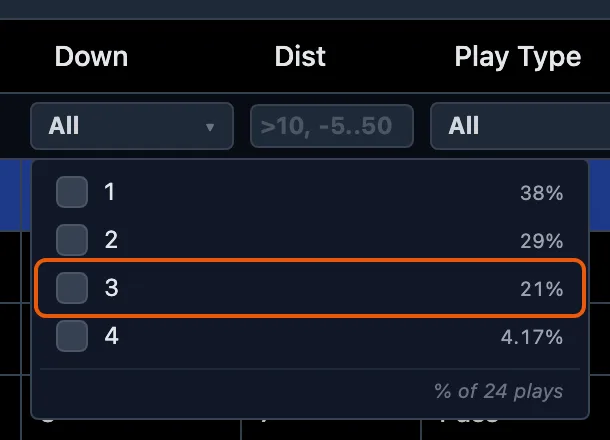
Columns with a set of values, such as Down, Hash, Play Type or Off Play, open a checklist.
- Select the filter box under the column. It reads All.
- Check the values you want. Each one shows its share of the plays. A long list has a search box at the top.
Checking two values in one column shows plays with either, such as 3rd or 4th down. Clear at the bottom of the list removes that column's filter.
Filter a number column by range
Number columns, such as Dist and Gain, take a typed rule:
>=7: 7 or more. Use>,>=,<or<=.3..6: from 3 to 6. Use-5..0for losses.1: values that start with 1, such as 1, 10 and 15.
Combine filters
Filters in different columns all apply at once. For 3rd and long passes, check 3 under Down, enter >=7 under Dist and check Pass under Play Type.
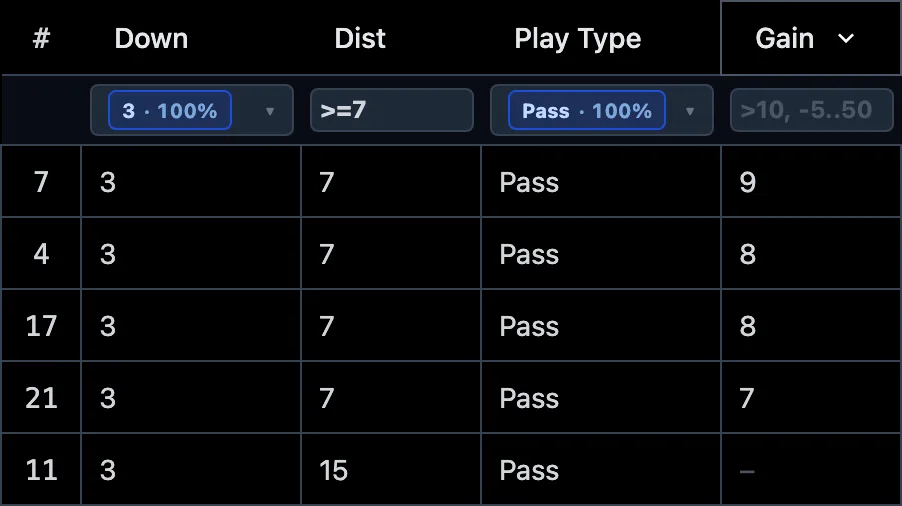
Each play keeps its number from the full game. Next clip and autoplay move through the filtered plays only, in the table's order.
Sort plays
Select a column name to sort by it, smallest or A first. Select it again for largest first, and a third time to go back to game order. Sorting works on its own or with filters.
Select the plays you found
- Select ⋮, then Select clips. A checkbox appears beside each play.
- Check the plays you want, or check the box at the top of the column to select every play the filters show. If some of those plays are already checked, the top box clears them instead.
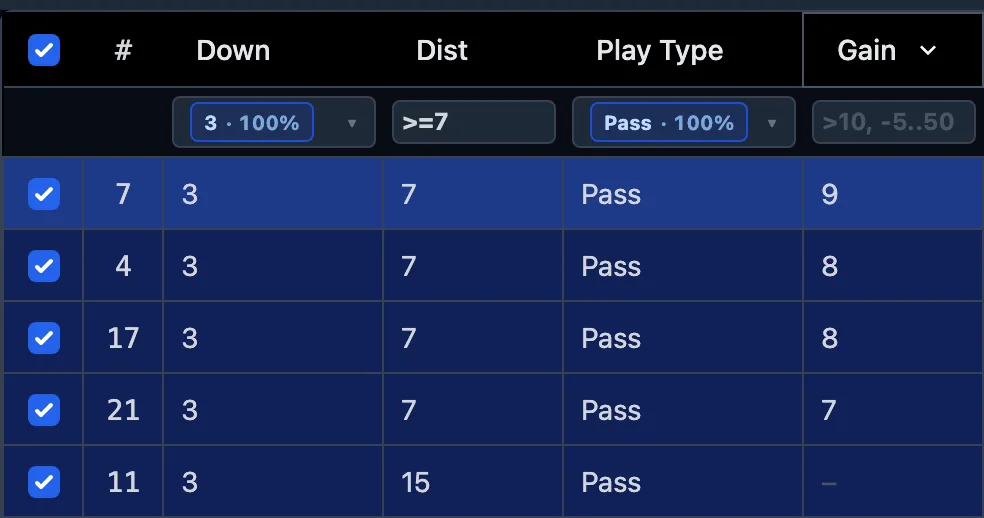
A bar at the bottom of the page counts the selected plays. Clear unchecks them all, and Done selecting in the ⋮ menu leaves select mode.
Plays you checked before changing the filters stay checked, even when a filter hides them. The bar then counts the hidden ones, such as 5 clips selected · 2 hidden by filters. Select Show them to clear the filters and see every selected play, or Clear to start a new set.

To put the selected plays in a playlist or delete them, see Build a playlist and Rename a game, delete plays and get them back.
Shortcuts on a keyboard
Shortcuts work unless you're typing in a field or editing a cell.
F: show or hide filters (hiding them clears them)Esc: leave a filter box↓orN,↑orP: next or previous play, in the filtered and sorted order1to0: jump to row 1 to 10 of the filtered table