Draw on a real field
Last updated November 17, 2026
The field in Diagrams is drawn to scale. A yard between two players is a real yard, and the yard numbers, the arrows beside them and the hash marks sit where they do on a real field. Set the field to match a real snap, say 3rd and 7 from the opponent's 35 on the left hash, and your drawing shows what the players saw.
Pick your field
The hash marks are a different distance apart on each level. Under Field Type on the left, select your field:
- HS: high school, hash marks 53 ft 4 in apart.
- NCAA: college, 40 ft apart.
- NFL: 18 ft 6 in apart.
All three are 53⅓ yards wide. The players stay where they are; only the field under them changes.
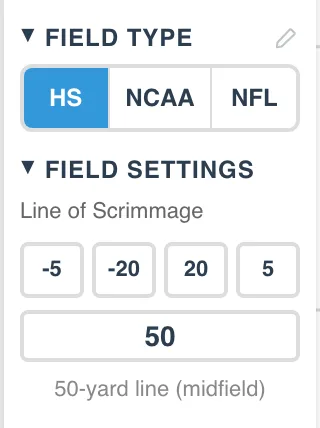
- On a tablet: these controls are under Field in the bottom dock.
Another kind of football
A new play starts in the football you chose under Which football?, and its name shows at the top of the editor, such as Football 11. To move a play to another one:
- Select the pencil next to Field Type (Change field for this play).
- Under Sport, select Football 11, Canadian 12, 8-man, Flag 5v5 or Flag 7v7.
- Under Field, select the field size, then select Apply.
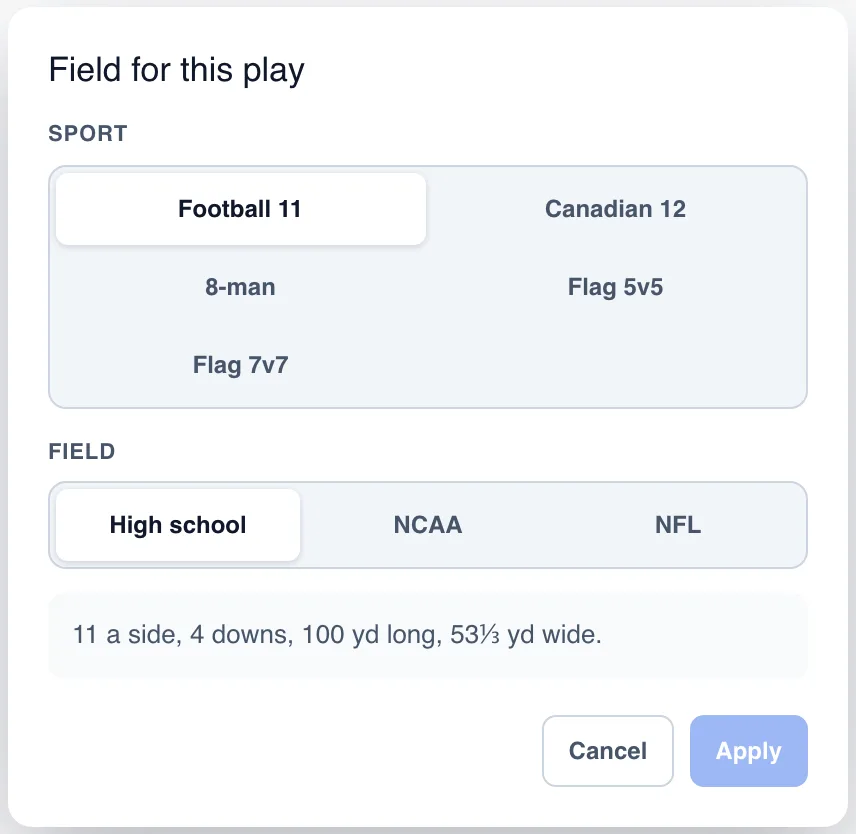
Each field has its own markings. A Canadian field is 65 yards wide with hash marks 17 yards apart (9 on a CFL field), 8-man fields have marks 7 yards in from each sideline, and flag fields have no hash marks. If the play has more players than the new sport allows, the dialog says how many to remove.
Put the line of scrimmage on any yard line
Under Field Settings, Line of Scrimmage sets the yard line the ball is snapped from. A positive number is in the opponent's territory and a negative number in your own.
- Select the box under Line of Scrimmage and enter the yard line:
35for the opponent's 35,-35for your own 35,50for midfield. - Select anywhere outside the box. The line under it confirms the spot, such as "Opponent 35-yard line".
For a common spot, select a button above the box: -5 and -20 are your own 5 and 20, 20 and 5 the opponent's.
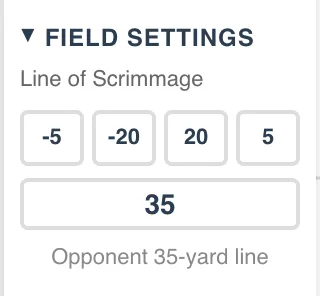
The whole play moves with the line of scrimmage, so every player keeps their alignment and the yard numbers around them update.
Put the ball on the hash
New formations start in the middle of the field. To snap from a hash, move every player together:
- Select Select tool (the arrow) under Tools.
- Drag a box across the empty field around every player, offense and defense. The selected players turn yellow.
- Drag the center sideways until it sits on the column of hash marks.
- Select an empty spot on the field to clear the selection.
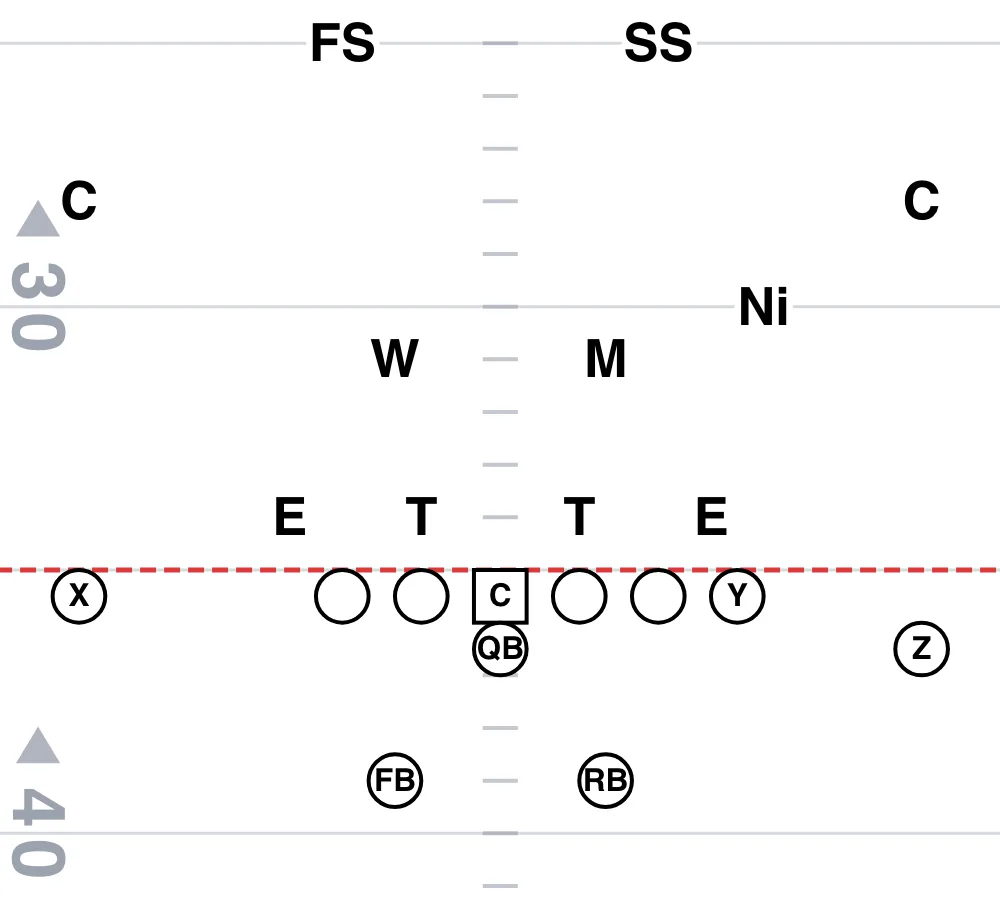
Left and right are the offense's. With the offense going up the screen, the left hash is the column on your left.
To check spacing in yards, turn on the distance guides (⟺ above the field). While you drag a player, they show splits, depth off the ball and how far the player moved.
Flip to see it from the other end
Select ↕ Flip V above the field to look at the play from the other end, as if you walked to the opposite end zone. Nobody moves: the ball stays on the offense's left hash at the opponent's 35, and every player keeps their spot. The offense now goes down the screen, so the left hash is on your right. Select ↕ Flip V again to turn it back.
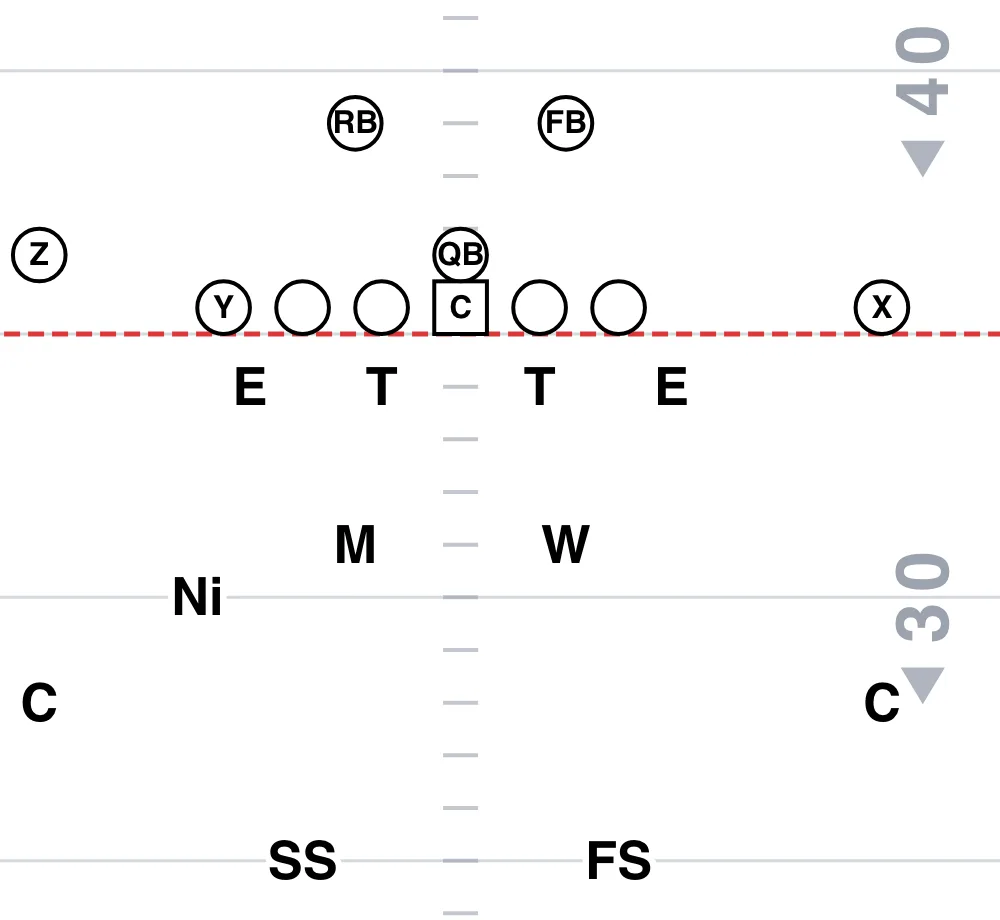
- On a tablet: open the ⋯ menu (Diagram actions) at the top and select ↕ Flip vertical.
Flip V is saved with the play, so it opens the same way next time. ↔ Flip H is different: it mirrors the play left to right, which makes it a different play, run to the other side.
Select Save when the field matches. To draw the routes next, see Draw routes, motion and blocks. To choose how much of the field prints, see Zoom, pan and what prints. For kickoffs and punts, see Draw special teams on the full field.
Shortcuts on a keyboard
- Ctrl+A (Cmd+A on a Mac): Select everything on the field, to move the whole play onto a hash.
- Enter: Set the line of scrimmage you typed. Esc puts the old one back.
- M: Turn the distance guides on or off.