Tag plays and set up your columns
Last updated November 17, 2026
Each column in a game's play table is one tag, such as Down, Hash or Off Form. Set up your team's columns once, then tag each play in the table or in the Tagging panel beside the film. Your columns apply to every game, practice and playlist on the team.
Admins and coaches can change columns and tag plays in the table.
Set up your team's columns
- Select the person icon at the top right, then Team Settings.
- Select the Columns tab, then Configure Columns.
The list shows your columns in the order the play table shows them. sidebar marks the ones that also appear in the Tagging panel. Every change saves as soon as you make it.
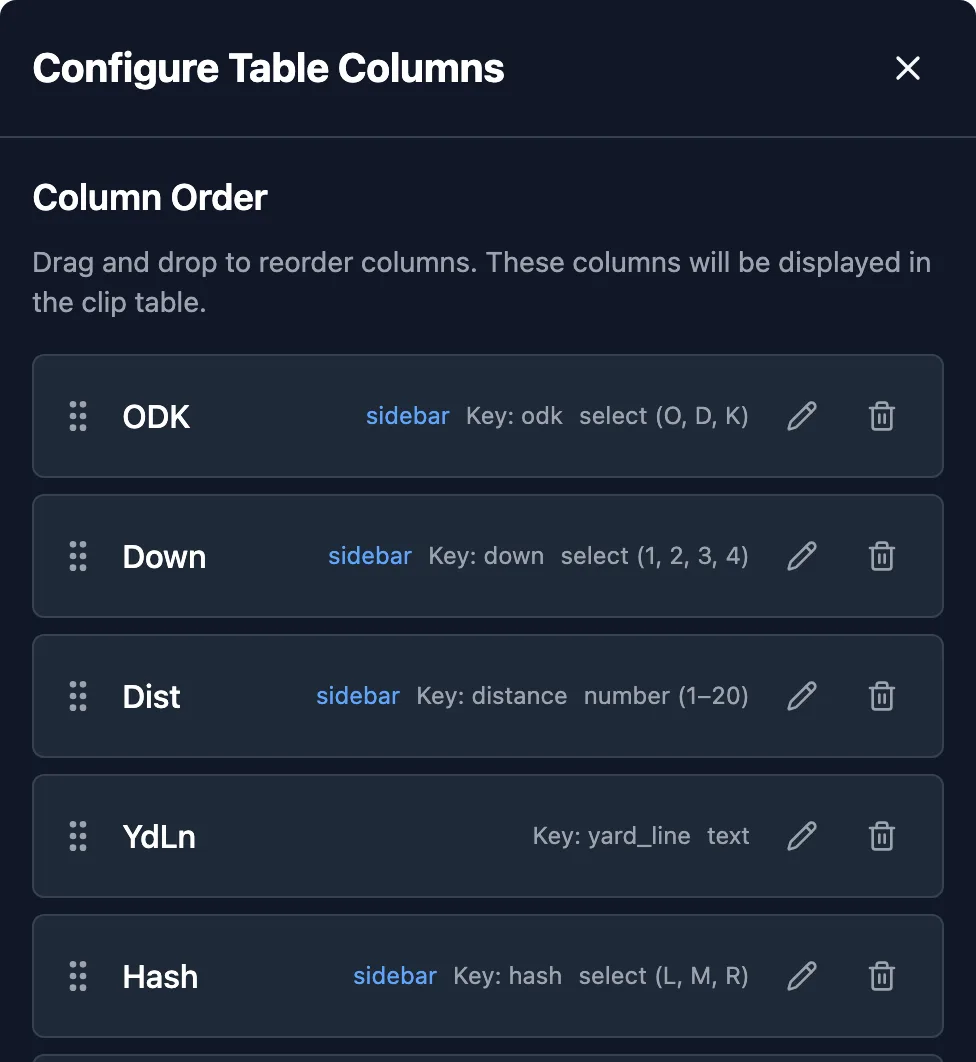
Add a column
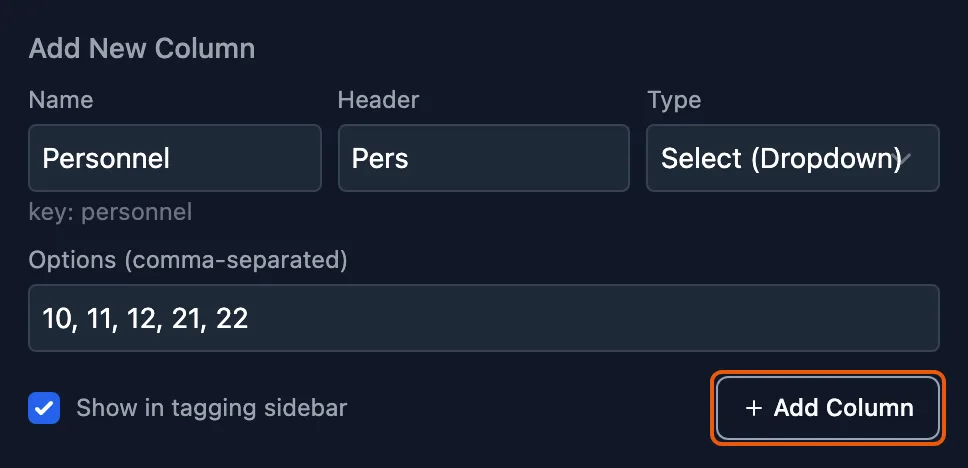
- Under Add New Column, enter a Name, such as
Personnel, and a short Header for the top of the table, such asPers. - Choose a Type:
- Text: anything you type, such as a formation or play name.
- Select (Dropdown): a fixed list. Enter its values under Options (comma-separated), such as
10, 11, 12, 21, 22. - Number: a number, such as a gain. Min and Max set the slider's range in the Tagging panel.
- Roster (Player Jersey): a player's jersey number from your roster. Under Player side, choose whether it records an offensive player, such as the rusher, a defensive one, such as the tackler, or either. The table suggests jersey numbers from your roster on plays where your team is on that side.
- Check Show in tagging sidebar to add it to the Tagging panel. Roster columns don't appear there; tag them in the play table.
- Select Add Column.
The new column goes at the end of the table.
Rename, change or reorder a column
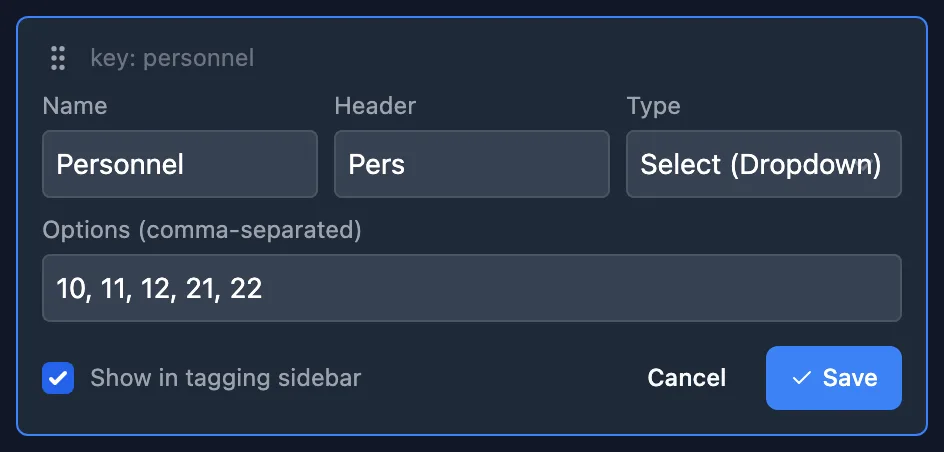
- Change a column: select its pencil, change Header, Type, Options or Show in tagging sidebar, then select Save. Tags already entered stay.
- Reorder: drag a column by the dots on its left.
- Remove: select its trash can. Undo delete at the bottom brings it back with its tags.
Reset to defaults puts back Playside's starting columns and removes the ones you added. Their tags are hidden, not erased, and show again if you add a column with the same key.
Tag plays in the play table
- Open a game and select a play in the table.
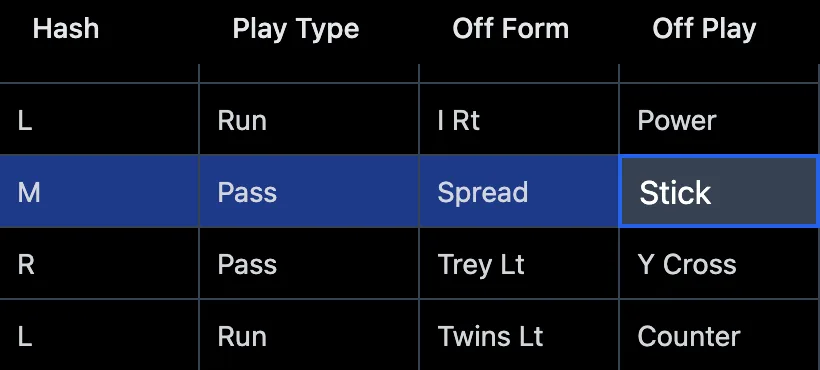
- Select the cell you want to tag in that play's row.
- Pick a value from the list, or type one.
- Select another cell or play when you're done. The tag saves when you leave the cell.
Entering a play's YdLn, Down or Dist can fill in that play's empty down and distance, and the gain on the play before, worked out from the previous play. It never replaces a tag you entered.
Give the table more room
On a computer, select Expand table (the arrows beside ⋮ at the top right of the table). The table fills most of the screen, the film moves above the side panel, and a bar above the table shows:
- Where you are, such as Play 6 of 24.
- Auto-advance: when the keyboard moves you onto the next play, that play starts.
- Columns: hide columns you aren't tagging right now.
- Exit expanded to go back.
Plays with every shown column tagged are tinted, so the gaps stand out.
Tag plays in the Tagging panel
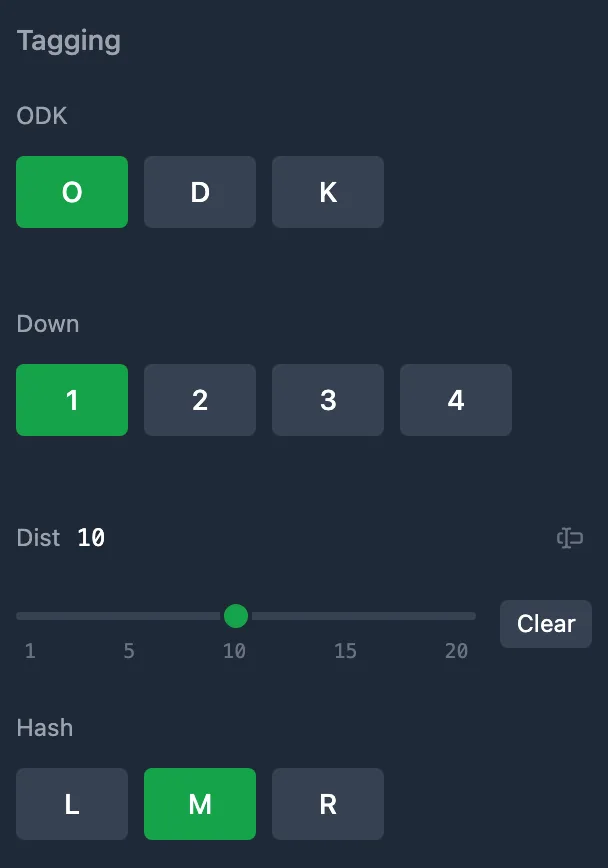
The Tagging panel sits beside the film, under the info tab (the i) at the top of the side panel. It shows the dropdown, number and text columns with Show in tagging sidebar checked, for the selected play, and saves each tag the moment you choose it.
- Dropdown columns: select a value. The one you chose turns green.
- Number columns: drag the slider or select a number under it. Clear removes the tag.
Text columns
A text column, such as Off Form, shows the values used most in this game as buttons. Select one to tag the play with it, or More to see the rest.
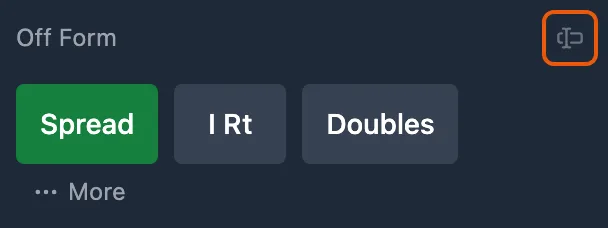
To type a new value instead, select the switch at the top right of the first text field. It changes every text field to a box, and values from this game that match what you type show below it. Choose one, or finish typing and select somewhere else to save.
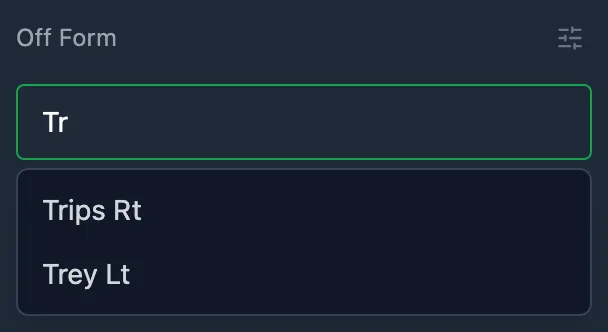
Playside remembers your choice. The first number field has the same switch, to type numbers instead of using sliders.
Flip offense and defense for a game
If your team has an ODK column, admins and coaches can flip a game whose tags read from the other team's side, such as film an opponent tagged. Plays tagged O show as D, and D as O.
- Open the game and select the Game Data tab (the clipboard) at the top of the side panel.
- Under Game Settings, turn on Flip ODK.
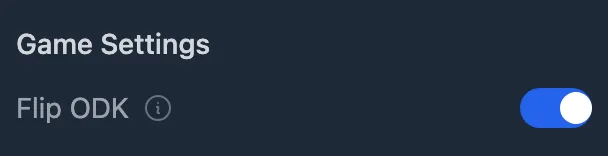
The flip changes what this game's table, Tagging panel, stats and CSV export show. Yes and no in an Eff column swap on those plays too, and K plays stay as they are. The saved tags don't change, and tags you enter while it's on are saved the right way round. Turn it off to go back.
Playlists don't follow the game's flip. A playlist has its own Flip ODK under Playlist Settings in its Playlist Info tab.
Use your tags
- Find plays fast filters a game down to plays with the tags you choose, such as every 3rd and long pass.
- Cut film into plays explains what happens to tags when you split or merge clips.
Shortcuts on a keyboard
While you're editing a cell in the play table:
Tab: save and move to the next cell, then to the next play's first cell.Shift+Tab: save and move back a cell.Enter: save and move to the next cell. With Auto-advance on in the expanded table, move down to the same column on the next play instead.Shift+ arrow keys: save and move one cell in that direction.Esc: stop editing the cell.