Join your team from an invite
Last updated November 16, 2026
Accept your coach's invite and sign in with the email address it was sent to. The steps are the same for coaches, players and parents.
Open the invite email
- Open the email from Playside that invites you to join your team. It goes to the address your coach entered.
- Select Review invitation.
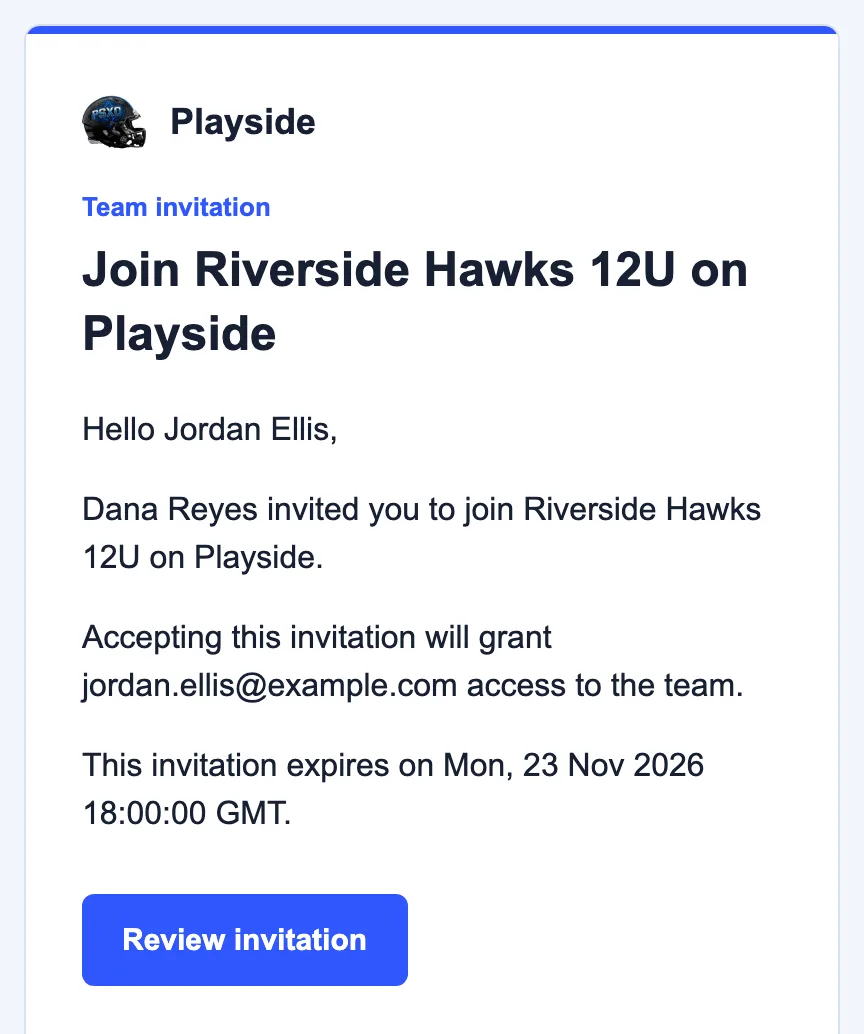
Invites last 7 days. The email shows the exact date.
Accept the invite
The invite page shows You're invited! with your name and team. Choose one way to finish.
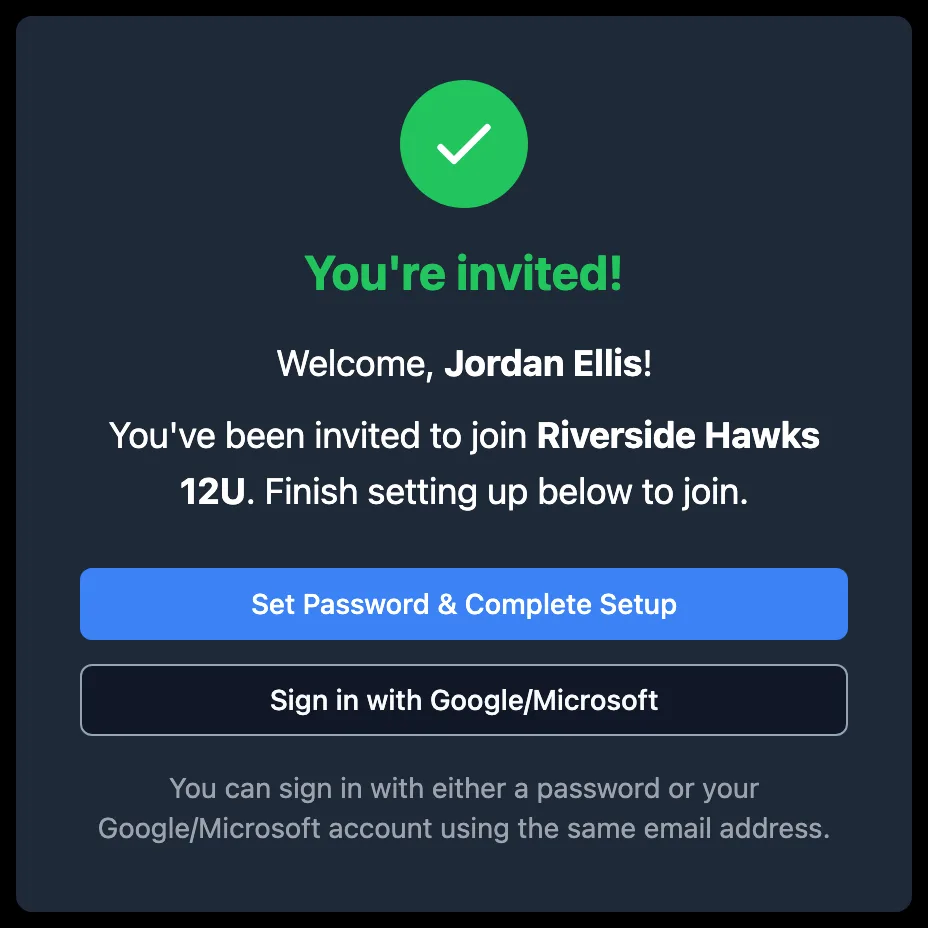
New to Playside, or want a password:
- Select Set Password & Complete Setup. Your invited email is filled in for you.
- Enter a password with at least 8 characters, one uppercase letter and one number, then enter it again under Confirm Password.
- Select Set password & continue. Playside opens your dashboard on your new team.
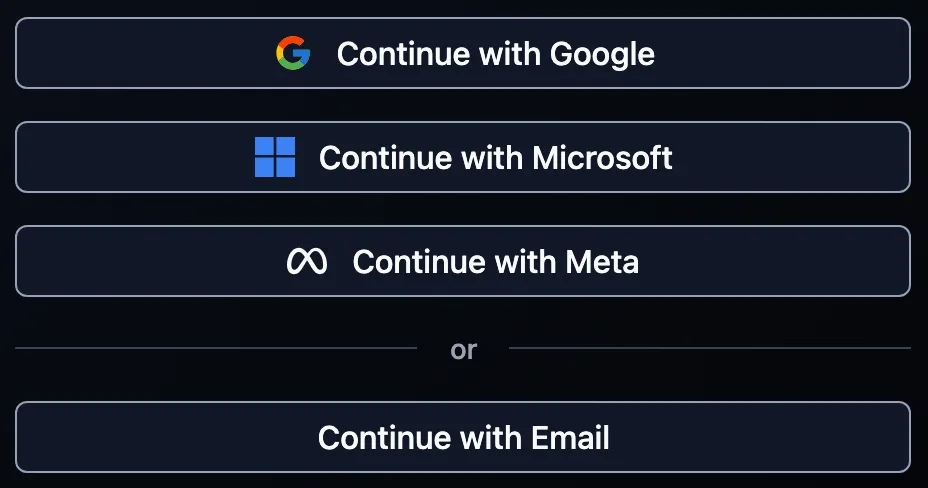
Use Google, Microsoft, Meta or an existing Playside password:
Select Sign in with Google/Microsoft.
Select Continue with Google, Continue with Microsoft or Continue with Meta. To use a Playside password instead, select Continue with Email. Use the account for the address your coach invited.
Playside brings you back to the invite and shows Invitation Accepted! Select Go to Dashboard.
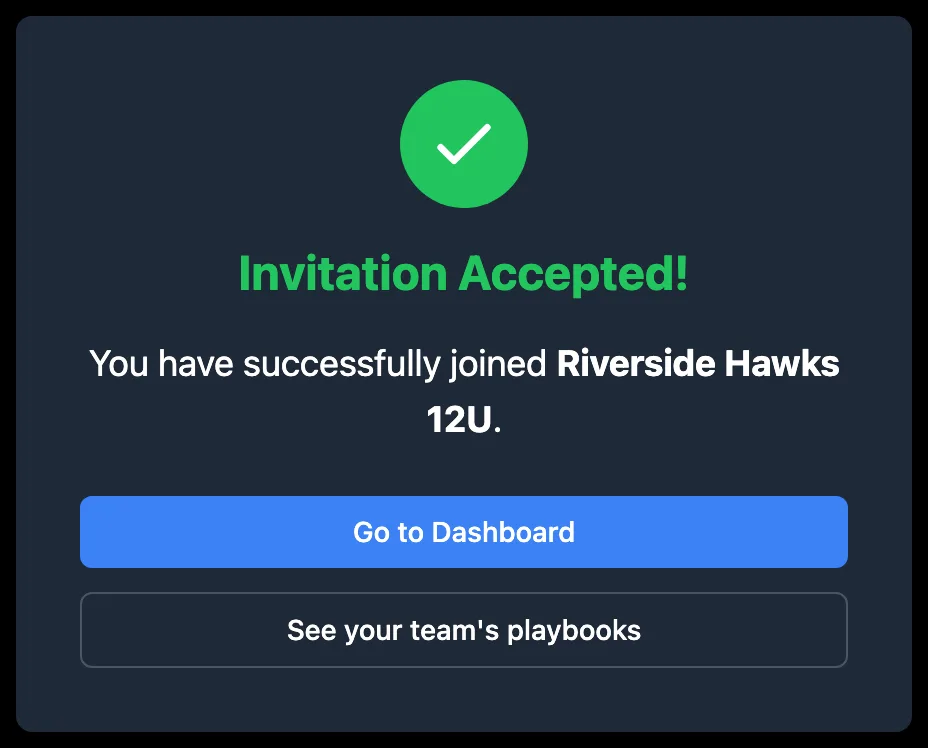
Players and parents also see See your team's playbooks, which opens the team's plays in Playside Diagrams. If your coach sent the invite from Playside Diagrams, accepting opens your team's playbooks there instead of the dashboard.
Already signed in to Playside with the invited email? Your invite also waits in your account menu. Select the person icon at the top right, then under Team invitations select the check mark to accept or the X to decline.
Come back later
You don't need the invite link again. Go to playside.co, log in with the email address your coach invited, and your team is on your dashboard. On more than one team? Switch teams under Current Team in your account menu.
If the link doesn't work
Each invite link works once. Find the message the page shows.
Your team may already be ready
The link was used or is no longer valid. Usually you already joined.
- Select Log in.
- Enter the email address your coach invited, then select Email me a code.
- Enter the 6-digit code from your email and select Log in.
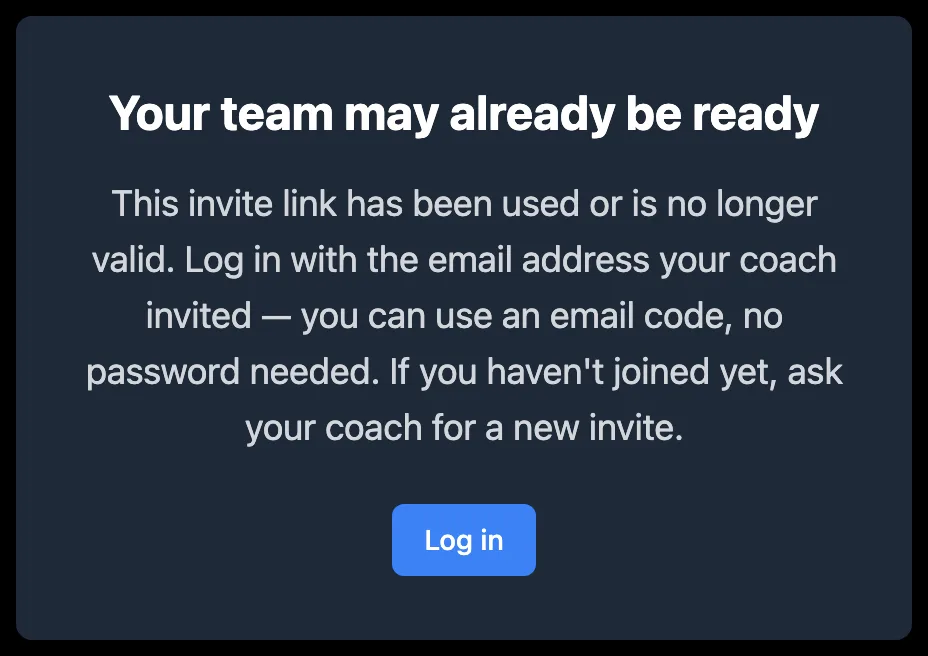
Already signed in? Select Go to dashboard. If your team is missing, select Use a different account and log in with the invited email. Still no team? Ask your coach to send a new invite.
You're already on your team
You joined with this link before. Select Go to dashboard.
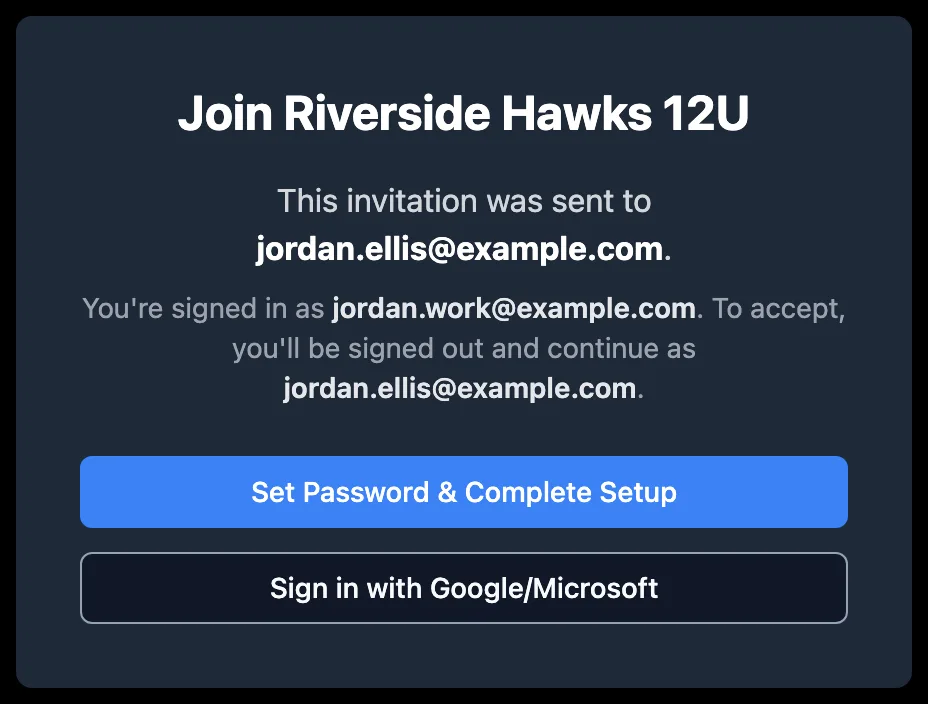
This invitation was sent to another address
The page says Join and your team's name, and you're signed in with a different email than the invite. Select Set Password & Complete Setup or Sign in with Google/Microsoft. Playside signs you out so you can continue as the invited address.
This invite link has expired
The 7 days are up. Ask your coach to resend the invite, then use the button in the newest email.
This invite was declined
Ask your coach to send a new invite.