Zoom, slow motion and shortcuts in the film player
Last updated November 16, 2026
Watching film is simple: select a play and it runs. These are the controls coaches miss. They work the same in a game, a practice and a playlist.
Game film courtesy of Texas Syndicate (CoFL Preseason).
Zoom in on one player
The zoom controls sit under the film, beside the speaker.

- Select Zoom in (the +), or scroll over the film. Scrolling zooms toward the spot under the pointer, up to 4×.
- Drag the film to the player you want to watch. The clip keeps playing while you're zoomed in.
- Select Reset zoom (the circular arrow), or double-click the film, to see the whole field again.
Zoom goes back to 1.0× when you move to another clip. If the zoom buttons are greyed out, choose the Select arrow in the drawing tools. Choosing a tool to draw on the film resets the zoom.
- On a tablet: Pinch to zoom, and drag with one finger to pan.
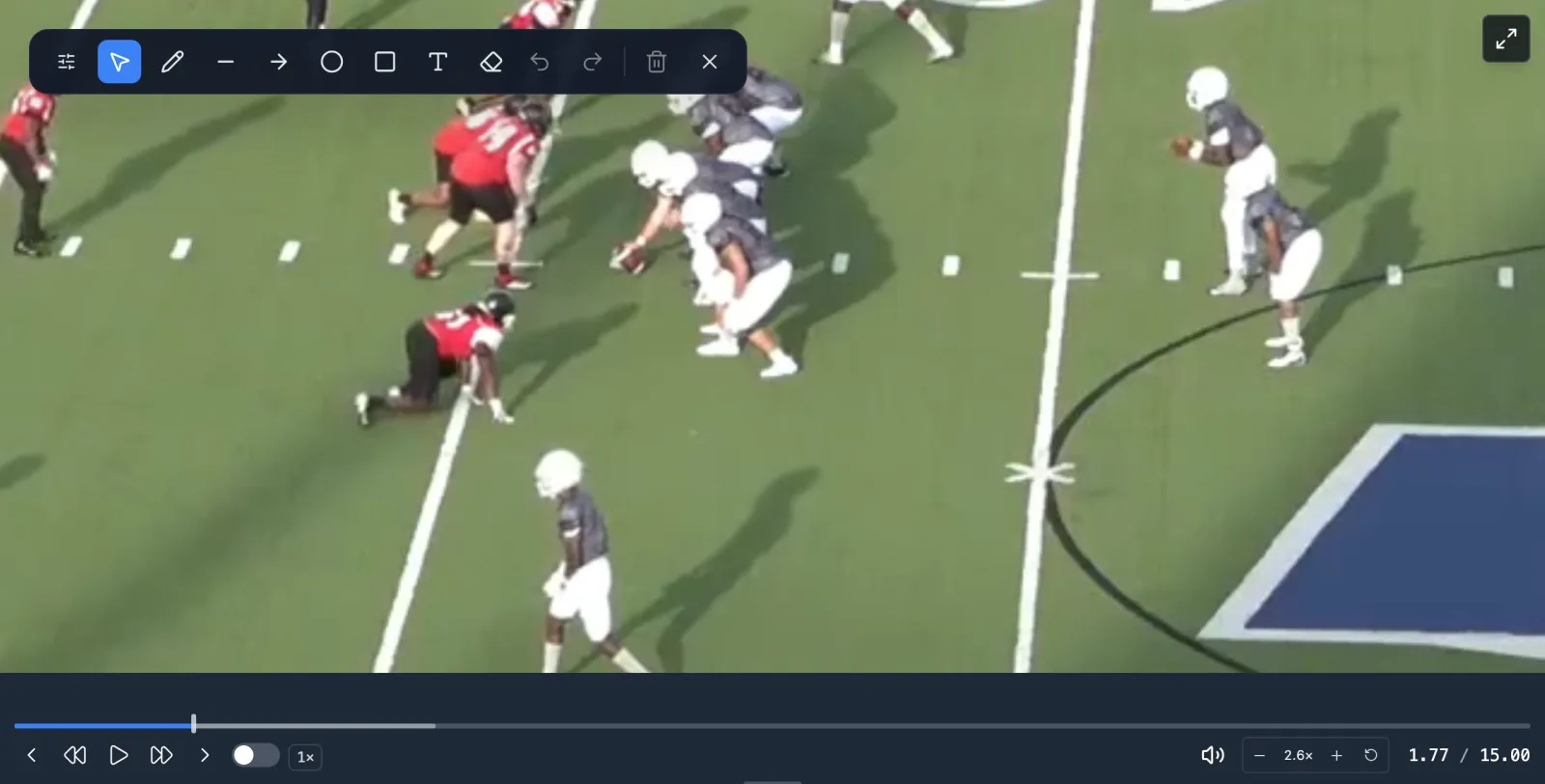
Pause and creep through a snap
- Select Pause.
- Select a spot on the timeline just before the snap.
- Hold Fast forward (the double arrow right of Play) to creep forward in slow motion, or hold Rewind to creep back. Select either one once to move a frame or two.
Slow down or speed up
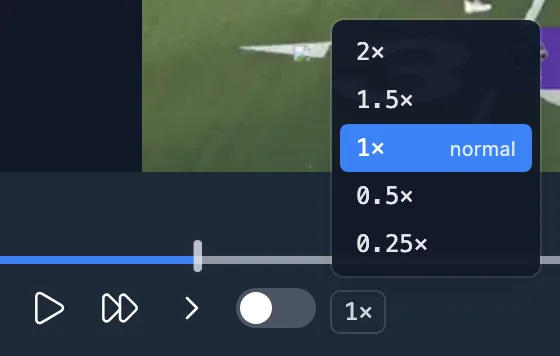
- Select the speed button, 1×, beside the autoplay switch.
- Choose 0.25×, 0.5×, 1.5× or 2×.
The button turns blue while you're off normal speed, and your speed stays as you move between clips. If 1.5× and 2× are greyed out, Playside is still optimizing that film; they turn on when it finishes.
Mute the film
Select Mute film (the speaker) under the film. Playside remembers this on your device, so film stays quiet until you select Unmute film.
Move between clips
- Select Next clip or Previous clip, the arrows on either side of the playback buttons.
- Select any row in the play table to jump to that play.
- Turn on the autoplay switch, beside Next clip, to start the next clip when one ends. Playside remembers your choice.
Show more plays while you watch
Drag the bar between the film and the play table up to see more rows, or down for a bigger picture. Double-click the bar to put it back.
Coaches and admins on a wide screen can also select Expand table, the two-arrow button beside ⋮ above the table. The table takes most of the screen and the film moves to a smaller box on the right. Select Exit expanded table to go back.
Show film to the team
- Select Enter presentation mode, the two arrows in the top right corner of the film. The film and its playback controls fill the screen, ready for a projector or TV.
- Select Exit presentation mode in the same corner when you're done.
Presentation mode isn't available while the table is expanded.
Shortcuts on a keyboard
Press ? or Cmd+I (Ctrl+I on Windows) to see this list in Playside. Shortcuts work anywhere on the page, presentation mode included, unless you're typing in a field or editing a cell in the play table.
Playback:
SpaceorK: play or pauseM: mute or unmute←or→: creep back or forward; hold to keep goingShift+←orShift+→: step 1 second back or forward<or>: slower or faster, from 0.25× to 2×
Moving between clips:
↑orP: previous clip↓orN: next clip1to0: jump to row 1 to 10 of the table as it's filtered and sortedShiftwith1to0: jump to row 11 to 20A: turn autoplay on or off
Play table:
F: show or hide filters (hiding them clears them)- After you select a cell to edit it:
Tabfor the next cell,Shift+Tabfor the previous cell,Enterto move down Esc: stop editing, leave a filter box, or leave the expanded table
Drawing on film, while paused:
Vselect,Ddraw,Lline,Rarrow,Ccircle,Srectangle,Ttext,EeraserCmd+ZorCtrl+Z: undo;Cmd+Shift+ZorCtrl+Shift+Z: redoDeleteorBackspace: delete the selected drawing;Esc: deselect it
Presentation mode:
Esc: leave presentation mode