Rename a game, delete plays and get them back
Last updated November 17, 2026
Fix a game's name, clear out plays you don't want, and bring them back if you change your mind. Admins and coaches can do everything here; players and parents can't.
Rename a game or practice
- Open the game or practice.
- Above the side panel, select the clipboard icon (Game Data).
- Under Game Info, select the Title.
- Enter the new name, then select the check mark to save it.
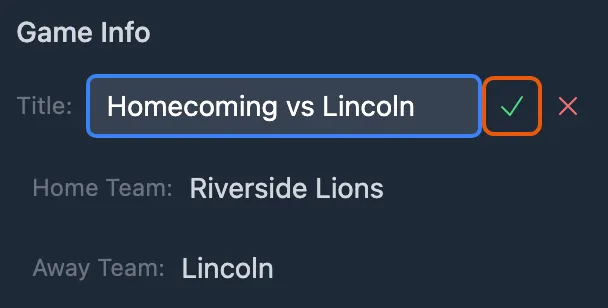
The new name shows on your dashboard right away. Home Team and Away Team change the same way. On a phone these fields are read-only and say (desktop only).
The date, and Game or Practice
You choose these when you create the event (see Upload game film), and you can't change them in Playside afterward. Games show under Games on your dashboard and practices under Practice.
- Wrong date: email support@playside.co with the game's name and the right date.
- Should be a practice, or a game: create a new event with the right type and upload the film to it, then delete the old one. Tags don't carry over.
Delete several plays at once
Open the game and select ⋮ at the top right of the play table, then Select clips.
Check the box beside each play to delete. The box at the top of the column checks every play shown.
Select Delete in the bar at the bottom of the screen.

Select Delete to confirm.
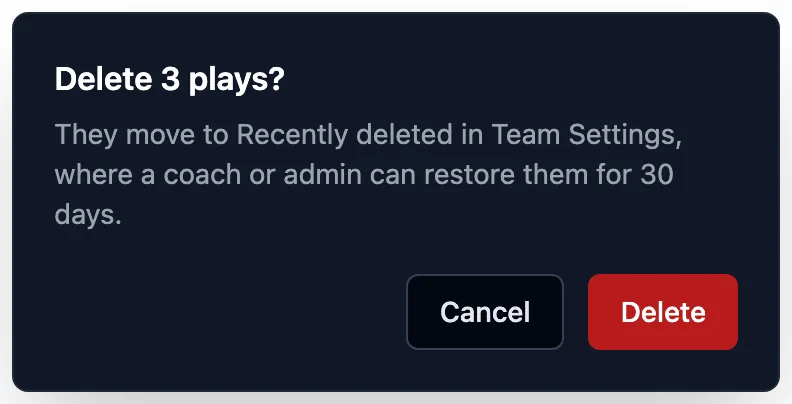
The bar then reads 3 plays moved to Recently deleted. Select Undo there to put them straight back.

You can delete up to 200 plays at a time. On a tablet, selecting plays needs the full controls; see Cut film into plays. That guide also covers splitting and merging plays.
Get deleted plays back
Deleted plays stay in Recently deleted for 30 days, then they're removed for good. Any admin or coach on the team can restore them.
- Select the person icon at the top right, then Team Settings. Or select Recently deleted in the bar right after you delete.
- Select Recently deleted.
- Check the plays to bring back, or check the box at the top to pick them all.
- Select Restore selected. It shows how many, such as Restore 3 selected. To bring back one play, select Restore on its row.
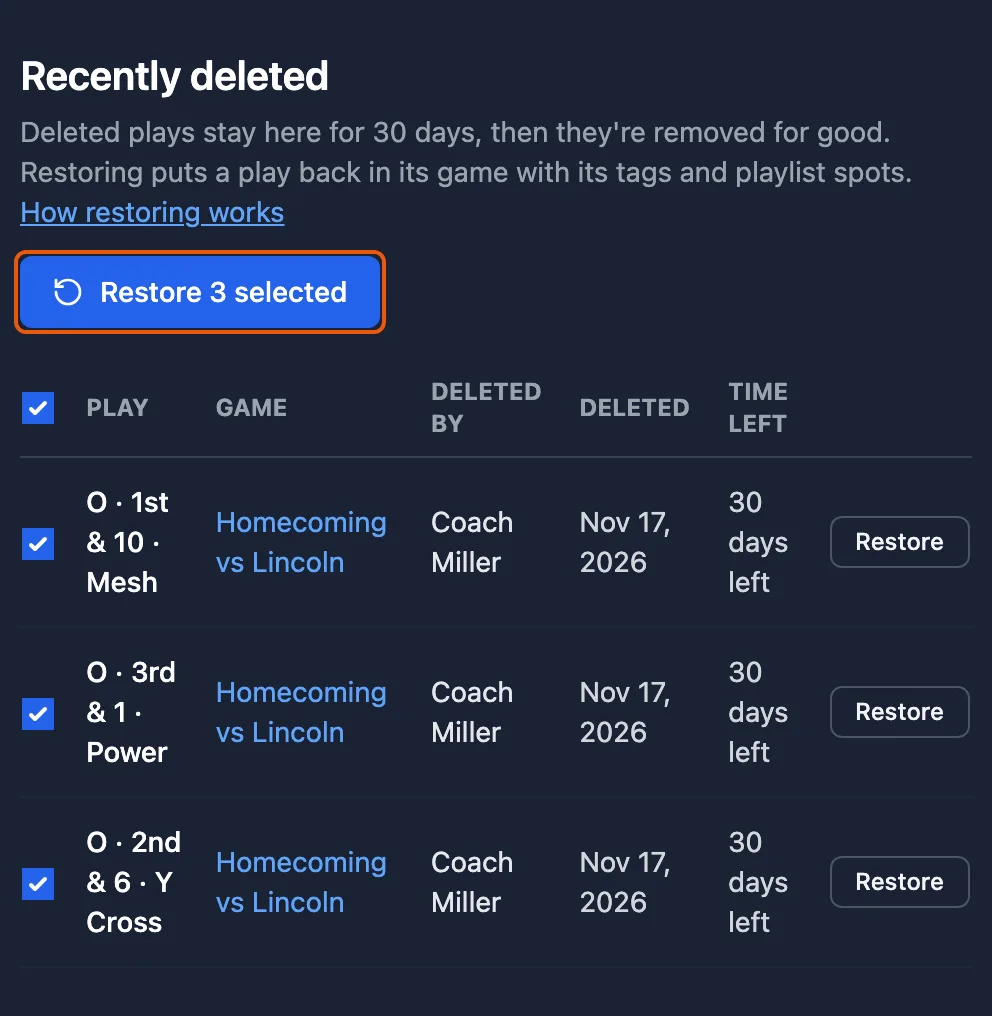
Each play goes back into its game with its tags and its spots in playlists. The list shows which game each play came from, who deleted it and how many days are left.
If a play can't come back, the message says why: another play now covers the same footage, or it's no longer recoverable.
Delete a whole game
- On your dashboard, select ⋮ on the game or practice.
- Select Delete event, then Delete.
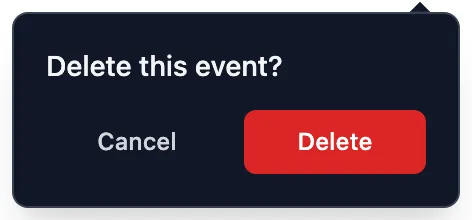
A deleted game doesn't go to Recently deleted and can't be restored. Its plays are deleted too, they leave every playlist, and a playlist left with no plays is deleted along with its public link. If you only want some plays gone, delete those plays instead.
Admins and whoever uploaded the game can always delete it. Coaches can if an admin allows it; see Set who can download, share and delete film.
If the game comes back on your dashboard right after you delete it, it's in a send or trade with another team that hasn't finished. Cancel that first.