Tag plays fast in Tag mode
Last updated November 20, 2026
Tag mode shows one play at a time with its tags, and it's built for the keyboard: one key picks a value, and Crop moves to the next field and then the next play on its own. Tag a game this way whenever you like. If Auto Tag has run, its suggestions are already in the fields, so you accept the right ones and change the rest as you go.
Select Tag at the top of the film to open it, and Crop to go back to cutting plays.
Tag a play
- Select the middle of the picture to watch the play from the snap.
- Select a choice under the field you're on, such as O on ODK, or select the suggestion's chip to accept it. Crop fills the field and moves to the next one.
- Keep going across the row. For YARD LN, type the number: your own half is negative, so -20 is your own 20 and 35 is the other team's 35.
- After the last field, Crop moves on to the next play.
Every choice shows its key, so on a keyboard each value is one keystroke and your hands never leave the keys. The keys are under Shortcuts on a keyboard.
What's on the screen
- The picture shows the play at its snap. Select the middle of it to play from the snap, and again to pause.
- The strip of stills under it shows the play at start, snap, +1.5s, +3s and +4s. Select a still to see that moment.
- The top bar shows which play you're on (such as Play 12/58), the game's name, and how many plays are done (such as 47/58 done). Sync and the export menu are at the right end.
- The tag panel has a row of fields: ODK, DOWN, YARD LN, HASH and PLAY TYPE. Under the row are the choices for the field you're on, each with its key. DERIVED shows what Crop works out from your tags: series (SER), distance (DIST), gain or loss (GN/LS) and efficiency (EFF).
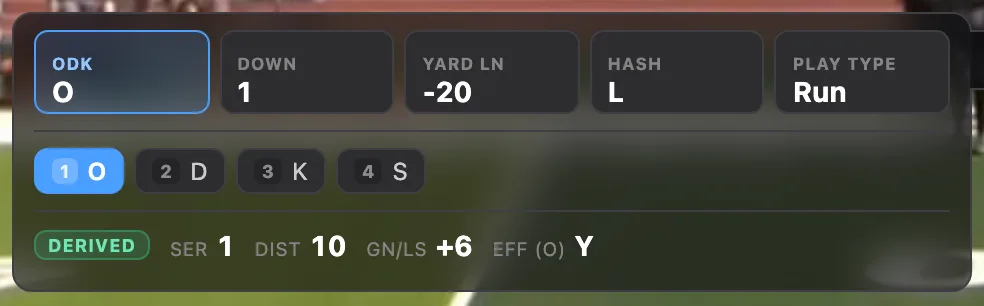
Suggestions in the fields
- A suggestion shows faded and in italics in its field. On the field you're on, it also shows as a chip: AI when it comes from the film, with how sure Crop is, or RULE when Crop worked it out from the plays around it, with the reason.
- A value you entered or accepted shows in plain bold.
Nothing counts as a tag until you accept it, and anything you enter wins over a suggestion.
Accept or change a value
- Select the field in the row.
- To accept a suggestion, select its AI or RULE chip.
- To use a different value, select it from the choices under the row.
While you're on PLAY TYPE, RESULT and EXTRAS rows (such as TD and Fumble) appear under the choices.
To clear a value, use Backspace on that field (see the shortcuts below). To clear PLAY TYPE, select the chosen play type again.
Add jersey numbers
Jersey fields are off until you turn them on.
- Select Configure fields (the ⚙ beside the tag panel).
- Under Tag fields, switch Players to On, then select Done.
A PLAYERS ▾ field joins the row. Select it, then type the jersey number in each box. Which boxes show depends on the play type:
- Run: QB, RUSHER and TKL 1 to TKL 3.
- Pass: QB, TARGET, COVERAGE and TKL 1 to TKL 3.
- No play type yet: QB only.
- Kicks: none.
Changing a play type clears the player boxes the new type doesn't have. Crop remembers your field setup in this browser. Configure fields also lets you turn other fields off and change their order.
Move between plays
After the last field on a play, Crop moves on to the next one. To go to a particular play, select the play number in the top bar: Crop lists every play, and selecting one opens it.
Check the whole game
The list behind the play number also checks the game for tags that don't fit together, such as a down that doesn't follow from the play before. It shows rows to check before export, with a note for each:
- Select the play number on a note (such as #14) to go to that play.
- Select the value after the arrow on a note to apply that fix, or Fix all to apply every fix listed. Undo takes them back.
- Select the × on a note when the tag is right, to set the note aside.
The same list can also ask Answer these to fill more of the sheet: blanks that would let Crop work out more tags once you fill them.
Select Back to tagging to keep going, or Done → chopper to leave Tag mode.
Crop can't change one field on many plays at once: fix each play in turn.
Run Auto Tag again
Re-run Auto Tag only replaces Crop's suggestions. Values you entered or accepted stay as they are.
Send your tags to Playside
Your tags save as you work. To get them into Playside:
- A game you exported from Crop: export again and choose Update existing game.
- A game you opened from Playside: select Sync in the top bar.
Shortcuts on a keyboard
Tag mode is built for the keyboard. Use ? to see the keys for each field.
Tabor↓: accept the suggestion and go to the next fieldShift+Tabor↑: back one fieldEnter: accept every suggestion on this field- The key shown on a choice, such as
1for O: pick it Backspace: clear the field→or←: next or previous play;>or<: last or first playSpace: play or pause from the snap;[: back to the start of the playEsc: back to Crop mode