Upload game film
Last updated November 16, 2026
Create the game first, then add its film. Coaches and admins can upload.
Before you upload
Set up your team first, so its coaches and players can see the film. If your dashboard shows Create your Team, select it and fill in:
- Team Name, Level (such as
12U) and League. - Under What do you play?, choose your game, such as Football 11.
- Select Create.
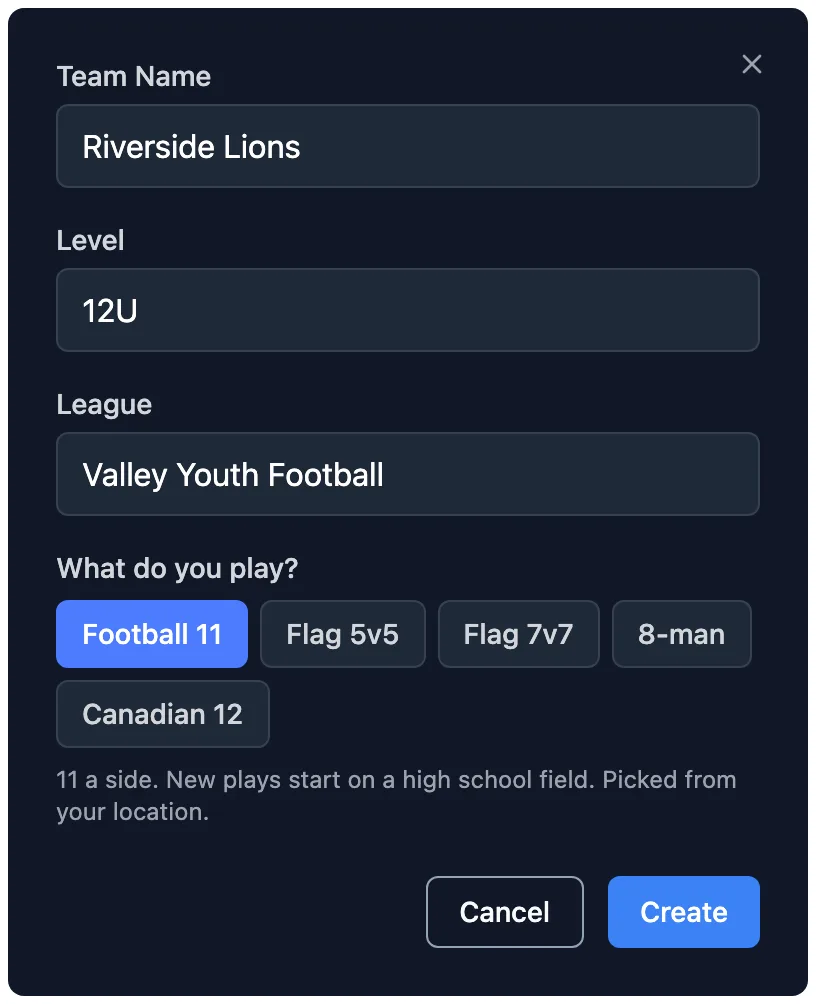
On more than one team? Open your account menu and pick the team under Current Team before you create the game.
Create the game or practice
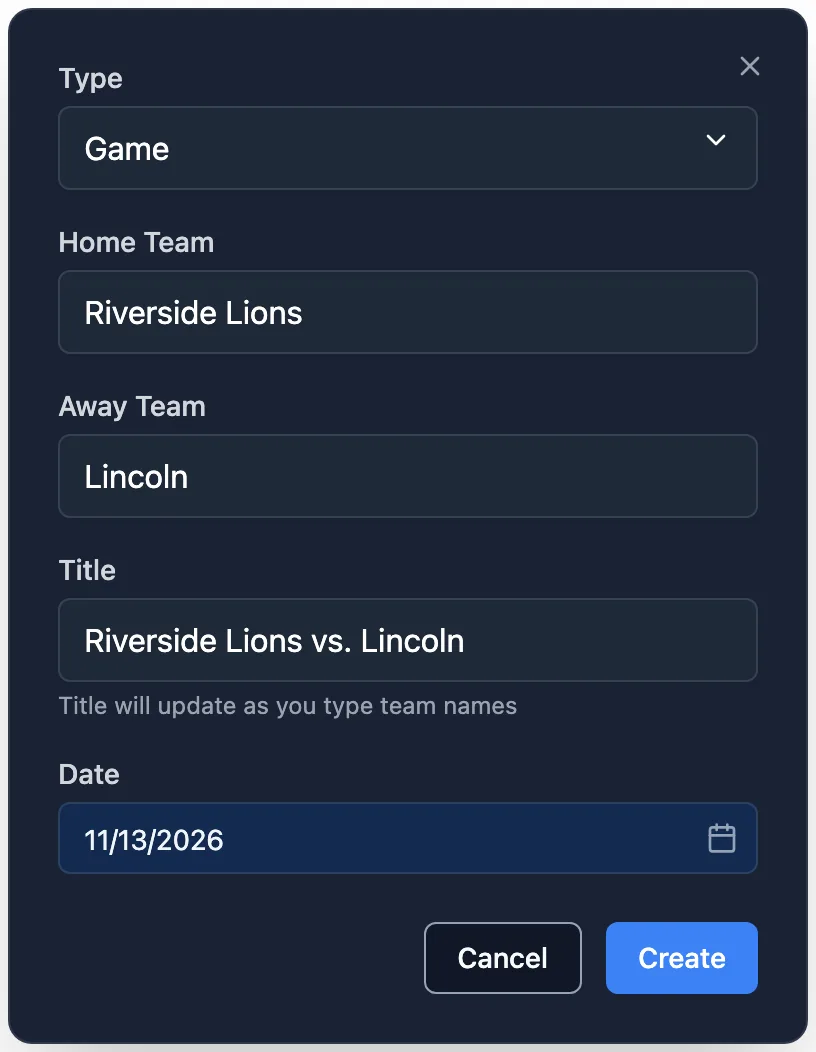
- On your dashboard, select Upload your first game. After your first event, select Upload New Event under your games instead.
- Under Type, choose Game or Practice.
- For a game, enter Home Team and Away Team. The Title fills in from them, and you can change it.
- Enter the Date, or select the calendar to pick it.
- Select Create. Playside opens Upload Clips for the new game.
Choose your film
On Upload Clips, drag your videos onto the box or select it to choose files. Upload is for one game at a time.
- Clips already cut into plays: select them all at once, even a game cut into 200 clips. Playside puts them in order by file name.
- One full-game file: choose that one file. It arrives as one long clip, which you can cut into plays later on the game page.
Playside takes .mov, .mp4, .m4v, .avi and .webm videos.
To add film to a game later, open the ⋮ menu on its card on your dashboard and select Add clip.
Choosing files is slow on a Mac
If your Mac uses iCloud with Optimize Mac Storage, or your film is in another cloud drive, each video has to download before your browser can hand it to Playside. With large files that can take a few minutes, and the file window may look stuck. Wait it out, or copy the film to your computer first.
While it uploads
Each file shows Uploading, then Upload complete. Under the list, a counter such as 3 of 8 videos uploaded shows how far along you are.
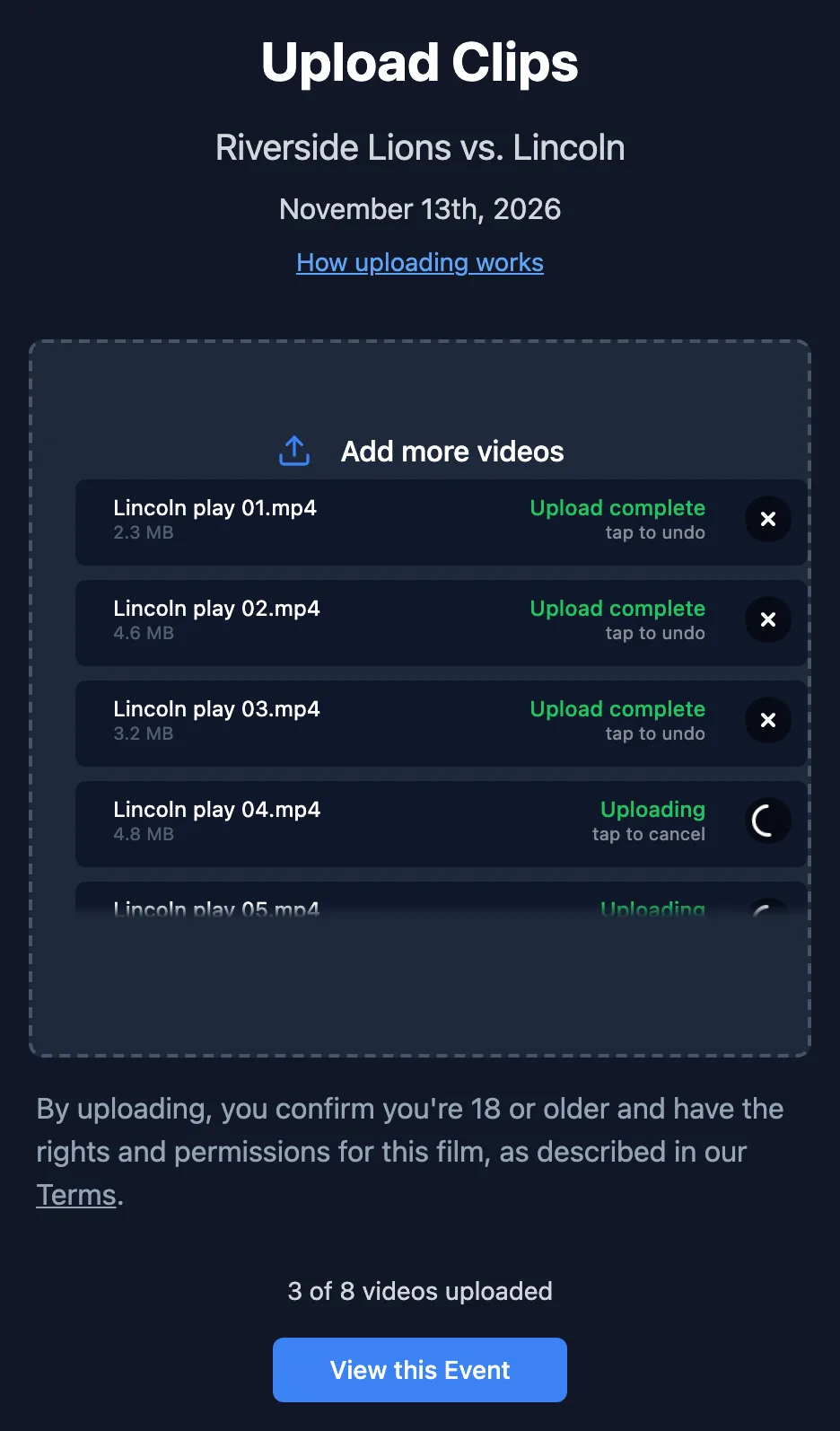
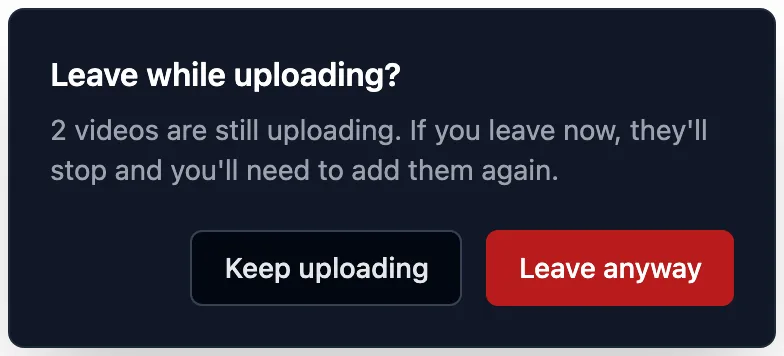
Keep the page open until the counter reaches the total. If you try to leave sooner, Playside asks Leave while uploading? Select Keep uploading. Leave anyway stops the videos still uploading, and you'd need to add them again.
To watch while the rest uploads, select View this Event. The game opens in a new tab and the upload carries on in this one.
After the upload
Once every video is uploaded, you can close the page or leave. Playside finishes preparing your film on its own.
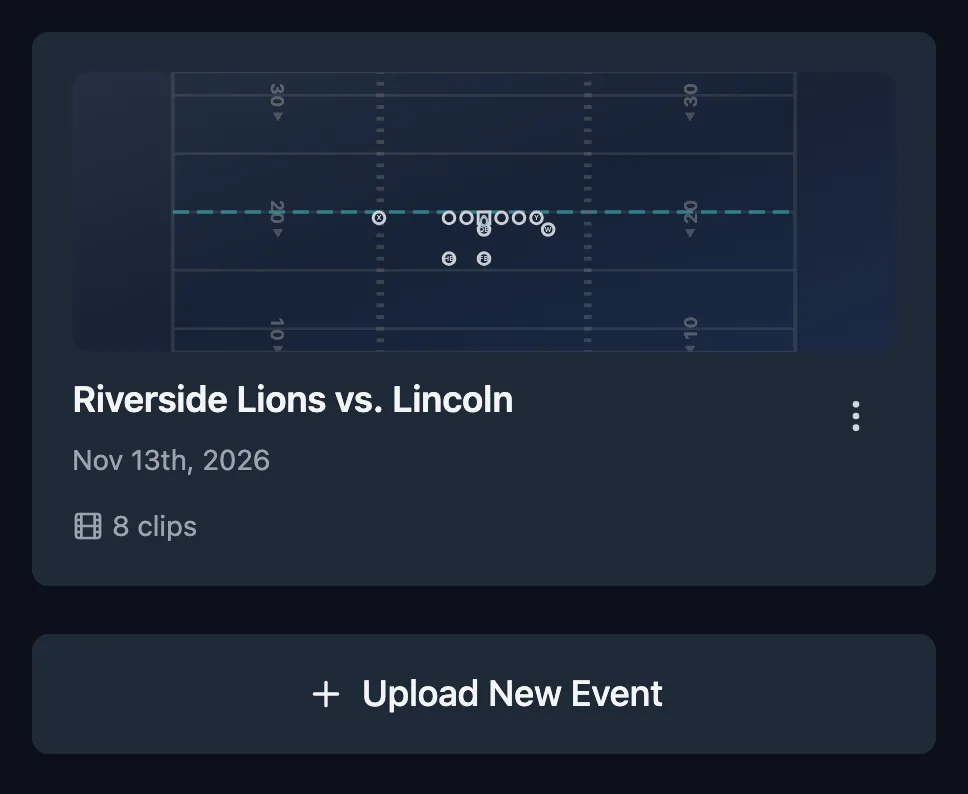
Clips are ready to watch within a few minutes of finishing the upload; a very large file can take up to half an hour. Your game appears on your dashboard with its clip count.
A large film plays right away, but for a while the film shows Still optimizing this film. Skipping far ahead can be slow until it finishes, and 1.5× and 2× speed are off. The note goes away by itself.

Next, learn to watch your film: zoom, slow motion and shortcuts in the film player.
Plan limits
Without a paid plan, your team gets 1 event, and a practice counts as one. After that, Upload New Event opens Your team has reached its game limit. with View all plans to compare plans.
If the upload doesn't work
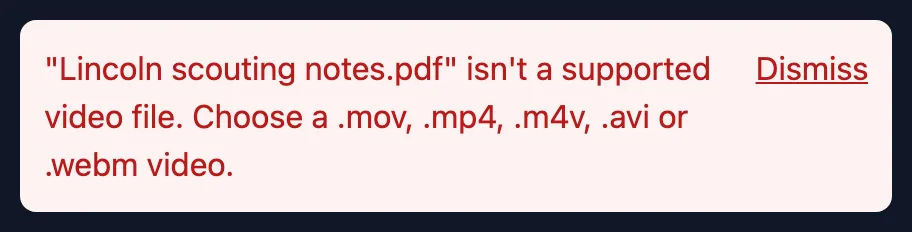
"isn't a supported video file"
The file isn't a video Playside takes. Choose a .mov, .mp4, .m4v, .avi or .webm video instead. Select Dismiss to clear the message.
"couldn't be read from this device"
Your browser couldn't open the file. Select it again. If it's in iCloud or a cloud drive, copy it to your computer first.
"is already in the upload list, so it wasn't added again"
You picked the same file twice. Playside uploads it once, so there's nothing to do.
"This game already has a video named"
A video with that name is already in this game. Playside keeps both. If it's the same film, delete the extra play from the game later.
Upload failed
The file stopped uploading, often because the connection dropped. Select the retry button on that file's row. If that fails, reload the page and add the file again; on the same computer and browser, a large file can pick up where it stopped.
Getting this clip ready
The clip was just uploaded and is still being processed. Playback starts by itself. If the film shows This clip is taking a little longer to finish processing., select Try again or reload the page in a moment.
Unable to create game
You've reached your plan limits. Please upgrade to continue. Your team has used its free event. See Plan limits.
Access Denied
Only game creators, team admins, and coaches can upload videos. Ask a team admin to make you a coach.
Game film courtesy of Texas Syndicate (CoFL Preseason).