Build a playlist
Last updated November 17, 2026
A playlist is a set of plays you pick from your team's games, such as every big play from the last two weeks. You build it from a game's play table, and your whole team can watch it.
Admins and coaches build and change playlists.
Start a playlist from a game
Open a game.
Select ⋮ at the top right of the play table, then choose Select clips.
Check the plays you want. A bar at the bottom of the page counts them.
Select Add to Playlist.

Select Create Playlist, enter a name, and add a description if you want one.
Select Create Playlist.
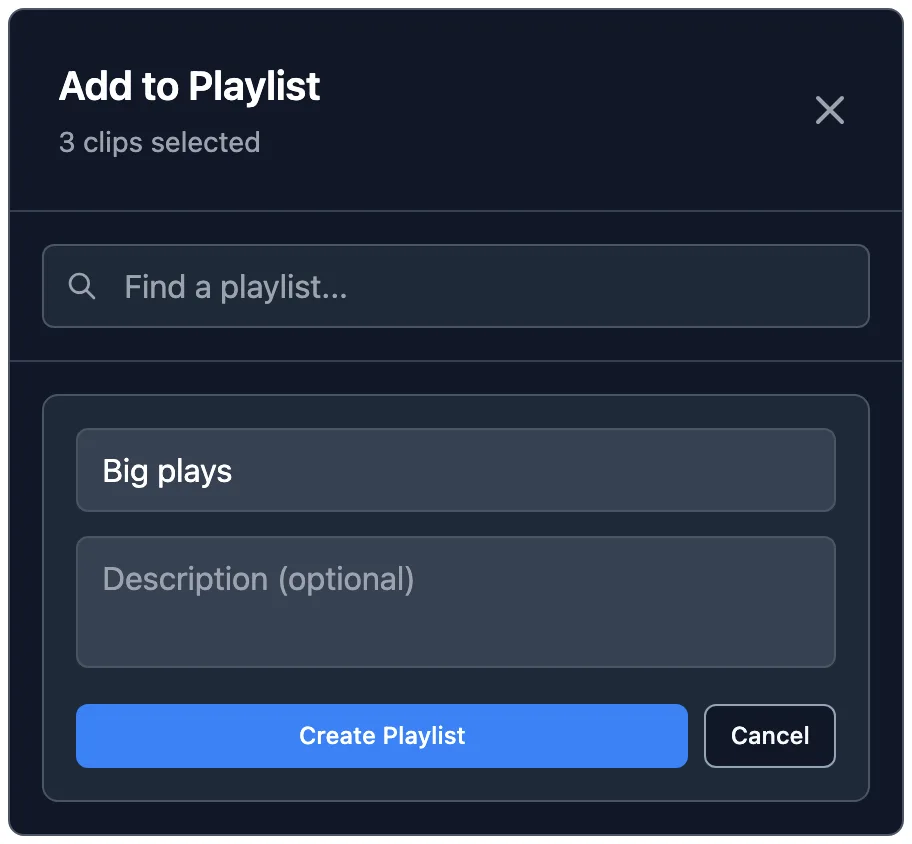
The bar confirms with Added 3 clips to playlist. To pick plays by their tags, such as every 3rd and long pass, filter the table first: see Find plays fast.
Add plays from another game
Playlists aren't tied to one game, so you can add plays from as many of your team's games as you like.
- Open the other game and check its plays, as above.
- Select Add to Playlist, then select your playlist. Each one shows how many clips it has, and Find a playlist... searches a long list.
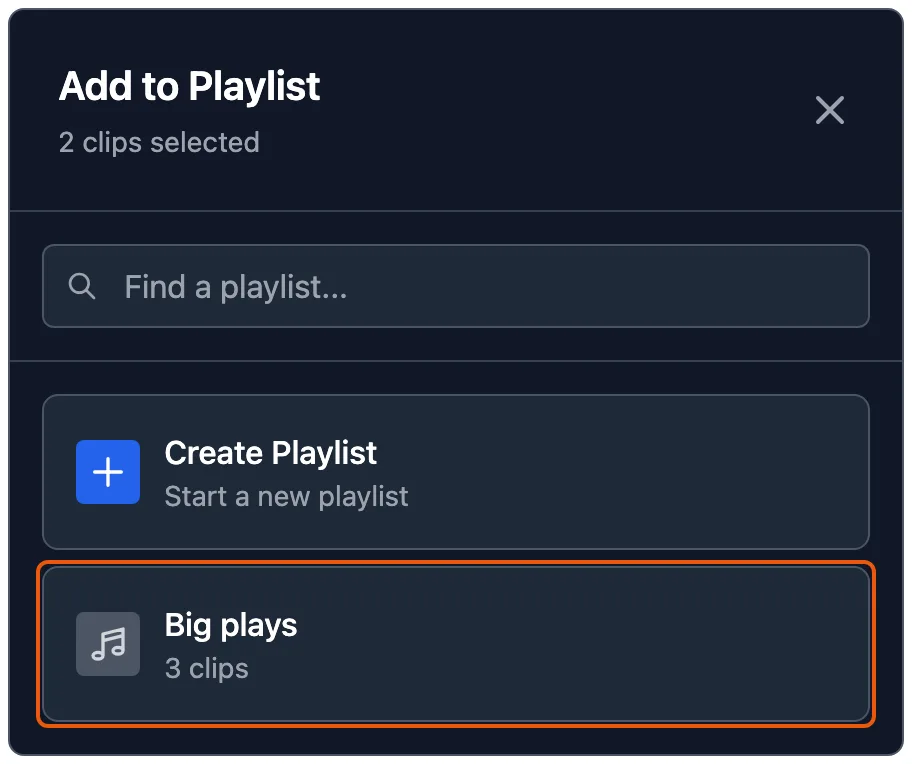
New plays go at the end. A play that's already in the playlist isn't added twice. Select the playlist's name in the bar to open it.

Watch a playlist
- On your dashboard, select the Playlists tab.
- Select the playlist.
It opens like a game: the film on top and the playlist's plays in the table below, numbered in playlist order. Next clip and autoplay go through them in that order. The film player guide covers zoom, speed and drawing.
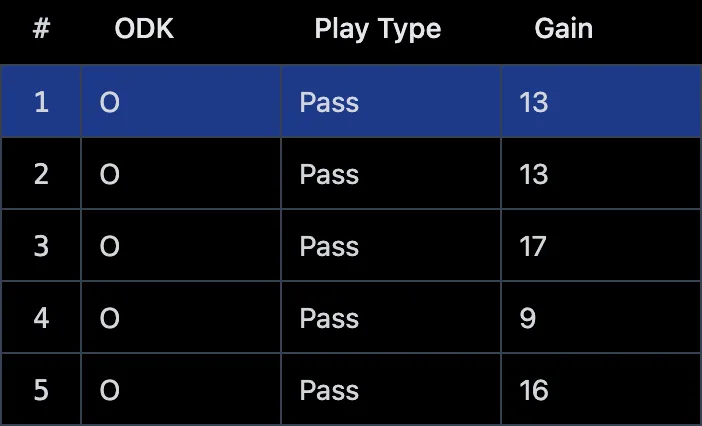
Tags are shared with the game: change a tag here and it changes in the game too.
Reorder plays
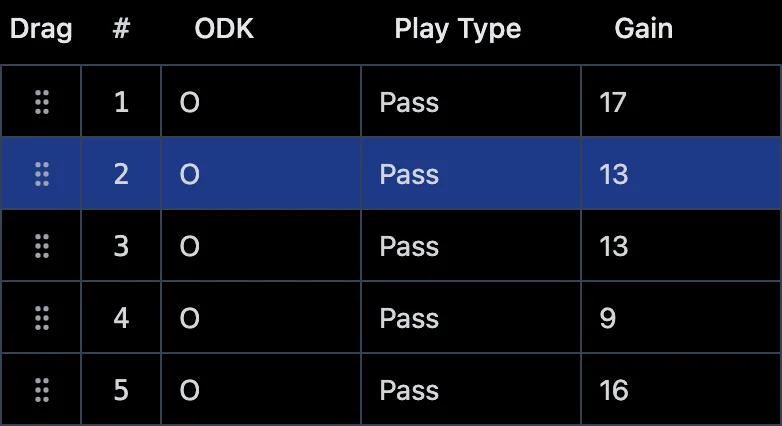
- In the playlist, select ⋮ above the play table, then choose Reorder clips. A Drag column appears.
- Drag a play by its handle to a new spot.
- Select ⋮, then Done reordering.
The new order saves as you go.
Remove plays
- In the playlist, select ⋮, then Select clips.
- Check the plays to take out.
- Select Remove from playlist.

The plays leave the playlist only. They stay in their games with their tags.
Rename a playlist
- In the playlist, select the clipboard icon above the side panel (Playlist Info).
- Under Playlist Information, select the name.
- Enter the new name, then select the check mark.
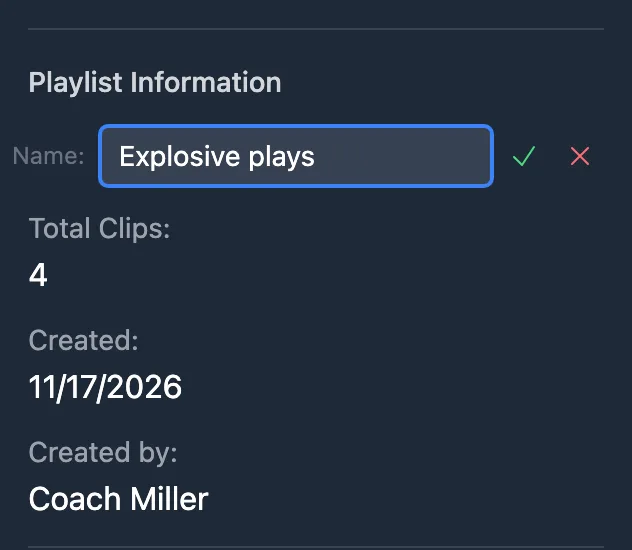
On a narrow screen the name shows (desktop only). Rename it from a wider window.
Delete a playlist
- On your dashboard, select the Playlists tab.
- Select ⋮ on the playlist, then Delete playlist.
- Select Delete.
A deleted playlist can't be brought back, but its plays stay in their games. Admins, coaches and the playlist's creator can delete it.
Who can see a playlist
A playlist made from your team's game belongs to the team. Everyone on the team sees it under Playlists: admins, coaches, players and parents. Players and parents can watch it but can't add, remove, reorder or rename plays. Someone who leaves the team loses access.
A play deleted from its game drops out of every playlist, and comes back if a coach restores it from Recently deleted.
To share a playlist with people outside your team, make a public link: see Share a game or playlist.