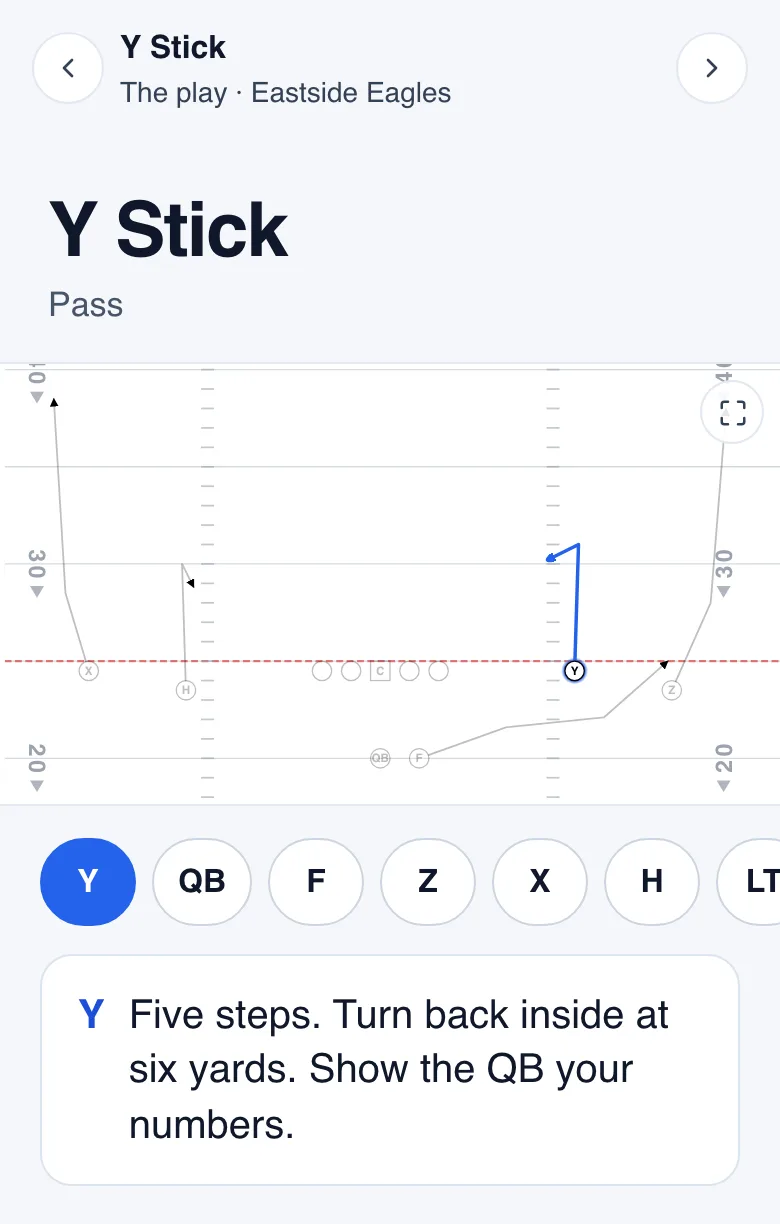
Share plays with your coaches and players
Last updated November 16, 2026
Invite your staff, players and parents to your team, then send any play as a link. Coaches edit; players and parents view.
Sharing works for plays and playbooks that belong to a team. To move a play onto a team, open it and choose the team in the picker at the top of the editor, where a personal play shows Personal (only you). No team yet? Choose + Create a team in the same picker.
Invite coaches, players and parents
Admins and coaches can invite people.
- Select your email at the top right, then Account settings.
- Choose your team next to Managing. Members opens with everyone on the team.
- Under Invite as, select Coach, Player or Parent.
- Enter email addresses in the box. Separate them with a space or comma, or paste a list, up to 10 at a time.
- Select Send invite (or Send 2 invites and so on).
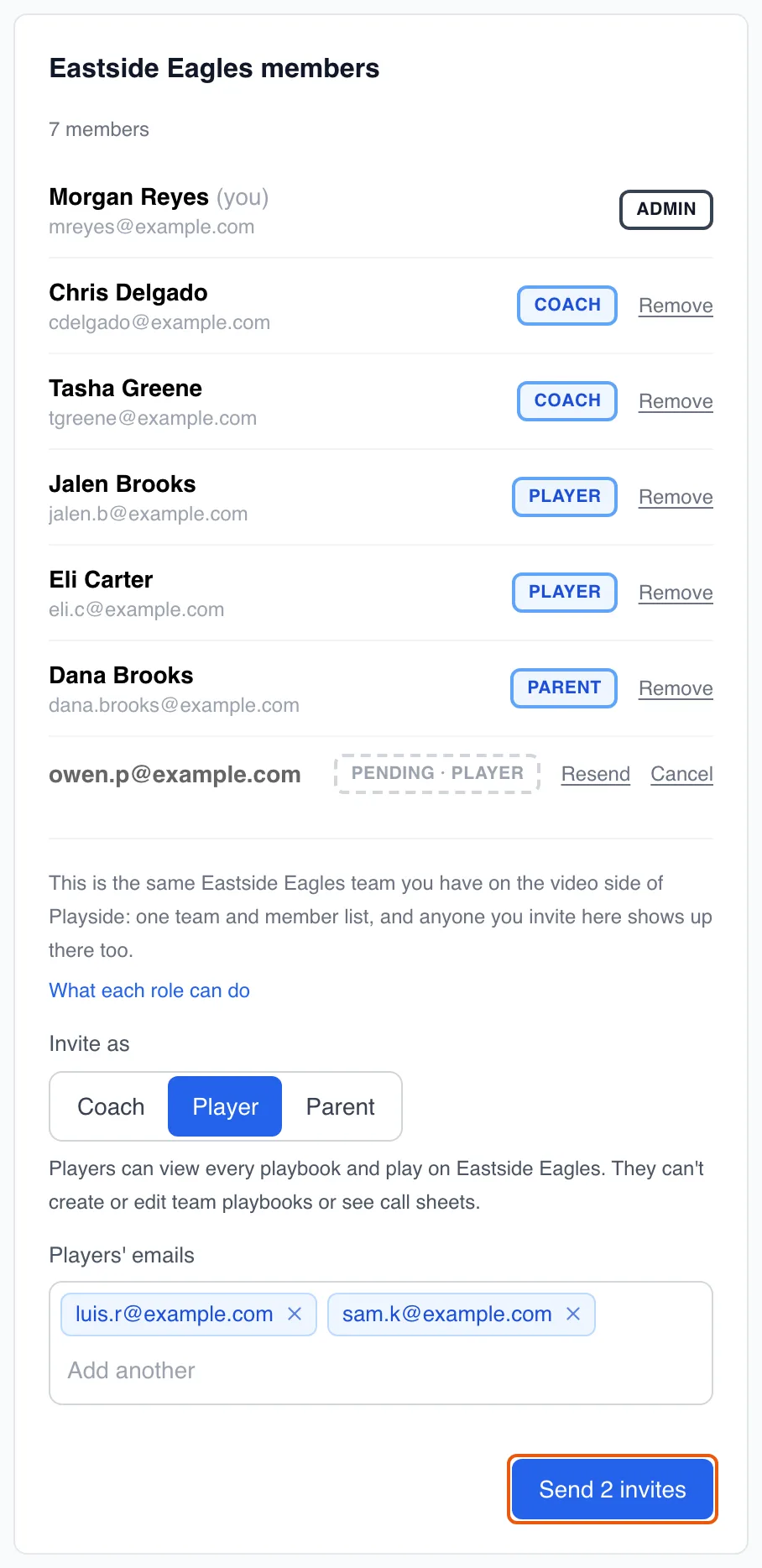
New invites appear in the member list as Pending with their role. Select Resend if someone can't find the email.
What each role can do:
- Coach: Open and edit every playbook and play on the team, including call sheets and wristbands.
- Player: View every team playbook and play. Players can't create or edit team playbooks or see call sheets and wristbands.
- Parent: The same as a player.
To let players make team playbooks of their own, tick Players can create team playbooks in the team card above the member list. They still can't edit yours.
This is the same team and members as the film side of Playside, so anyone you invite here is on your team there too. Admins are added in Playside's team settings.
If you're the only coach on a team, the Playbooks page shows Invite your coaches next to the team name. It opens the same box for coaches.
What invited people do
Each person gets an email from Playside.
- They open the invite link and choose Set Password & Complete Setup or Sign in with Google/Microsoft, using the address you invited.
- Diagrams opens on your team's playbooks.
Diagrams sign-in offers Continue with Google, Continue with Microsoft and Continue with Meta. Tell players to sign in with the account that uses the invited address.
Share one play by link
- Open the play and select Save. The link always shows your last save.
- Select Share at the top right.
- On a tablet: Select the share icon at the top right.
- Select Copy link, then paste it into a text, email or team chat.
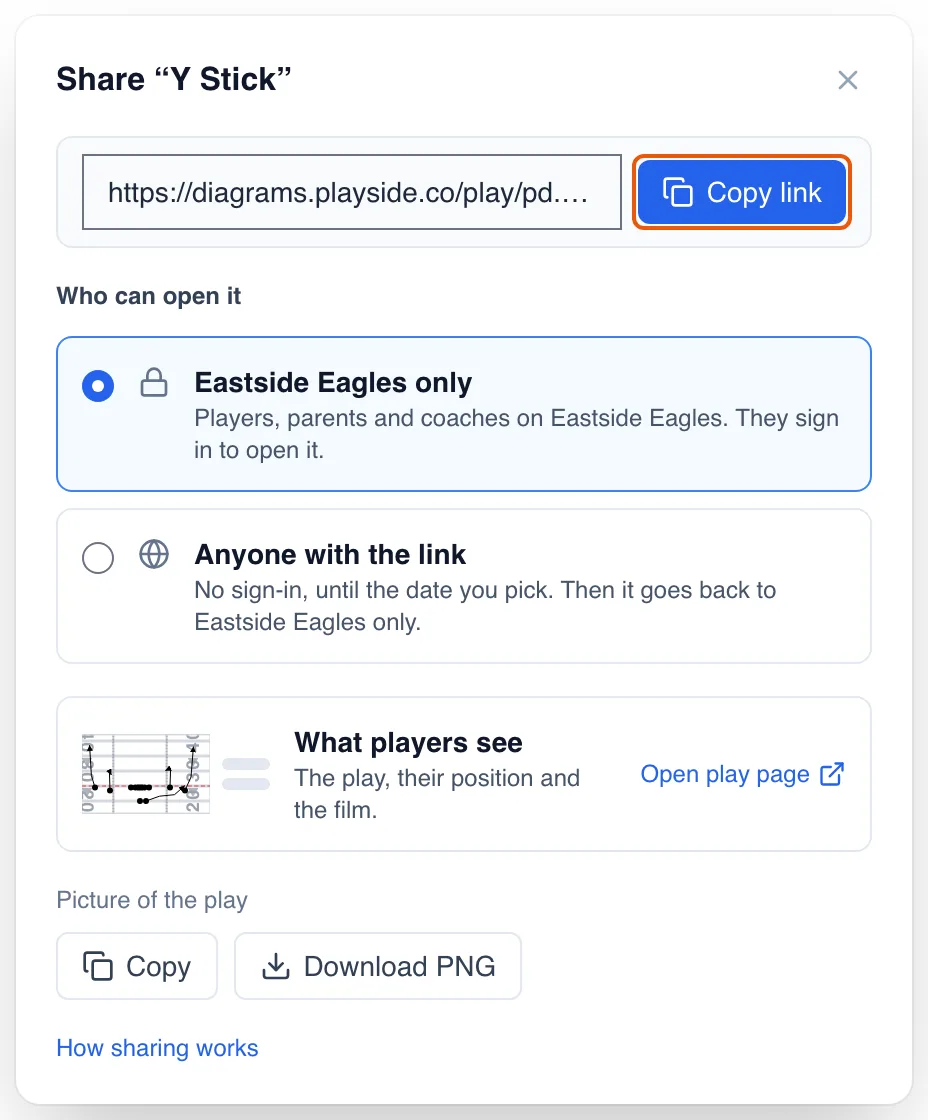
Under Who can open it, the link starts as your team only (Eastside Eagles only here): your players, parents and coaches open it after they sign in. Anyone else who signs in sees This play isn't shared with you. Select Open play page to check the page yourself.
Let anyone open the link
For a parent who isn't on your team or a coach from another team, you can open the link to anyone, with no sign-in.
- In Share, select Anyone with the link.
- Choose an end date under Public until: about a month, three months, a year, or No end date.
- Select Make public.
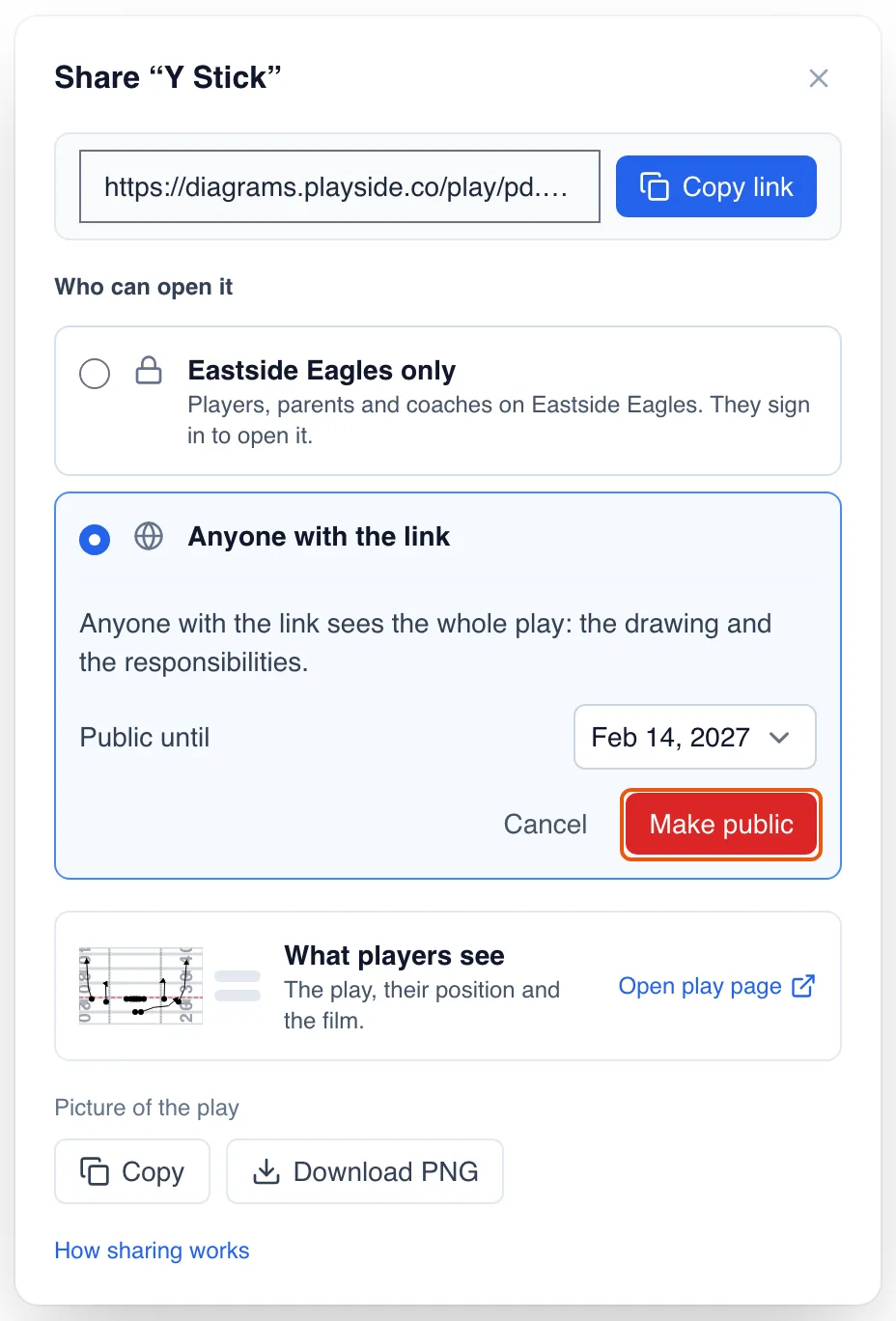
Anyone with the link sees the drawing and the responsibilities, plus the film reps on the play when you make it public. When the play has film, the dialog shows how many reps before you confirm. On the end date it goes back to team only. To change the date later, select Change date.
To stop sharing it publicly, open Share and select <team> only (here, Eastside Eagles only). The link keeps working for your team.
Only team admins can make a play public, unless an admin sets Film Sharing to Admins and coaches under Permissions in Playside's team settings.
See what players see
- Open a team playbook from Playbooks.
- Select the team name under the playbook title. The card shows how many coaches, players and parents can see it.
- Select See what players see.
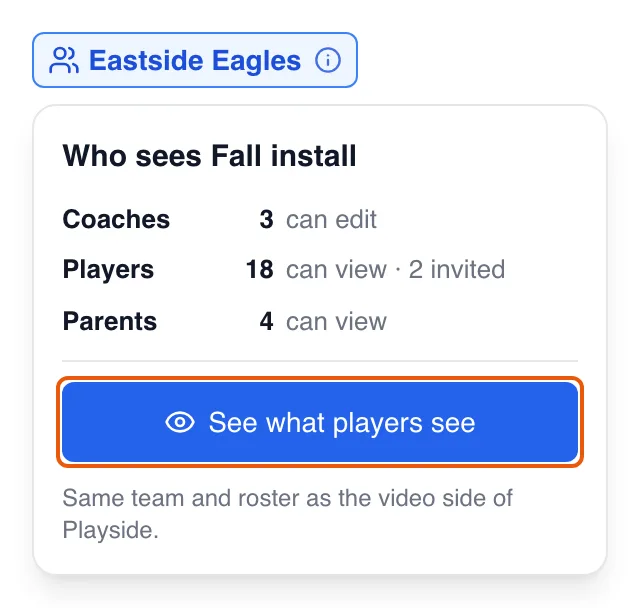
A blue bar shows the playbook as players and parents see it: no editing, and no call sheets. Invite players in the bar opens the invite box with Player selected. Select Back to editing when you're done.
Players open each play on its own page, on a phone or a computer. They select their position to highlight their path and read their job, and use the arrows at the top to move through the playbook. They don't see Edit play or Share, and call sheets and wristbands stay with coaches.