Draw on film
Last updated November 17, 2026
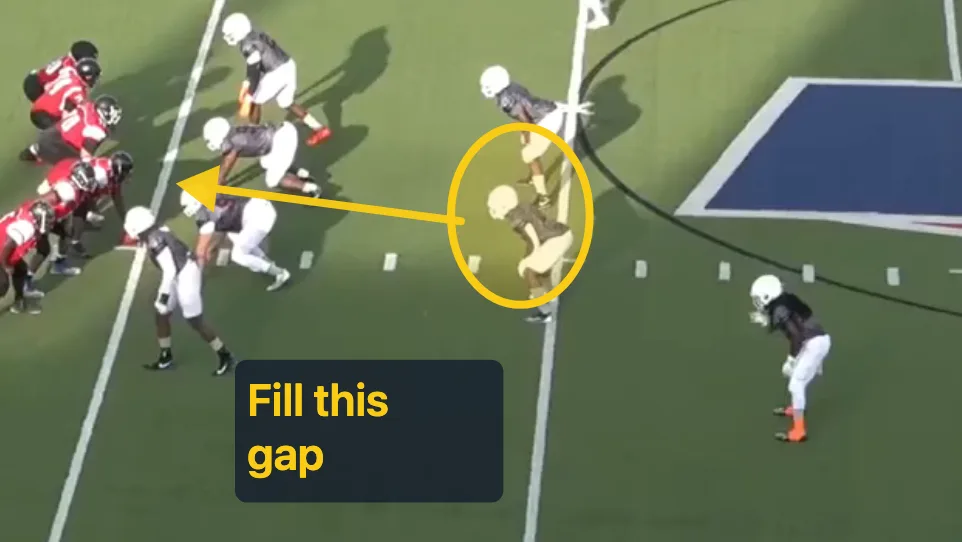
Pause any play in a game, practice or playlist and draw on the frame: an arrow for a linebacker's fill, a circle on a player, a word of text. Drawings save as you make them, and the film stops on them every time it plays.
Game film courtesy of Texas Syndicate (CoFL Preseason).
Pause and pick a tool
- Open a game and select a play.
- Select Pause on the frame you want. The drawing tools appear at the top left of the film. They hide again while the film plays.
- Choose a tool:
- Select (the arrow pointer): select, move and resize drawings.
- Draw: draw freehand.
- Line and Arrow: drag from start to end.
- Circle and Rectangle: drag across the area to mark.
- Text: select a spot, type, then select Save.
- Eraser: select or drag across a drawing to delete it.

After you finish a drawing, the tool goes back to Select, so choose the tool again for the next one.
Choosing a drawing tool sets the zoom back to 1.0×, so you always draw on the whole picture. If you see only a pencil button, the tools are collapsed: select it to open them.
Change the color and size
Select the sliders button at the left end of the tools to open the settings:
- Color: the color of the drawing's lines and text. Colors you've used appear under it.
- Stroke: how thick lines are.
- Opacity: how see-through the drawing is.
- Fill: the inside color of a circle or rectangle.
- Font size: for text.
Circles and rectangles are filled in solid at first, which hides the player. To ring a player instead, lower Opacity before you draw.
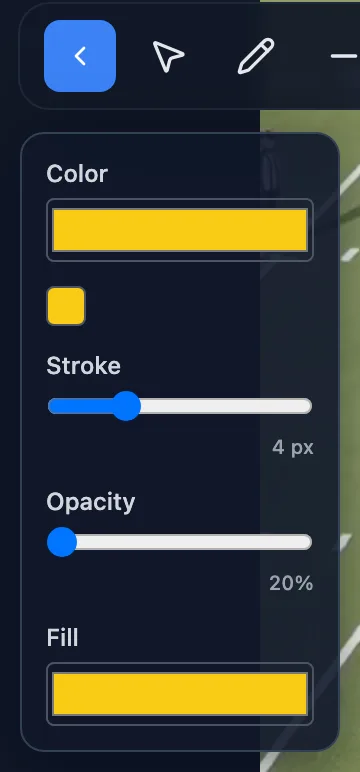
To change a drawing you've already made, select it with Select, open the settings and change them.
Move, edit or delete a drawing
- Choose Select, then select the drawing.
- Drag it to move it, or drag a handle on its edge to resize it. Double-click text to change what it says.
- To delete it, select Delete selected (the trash can).
Each frame with drawings has a yellow dot on the timeline. Select the dot to jump to that frame and select everything drawn there; Delete selected then deletes all of it.
Undo and redo
Select Undo or Redo, the curved arrows beside the trash can.
Undo and redo only change what you see until you leave the play. A drawing you undo comes back the next time the play opens, and a deleted drawing you bring back with Undo is still deleted. To remove a drawing for good, delete it.
Who sees your drawings
Drawings save to the play as you make them. Everyone on your team who opens the game sees them, and anyone on the team can move, change or delete them.
When the film plays, it stops on each frame with drawings so everyone sees them. Select Play to go on. On a phone, drawings show and the film stops on them, but you can't draw.
A playlist has its own drawings: what you draw in a playlist stays in that playlist. To show the game's drawings in a playlist too, anyone who can make public links for your team can open Playlist Info (the clipboard icon above the side panel) and turn on Include Game Annotations. Changes to those drawings in the playlist change them on the game too.
A public link can show your drawings as well. See Share a game or playlist.
Shortcuts on a keyboard
These work while the film is paused. They're also in Playside's shortcut list (press ?) and in the film player guide.
Vselect,Ddraw,Lline,Rarrow,Ccircle,Srectangle,Ttext,EeraserCmd+ZorCtrl+Z: undo;Cmd+Shift+ZorCtrl+Shift+Z: redoDeleteorBackspace: delete the selected drawingEsc: deselect it- While typing text:
Entersaves,Shift+Enterstarts a new line,Esccancels