Print a call sheet
Last updated November 17, 2026
Build the sheet you hold on the sideline: this week's plays, grouped by situation, each with the code you call in.
Before you start
- Coaches only. Call sheets are for team admins and coaches, and for coaches with no team. A player or parent sees a note such as "Call sheets are for coaches on Eagles." instead.
- Football only. The Call sheets link appears in the Diagrams top bar for football coaches, flag included, but not for other sports.
- Your plays must be saved in Diagrams. A call sheet starts from a playbook or from plays you pick.
Pick the plays
- Open Call sheets at the top of Diagrams (the clipboard icon on narrower screens) and select Create call sheet.
- Under Start with, select A playbook to bring in every play in playbook order. To pick plays one at a time, select Selected plays instead.
- Select your playbook, or check each play you want, then select Continue to builder.
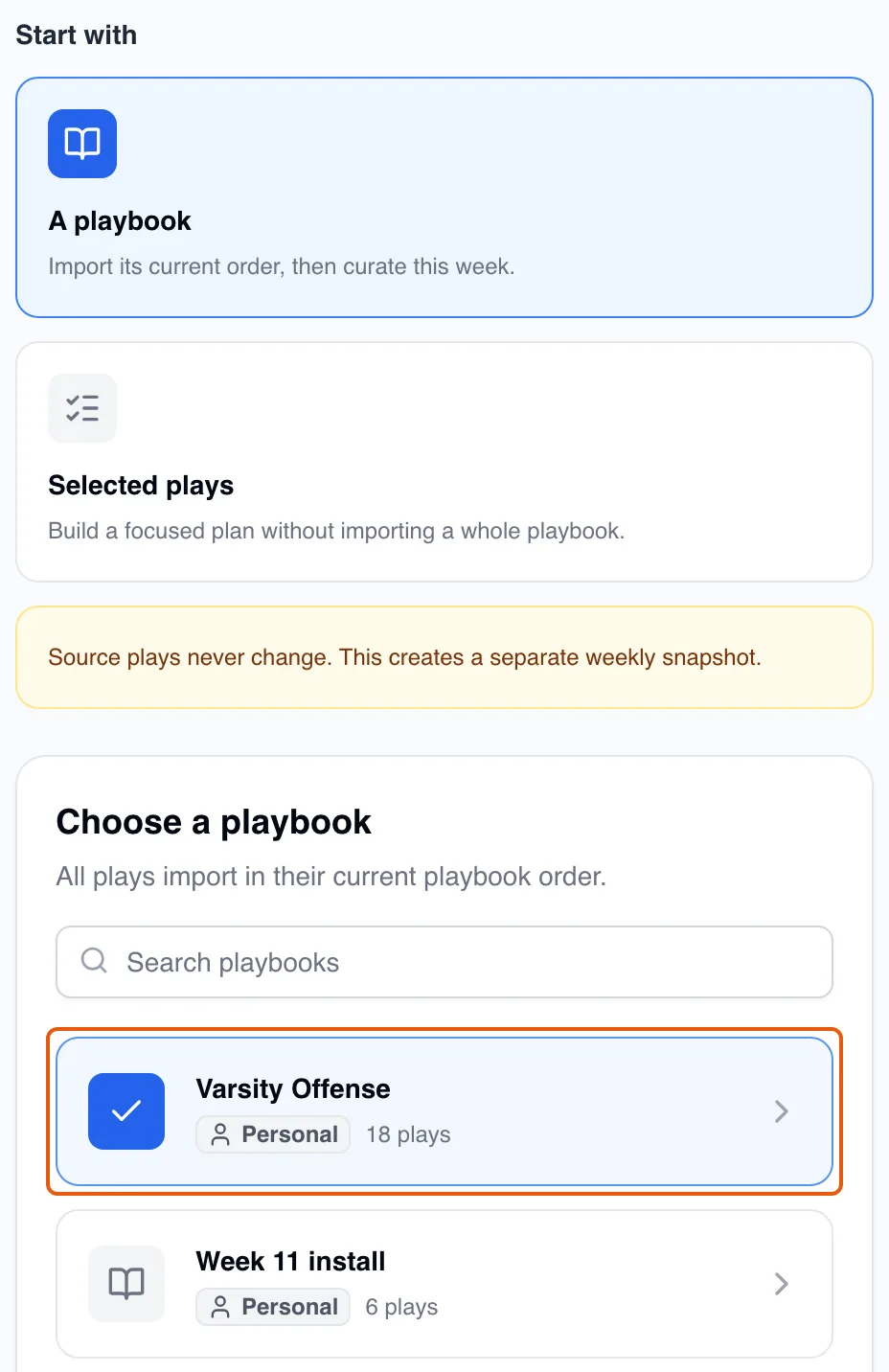
Nothing you change on the call sheet changes the playbook or its plays.
Name it
Enter the Opponent. It fills Call sheet name for you, such as vs Northview. Add a Game date if you like.
Every play is now a call under Calls available this week, with a Code (1, 2, 3 in playbook order) and its name. Change a code or a name in its box to match what you call on the field. Remove a call you won't use with the trash icon at the end of its row.
Group plays by situation
Under Organize the game plan, the sheet starts with five sections: Openers, Base Downs, Third Down, Red Zone and Goal Line.
- Select a section's name to rename it, such as
3rd and Short. - In each section, open + Add a call and choose a call. Repeat for every call that belongs there. A call can go in several sections and keeps its code in each.
- Select Add section for another situation, or the trash icon on a section you don't need.
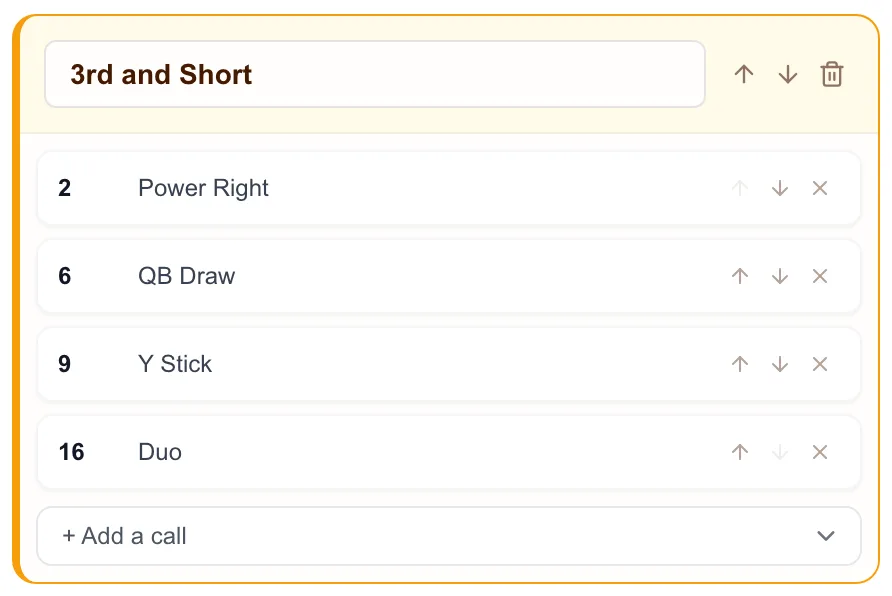
A call in no section is left off the printed sheet. The Unassigned count under Sheet layout shows how many.
Choose the layout
Under Print arrangement, select Portrait · 2 columns for more room for long call names, or Landscape · 3 columns to see more situations at once.
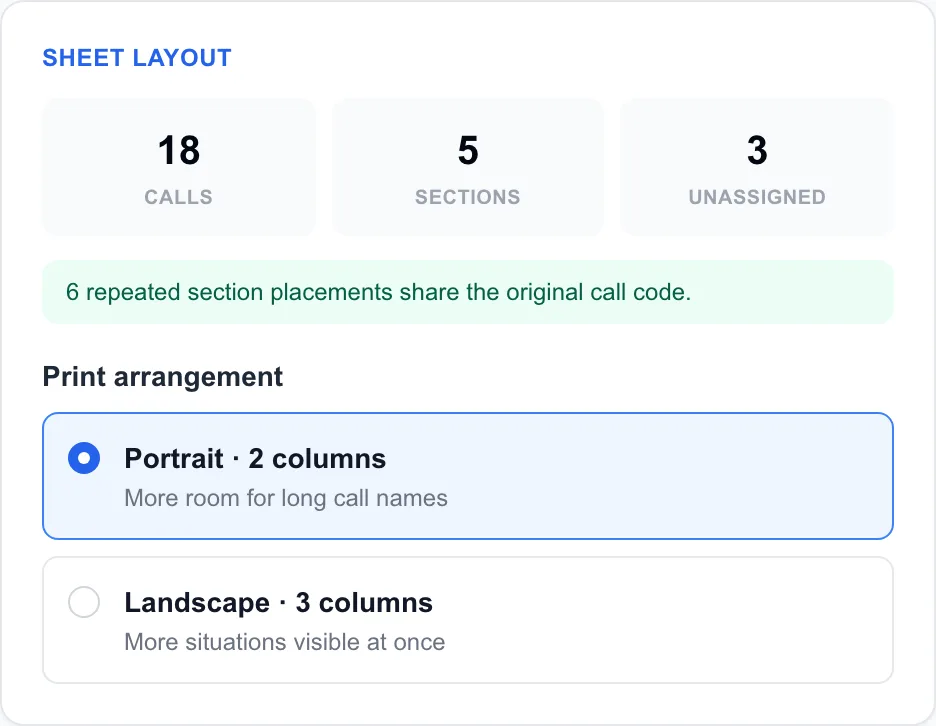
To also print every call grouped by formation or play, select Add page under Print, then Organized grid.
Print it
- Select Print call sheet at the top. This saves the call sheet and opens Call-sheet print preview, a US Letter page with your sections.
- Select Download PDF to save a PDF named after the call sheet, or Print call sheet to open your browser's print window.
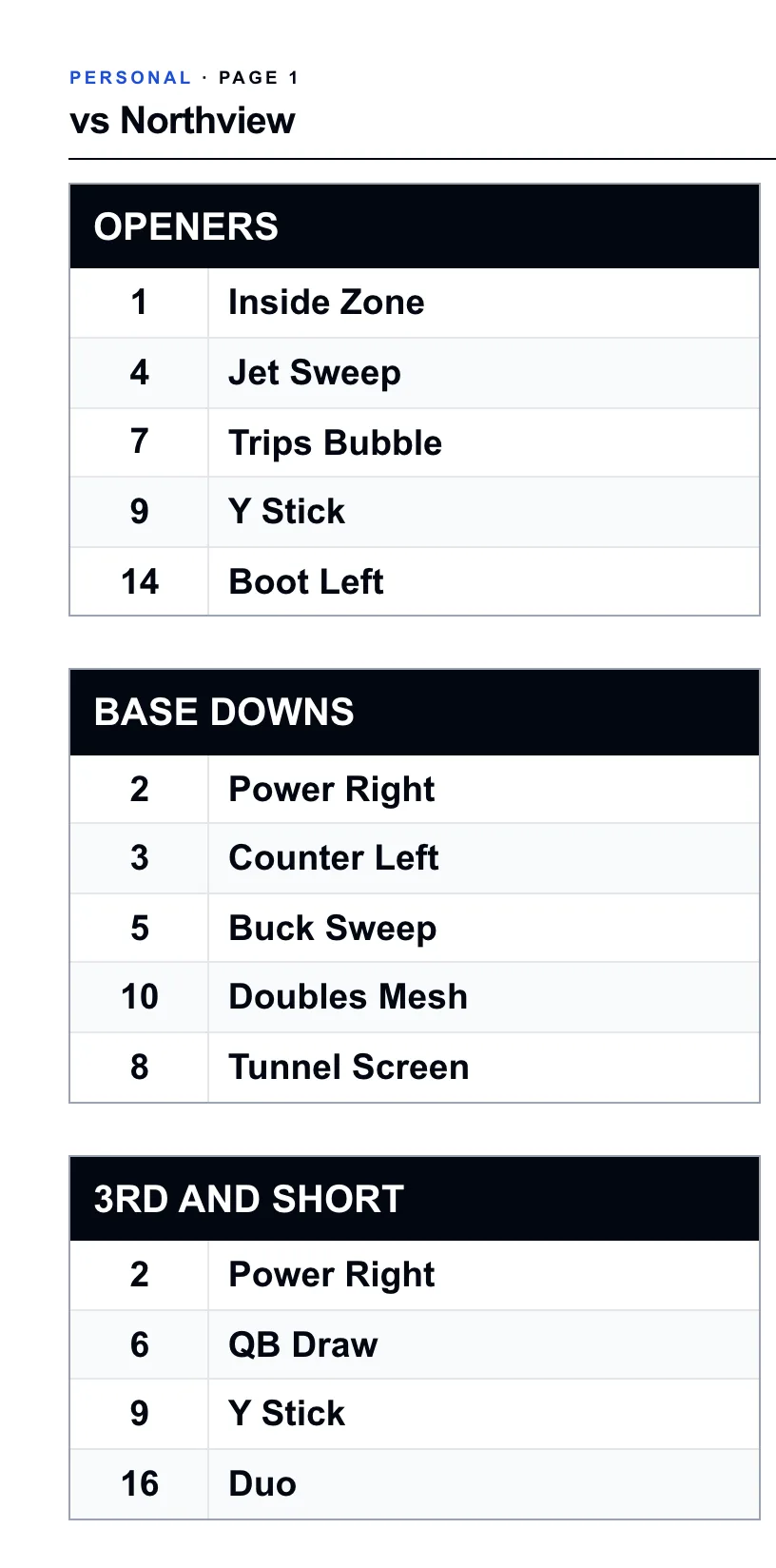
The page shows the opponent and game date in its top corner, and fills a second column with your other sections. When calls come in left and right pairs, a choice above the page can print them side by side as Play rows.
Find and reprint
Every saved call sheet is listed under Call sheets. Select Open call sheet to change one, or the printer icon to print it again. Select the copy icon to start next week's sheet from this one.
To put the same codes on your players' wrists, see Print wristbands. To print the plays themselves, see Build and print a playbook.
Troubleshooting
"Complete the call-sheet name, every call code and name, and every section name before saving or printing."
A name or code box is empty. Fill in the Call sheet name, then look for a call or section with a blank box.
"No selected page has calls to print."
None of your sections has a call yet. Go back and add calls with + Add a call.