Cut practice or game film into plays
Last updated November 17, 2026
A practice uploaded as one video shows up as one long clip. Split it into one clip per play or rep on the game page, and merge clips back together if you cut in the wrong place. Nothing is uploaded again, so each cut is instant.
Admins and coaches can split and merge. Players and parents watch the clips but can't cut them.
Game film courtesy of Texas Syndicate (CoFL Preseason).
Get the practice into Playside
Upload the whole practice as a single video file. It becomes one clip, row 1 in the play table. Upload game film covers adding the practice and uploading.
Split a clip at the playhead
- Select the clip in the play table.
- Select Pause, then select the spot on the timeline where the next play starts. To land on the exact frame, see Pause and creep through a snap.
- Point at the playhead. The time and a pair of scissors appear above it.
- Select Split at playhead (the scissors).

The clip becomes two clips in the play table, and Playside moves to the second one. Find where the next play starts and split again, until every play is its own clip.
The scissors are greyed out within half a second of either end of a clip.
Undo a split
Right after a split, the bar at the bottom of the screen reads Clip split at and the time. Select Undo there to put the clip back together. The bar then reads Split undone.
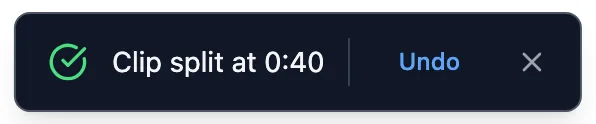
Once that message closes, merge the two clips instead.
Merge clips back together
Select ⋮ at the top right of the play table, then Select clips.
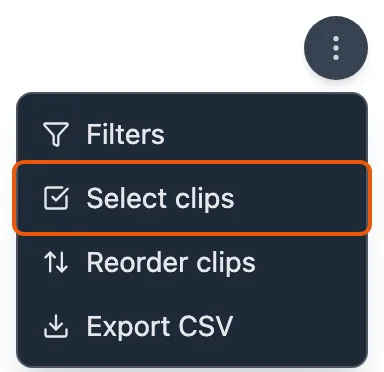
Check the box beside each clip to merge.
Select Merge in the bar at the bottom of the screen.

The bar reads 2 clips merged into 1 (or however many you merged), with Undo beside it.
Merge only shows for clips that sit next to each other and were cut from the same video. If the bar still shows the last split message, close it with the X first.
Cut out downtime
Split at the start and end of a water break or a long walk back to the huddle. Then select that clip with Select clips, select Delete in the bar and confirm Delete.
Tags after a split or merge
- Split: the first clip keeps every tag. The second starts with none, so the same play is never counted twice.
- Merge: the merged clip keeps the tags of the earliest clip. Tags on the others aren't carried over; Undo brings those clips back with their tags.
On a phone or tablet
Splitting and selecting clips need the full controls. Select User settings (the person at the top right), then under Layout choose Full controls. With the device turned sideways, Use full controls in the top right corner of the film does the same.
With full controls, the time and scissors show above the playhead whenever the film is paused.